
Broadcasts approval
Require Administrator review and approval before an Operator-created broadcast executes at its scheduled time. For teams enforcing a validation step ahead of broadcast delivery.
You use the Broadcasts Approval feature to introduce a validation step before a broadcast is executed.
When you create a broadcast as an Operator, it is not sent immediately. An Administrator must review and approve it first.
You ensure that all broadcasts are validated before reaching recipients.
During broadcast configuration, you define the delivery date, hour, and minutes in the Summary step. This scheduled time is when the broadcast executes. The broadcast executes only after it receives approval.
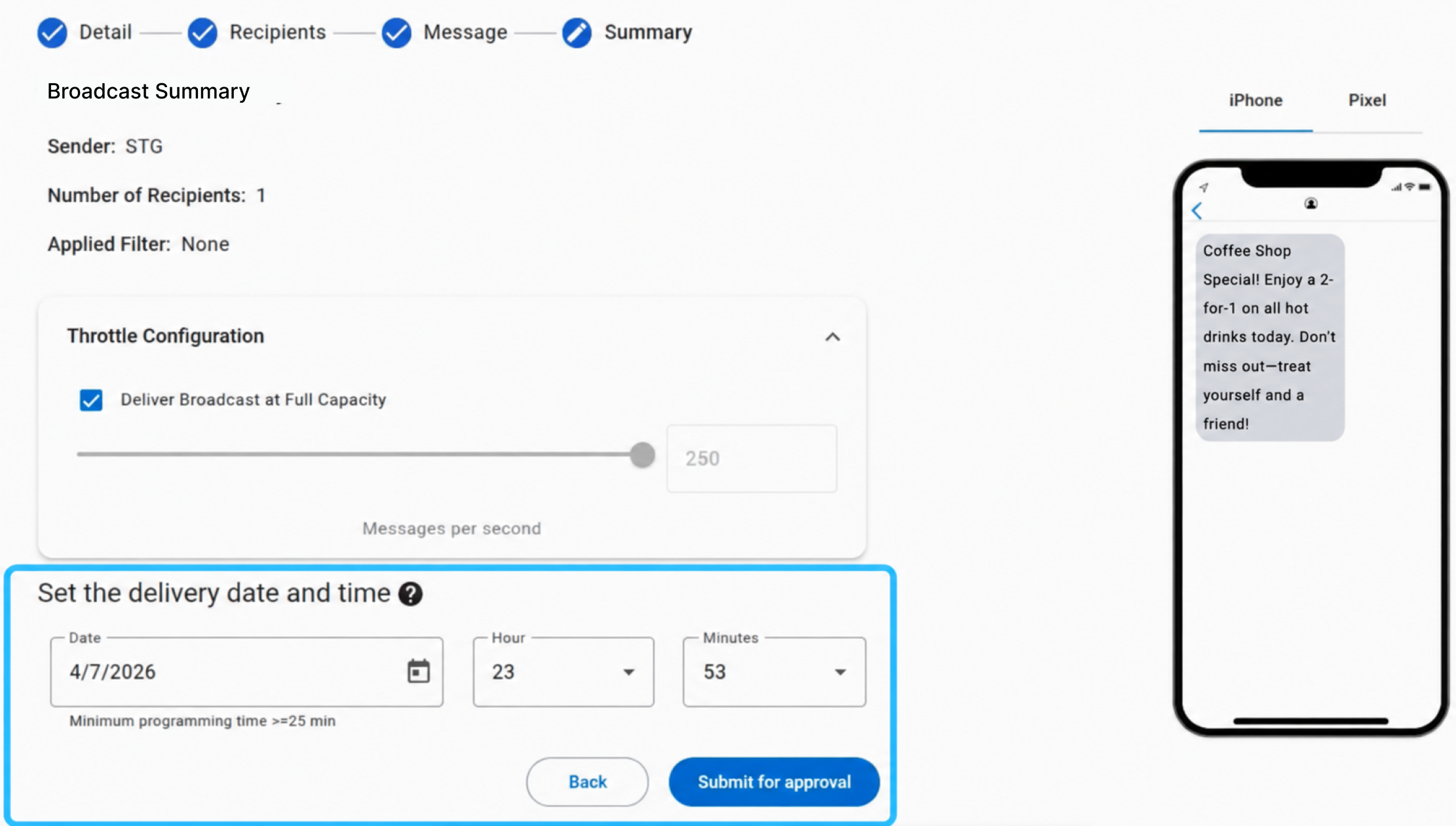
The scheduled time is at least 25 minutes ahead of the current time. This window allows the platform to notify Administrators and gives them time to review the broadcast before activation.
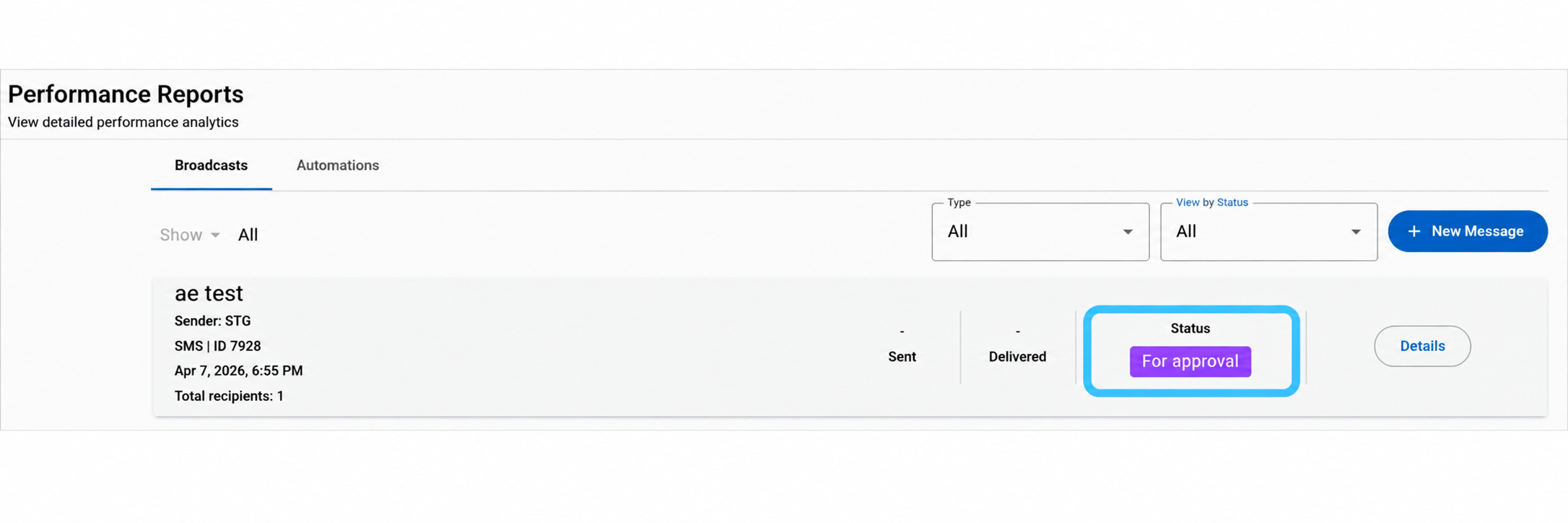
After you submit the broadcast, its status changes to For Approval.
You work through several scenarios during this process. The sections below describe how broadcasts are reviewed, approved, declined, and how Administrators are notified before execution.
Broadcast pending approval
After you submit the broadcast as an Operator, it enters the For Approval status and remains inactive until an Administrator takes action.
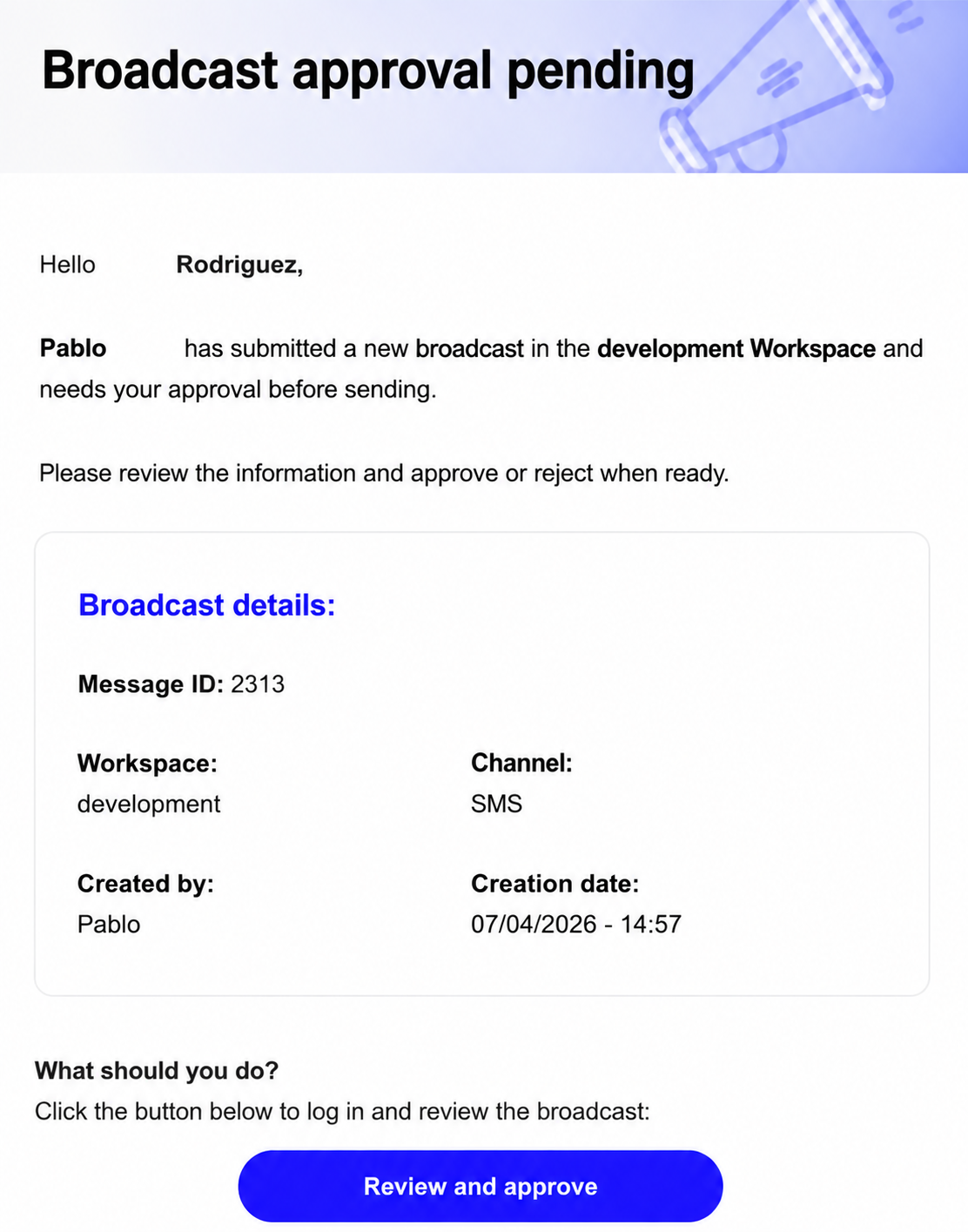
When the broadcast enters For Approval status, the platform sends an initial email notification to all Administrators within the Workspace.
You see this email with the subject "Broadcast approval pending". It informs the Administrator that a new broadcast requires approval before execution.
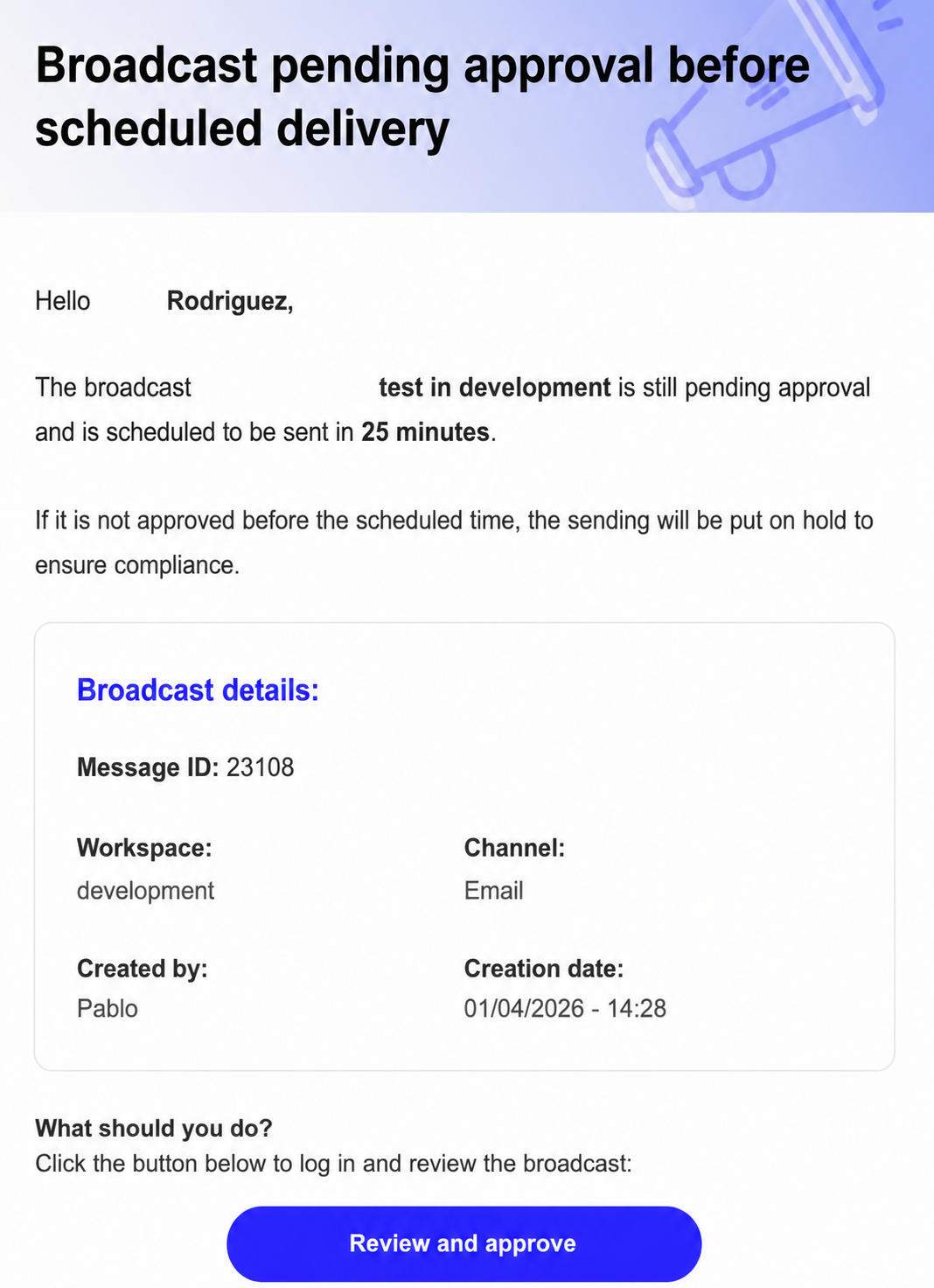
From this point, the platform tracks the scheduled delivery time defined during configuration. When the broadcast is 25 minutes away from execution, the platform sends an email notification to all Administrators within the Workspace.
You see this email with the subject "Broadcast pending approval before scheduled delivery". It informs the Administrator that the broadcast requires immediate review.
The email includes a "Review and approve" button that takes you directly to the broadcast.
When you select this button, you go to the broadcast summary page. You review the configuration and message content there.
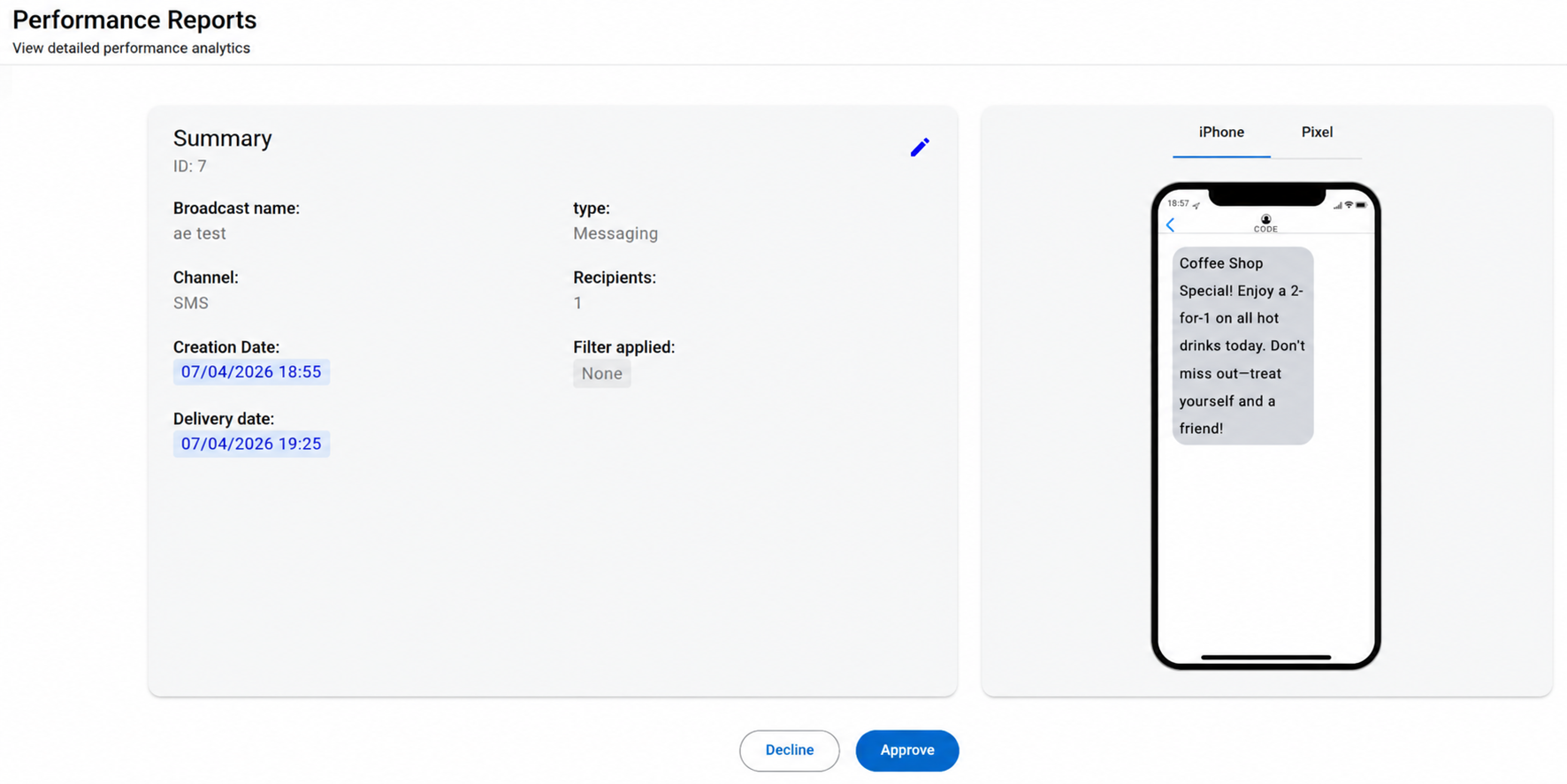
If you are not logged into the correct Workspace, you see a "Broadcast not found" message. In this case, you log in to the appropriate Workspace to access the broadcast.
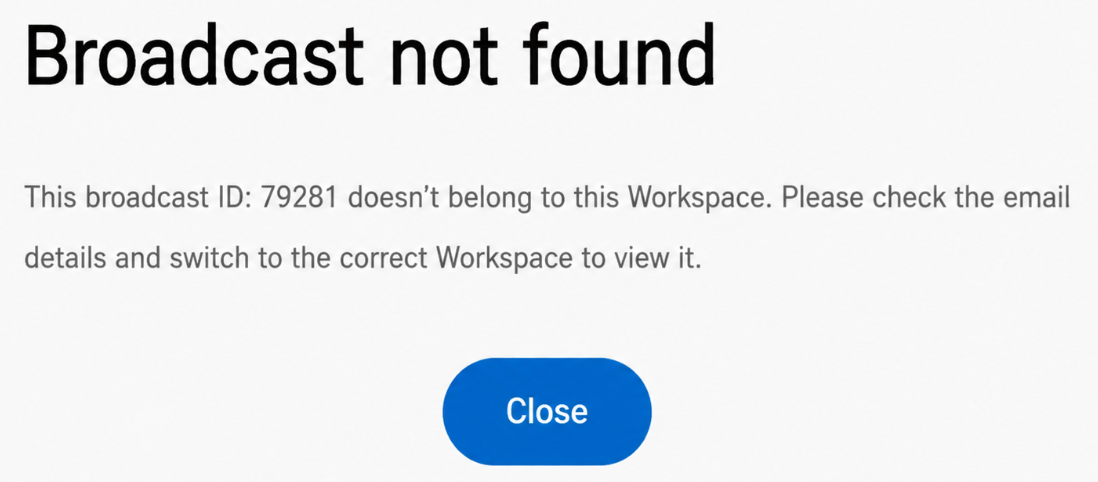
In addition to email notifications, you see a banner at the top of the Dashboard when you log in. The banner shows how many broadcasts are pending approval.

When you select View All, you go to the Performance Reports section. Broadcasts are filtered by For Approval status there.
You see each broadcast as a card with its key details, including the scheduled delivery time. You select Details to access the broadcast summary and proceed with the review.
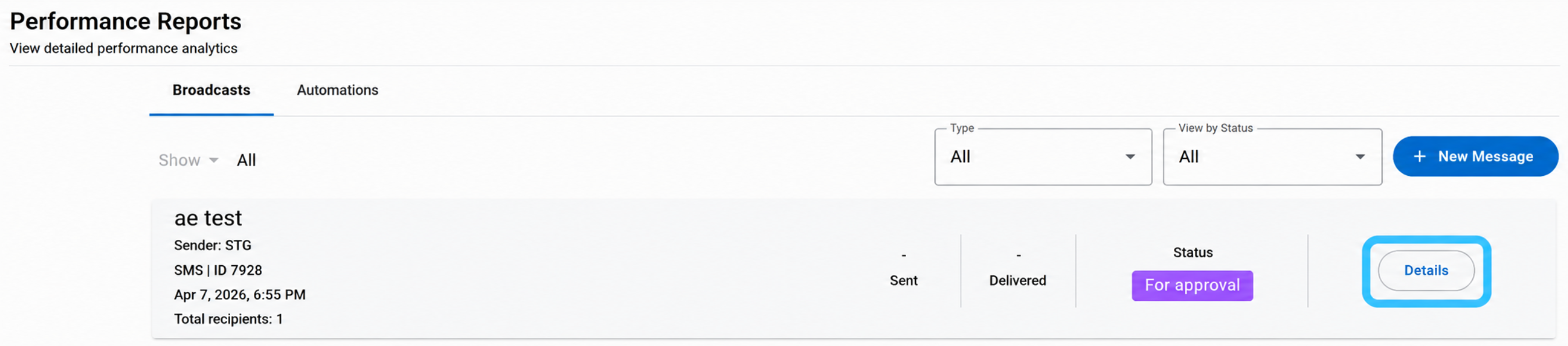
At this stage, the broadcast is still inactive and cannot be executed until it is explicitly approved.
Broadcast is approved
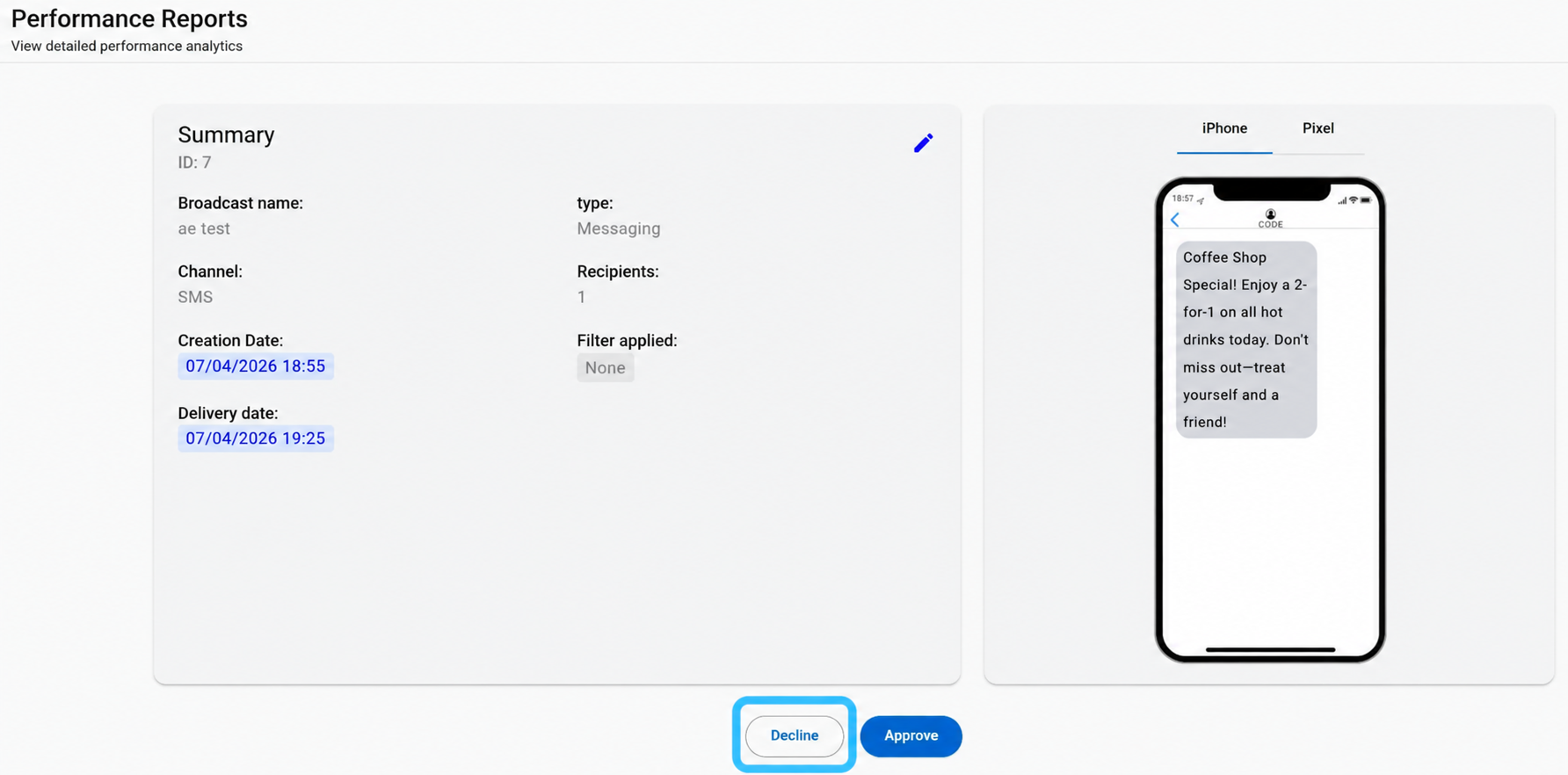
Once inside the broadcast summary, you review both the configuration details and the message preview.
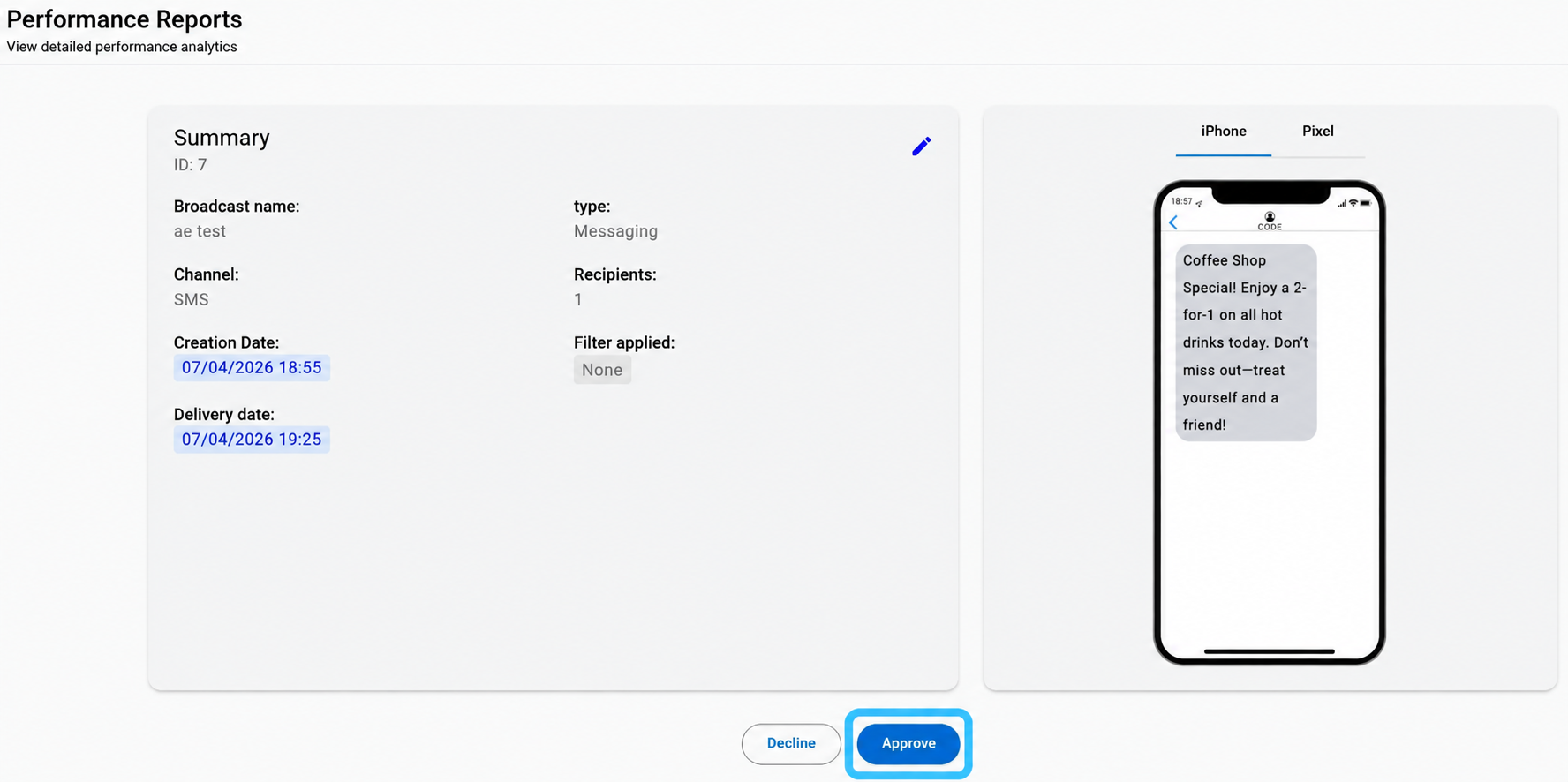
If the broadcast is valid, you select Approve. You see a confirmation dialog asking whether you want to proceed.
You select Yes, approve to confirm.
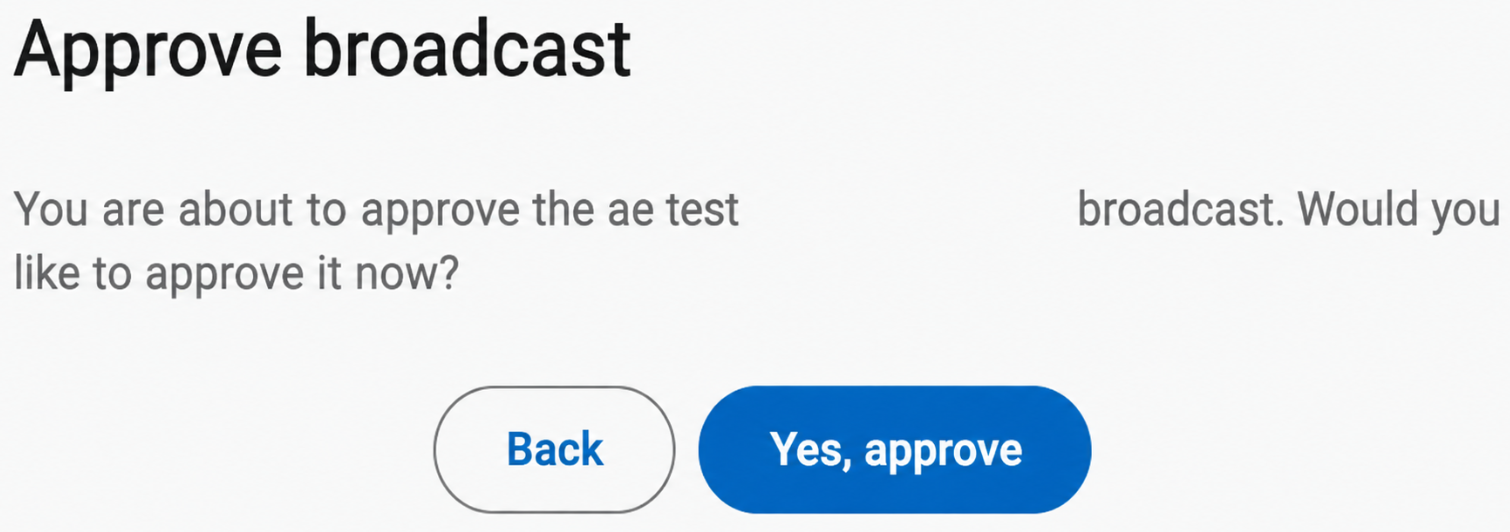
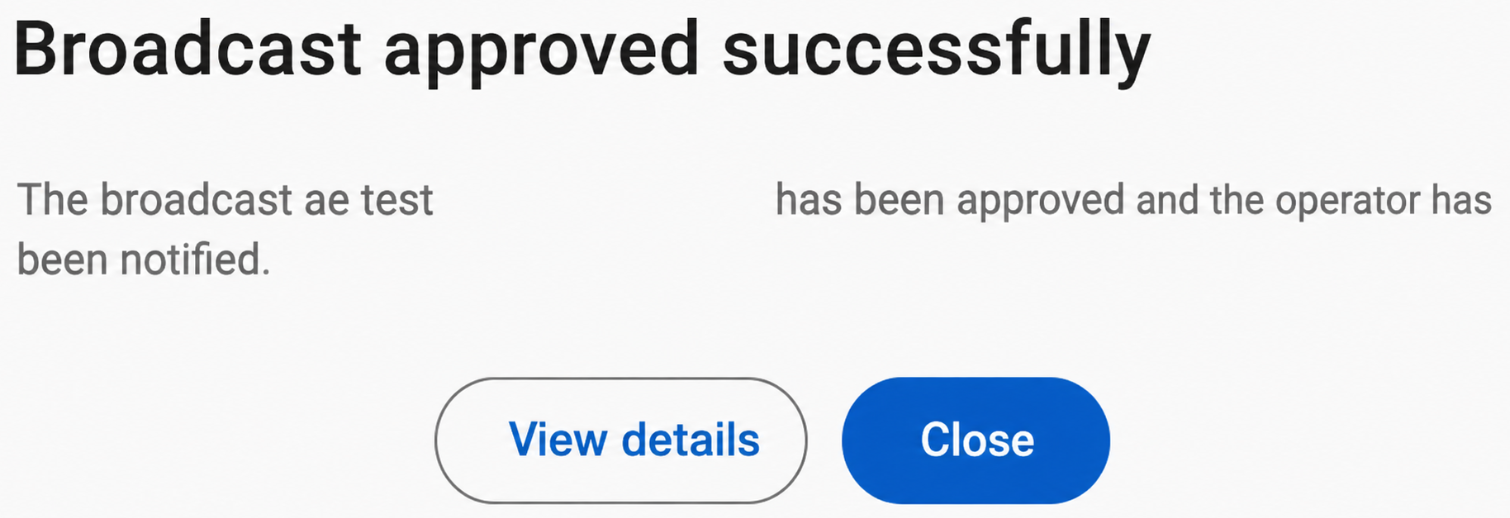
Immediately after approval, you see a confirmation message indicating that the broadcast has been approved successfully.
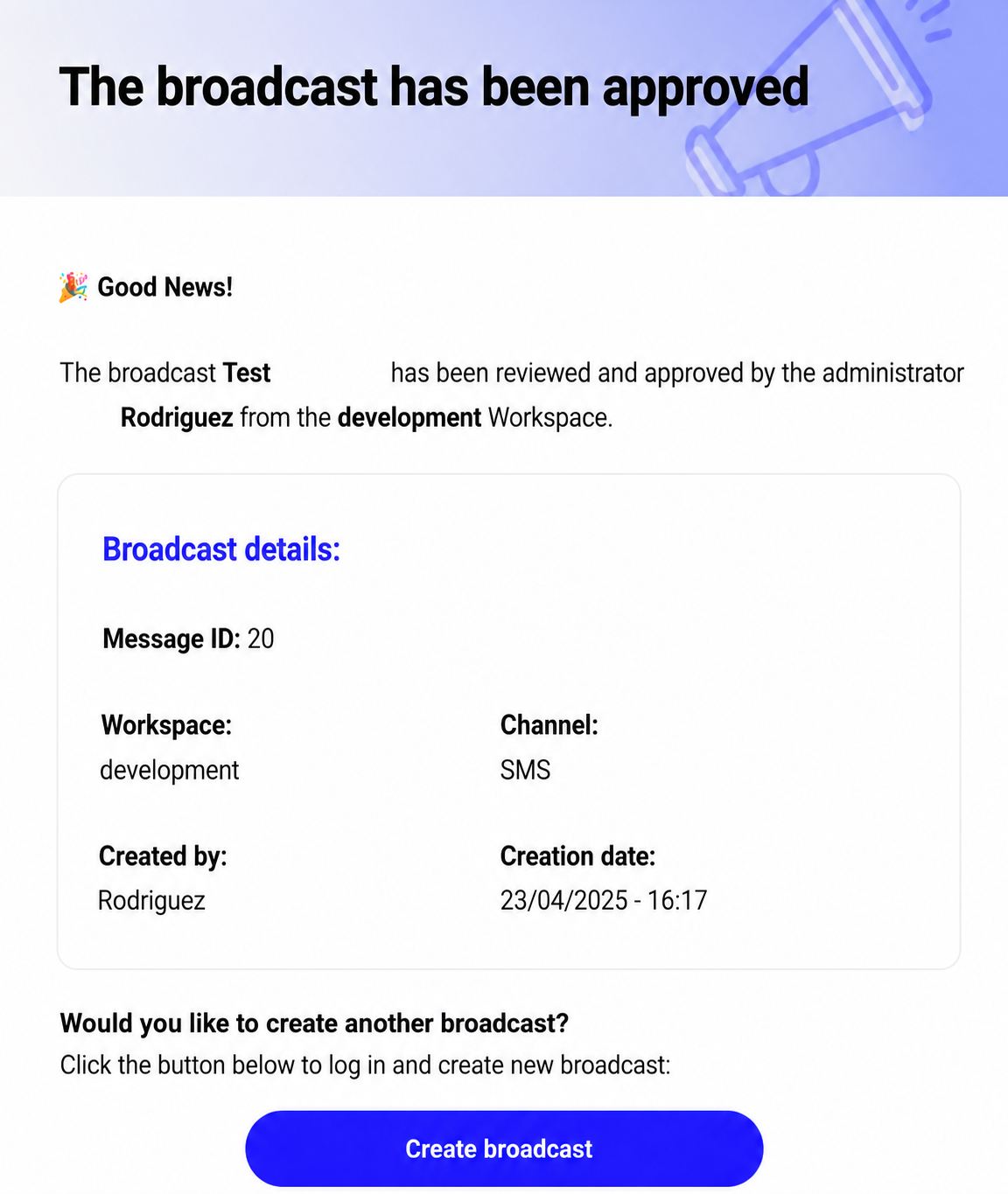
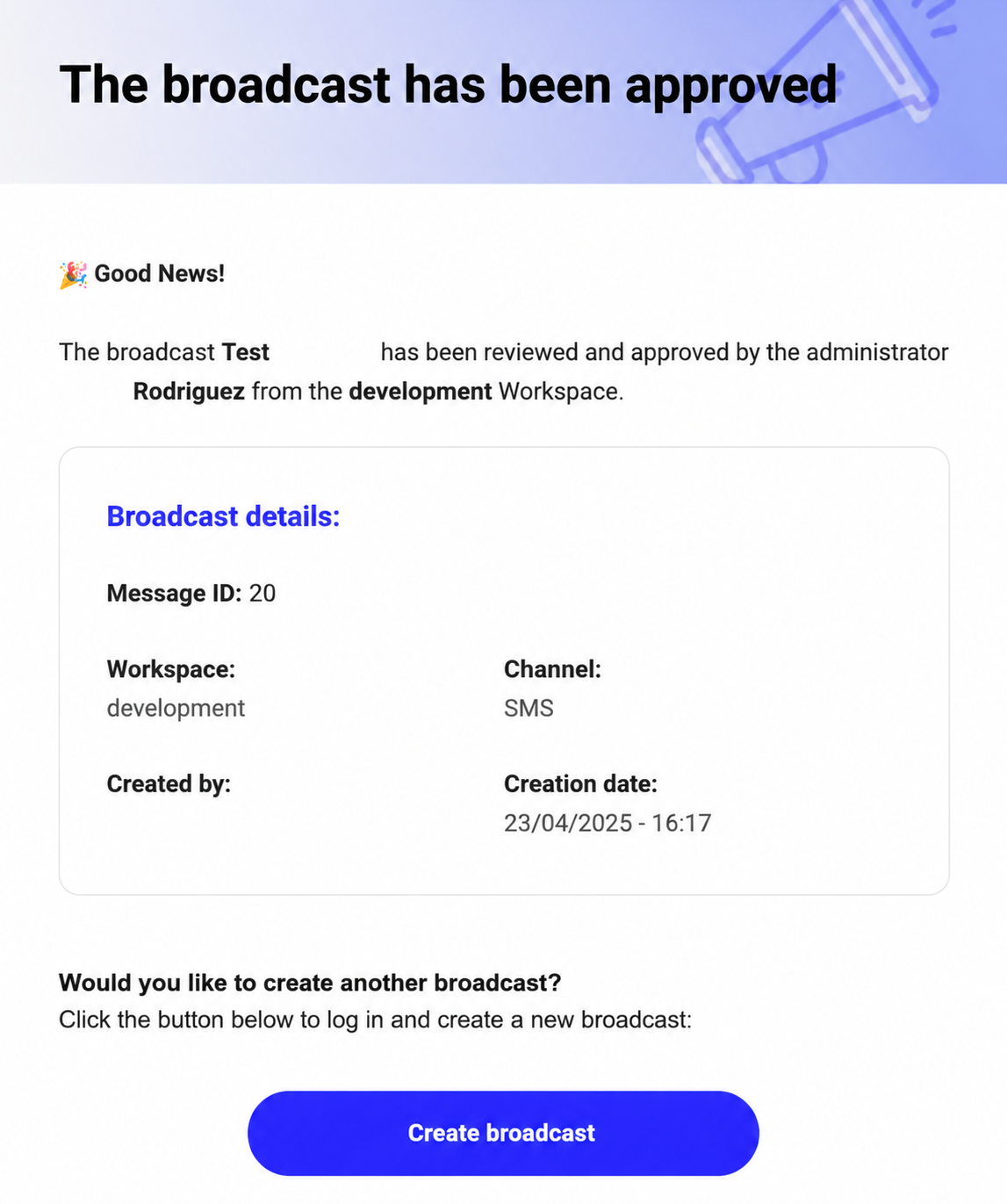
At the same time, the platform sends an email notification to both the Operator and the Administrator confirming the approval. You see the following details in the email:
- Broadcast ID
- Workspace
- Channel
- Creator
- Creation date
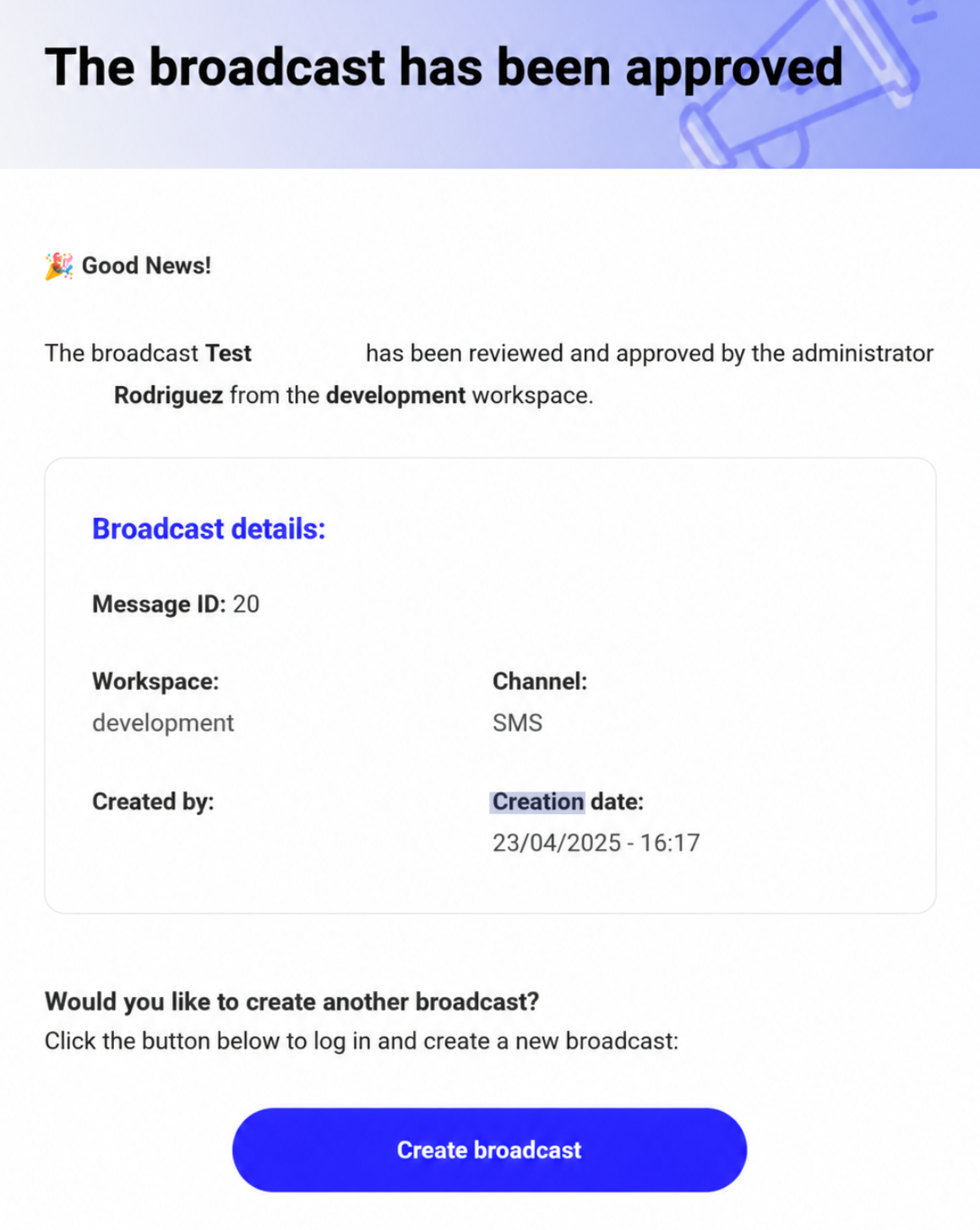
From this point, the broadcast status changes to Scheduled. The platform executes it automatically on the date and time originally defined during configuration.
Broadcast is declined
If you determine that the broadcast should not be approved, you select the Decline button in the broadcast summary view.
You see a dialog window with three options for the reason for declining:
- Quantity of sender
- Inappropriate content
- Others
If you select Others, you provide a custom explanation in the text field. You confirm the action by selecting the Decline button again within the dialog.
This ensures that the Operator receives clear feedback on why the broadcast was declined.
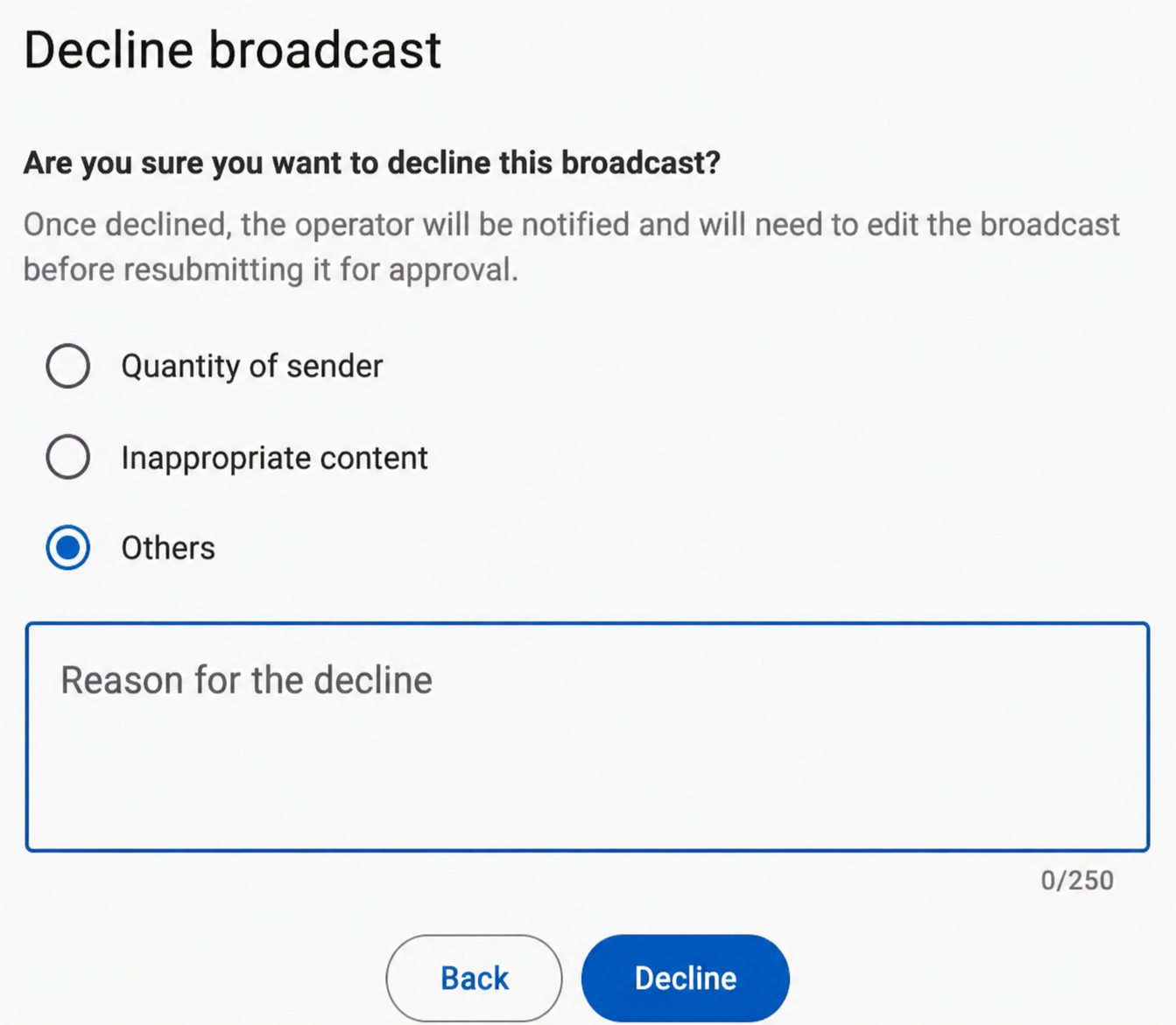
After confirmation, you see a message indicating that the broadcast has been declined successfully. The broadcast status changes to Returned. It is no longer eligible for execution.
Simultaneously, the platform sends an email notification to the Operator informing them that the broadcast has been rejected.
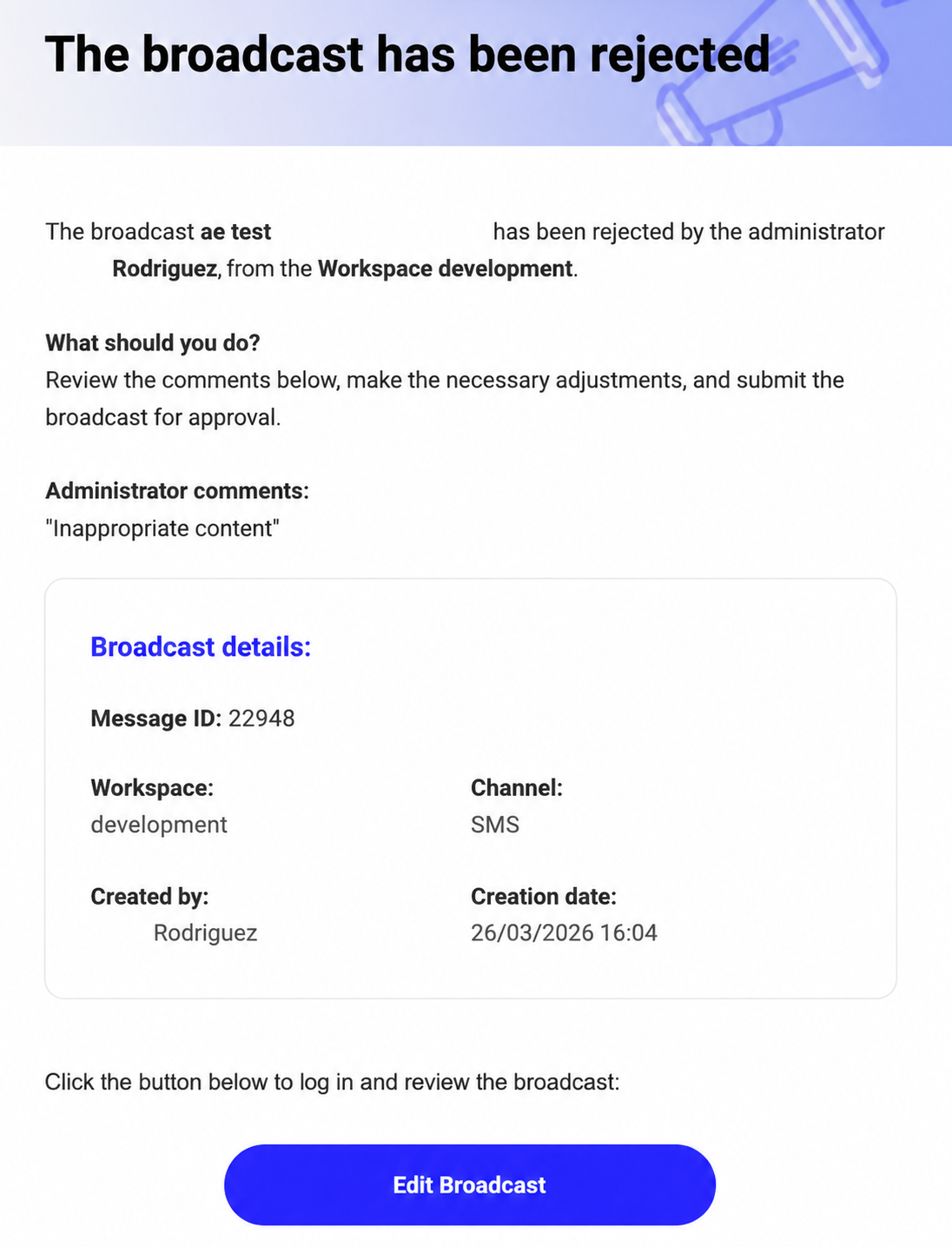
The email includes the following details:
- The broadcast name
- The Administrator who declined it
- The Workspace where the broadcast was created
- The reason provided by the Administrator
The email also guides the Operator on next steps. The Operator reviews the Administrator's comments and applies the necessary adjustments.
The Operator resubmits the broadcast for approval by selecting the Edit Broadcast button. Until the broadcast is resubmitted, it remains in Returned status. The platform does not execute it.
Broadcast expires before approval
If a broadcast reaches its scheduled delivery time without approval, the platform does not execute it. The platform marks the schedule as expired and prevents activation under the original configuration.
When you later access the broadcast and select Approve from the Summary view, the platform detects that the scheduled time has already passed. You see a dialog indicating that the broadcast schedule has expired.
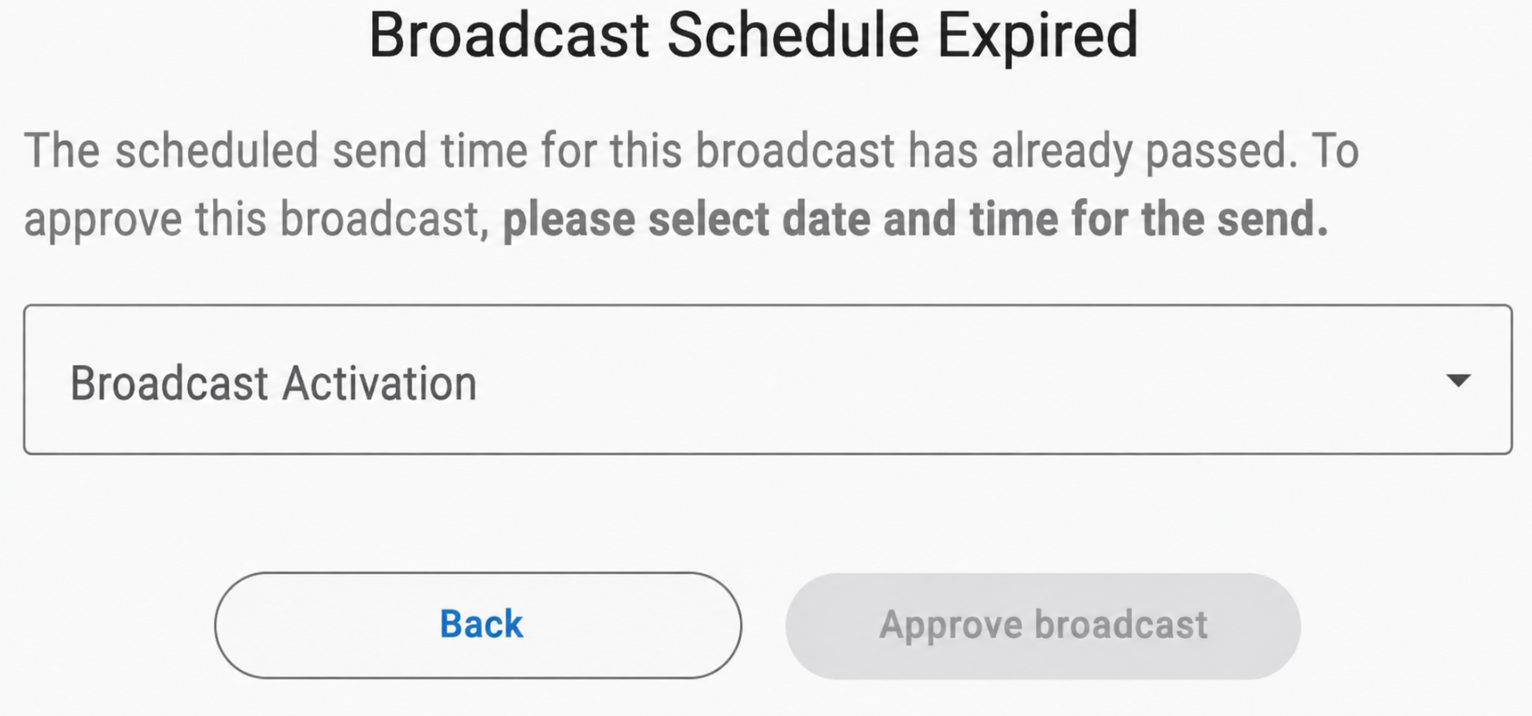
The dialog informs you that a new activation time is required before the broadcast can be approved. You work with two options to activate the broadcast:
- Now — Activates the broadcast immediately after approval.
- Schedule — Allows you to define a new delivery date for the broadcast activation.
After you select the desired option, you confirm the action by selecting Approve broadcast.
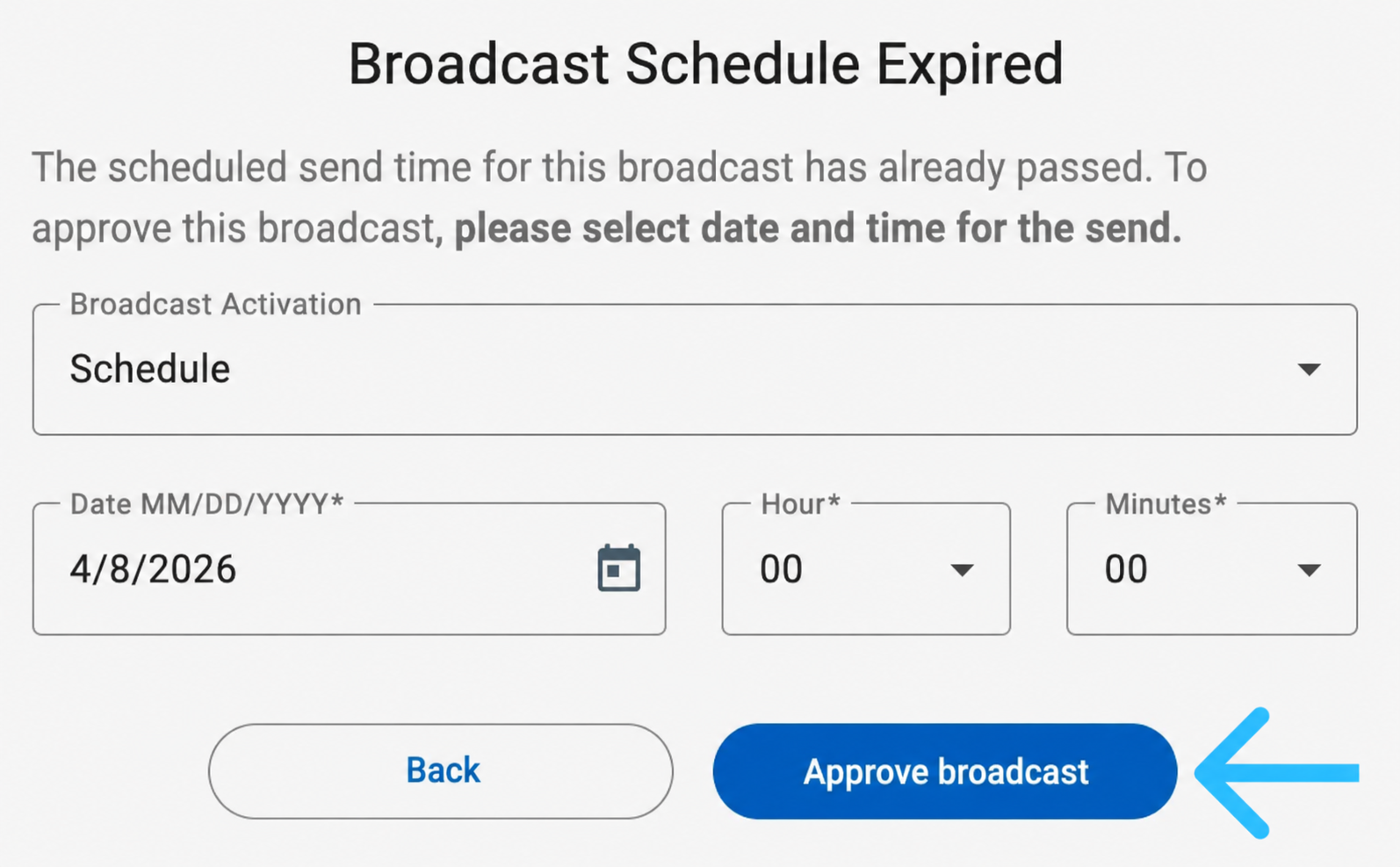
You see a confirmation dialog asking you to proceed with the approval. You select Yes, approve.
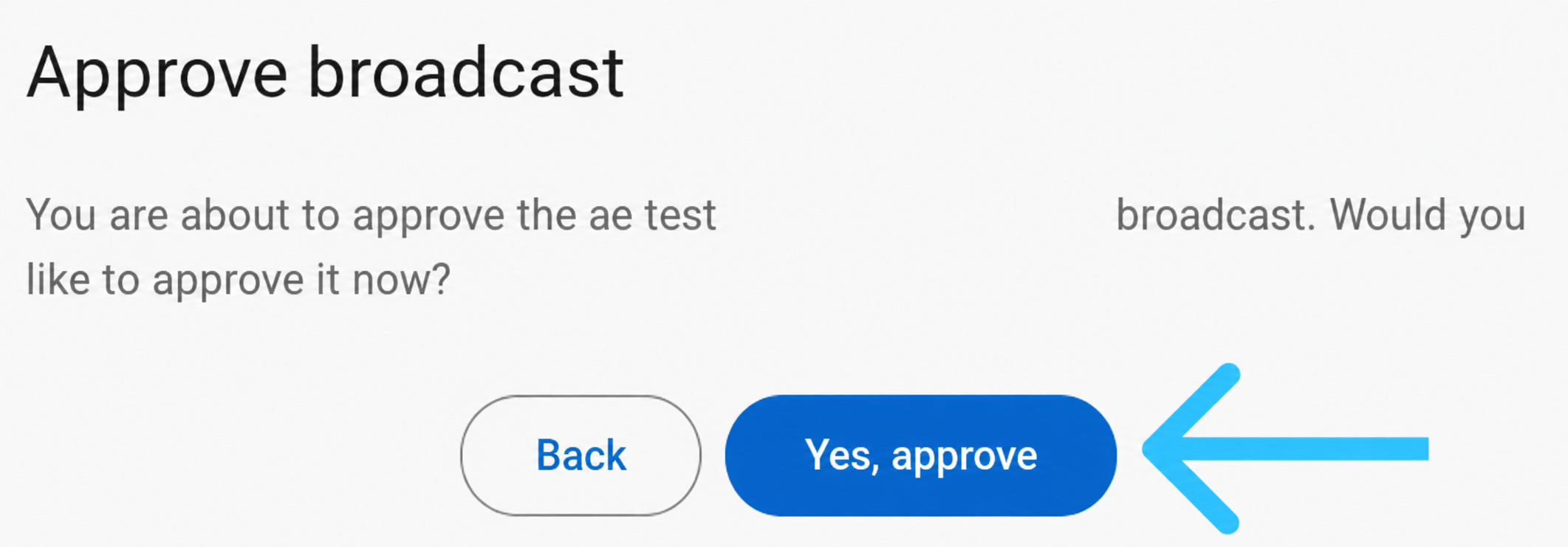
After you select Yes, approve, you see a message indicating that the broadcast has been approved successfully.
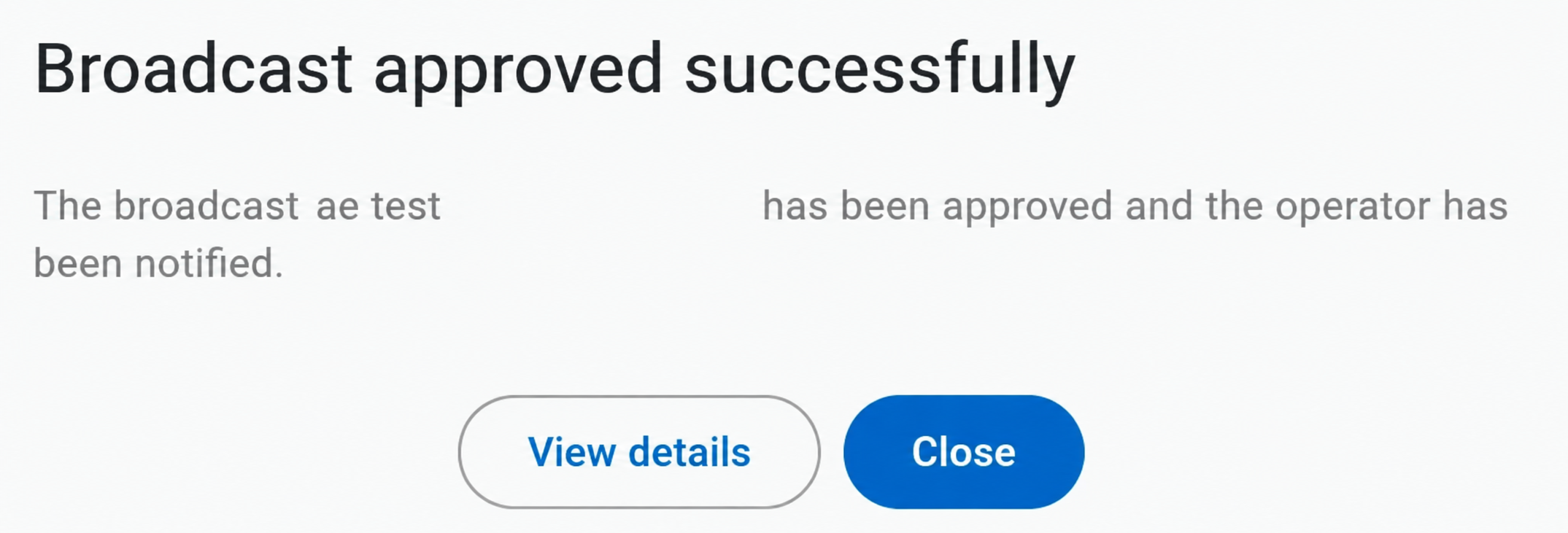
At the same time, the platform sends an email notification to both the Operator and the Administrator confirming the approval and providing the updated execution details.
Administrator edits and schedules the broadcast before approval
In some cases, you need to adjust the broadcast before approving it, particularly the delivery timing.
From the broadcast Summary view, you select the Edit icon (pencil icon) at the top of the section. You modify the broadcast configuration as needed.
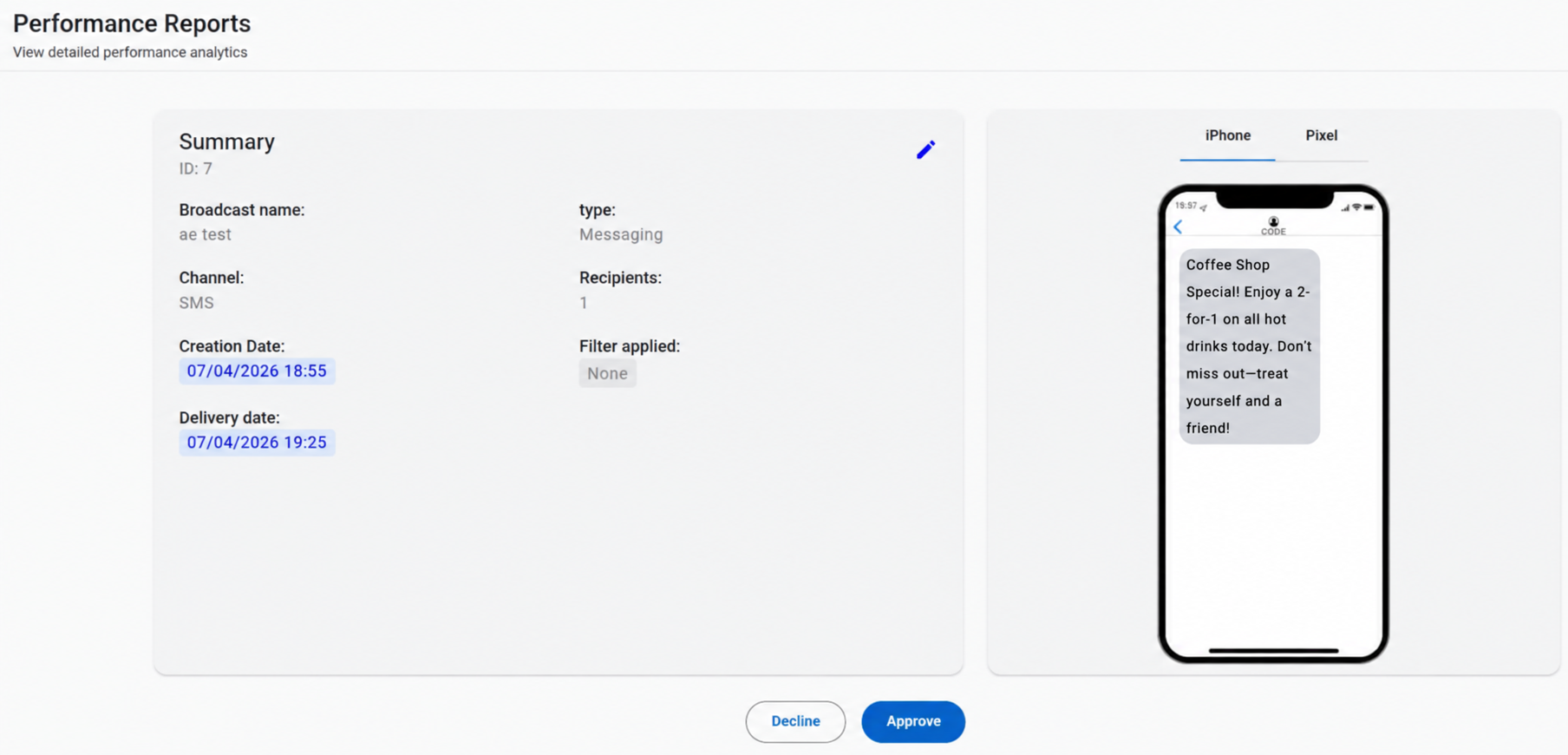
Once inside the editable view, you update broadcast elements and the broadcast activation date. This is useful when the originally scheduled time needs to be corrected.
After making the necessary changes, you select the Schedule button in the Summary section. This confirms the updated delivery timing for the broadcast.
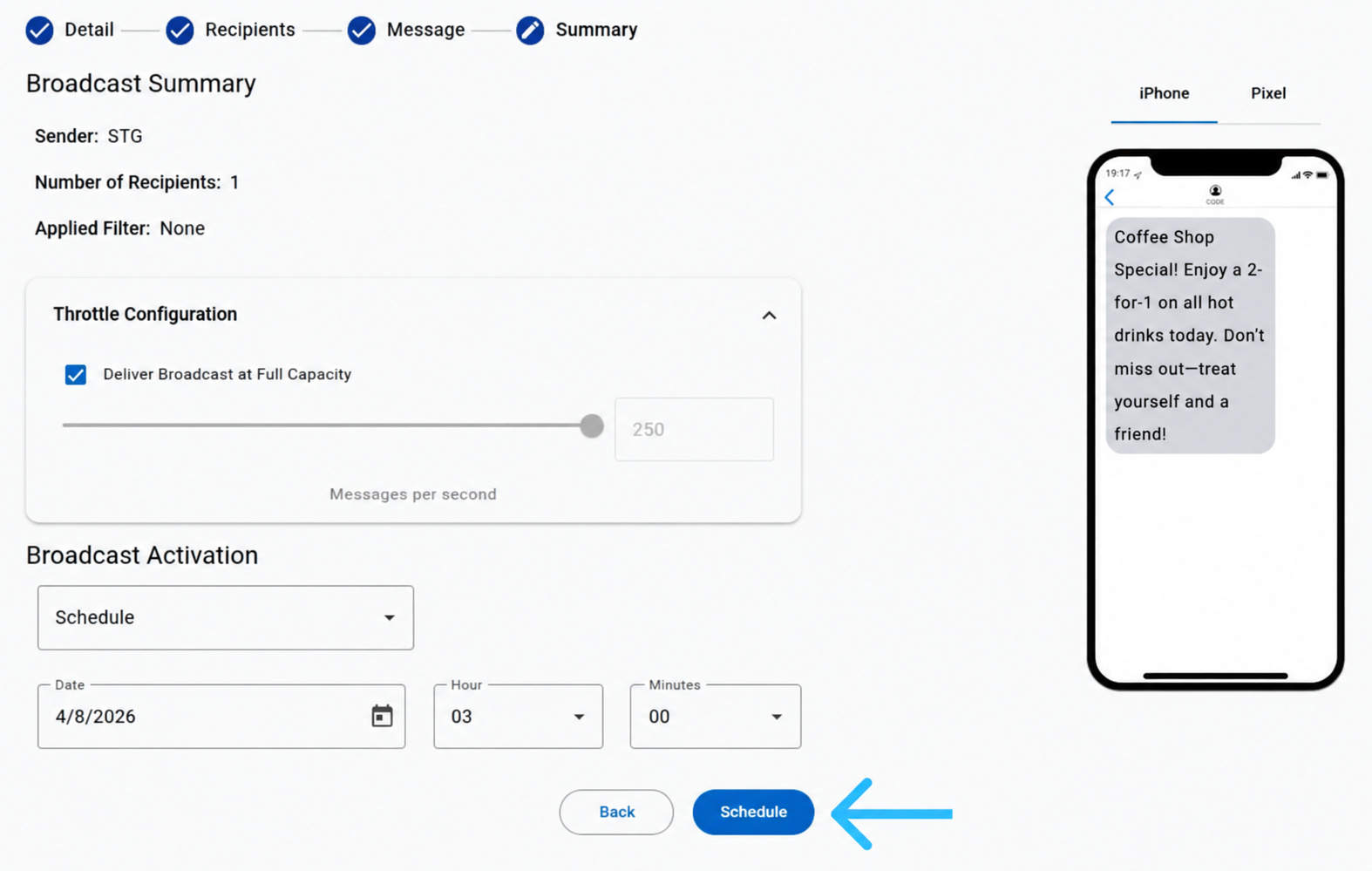
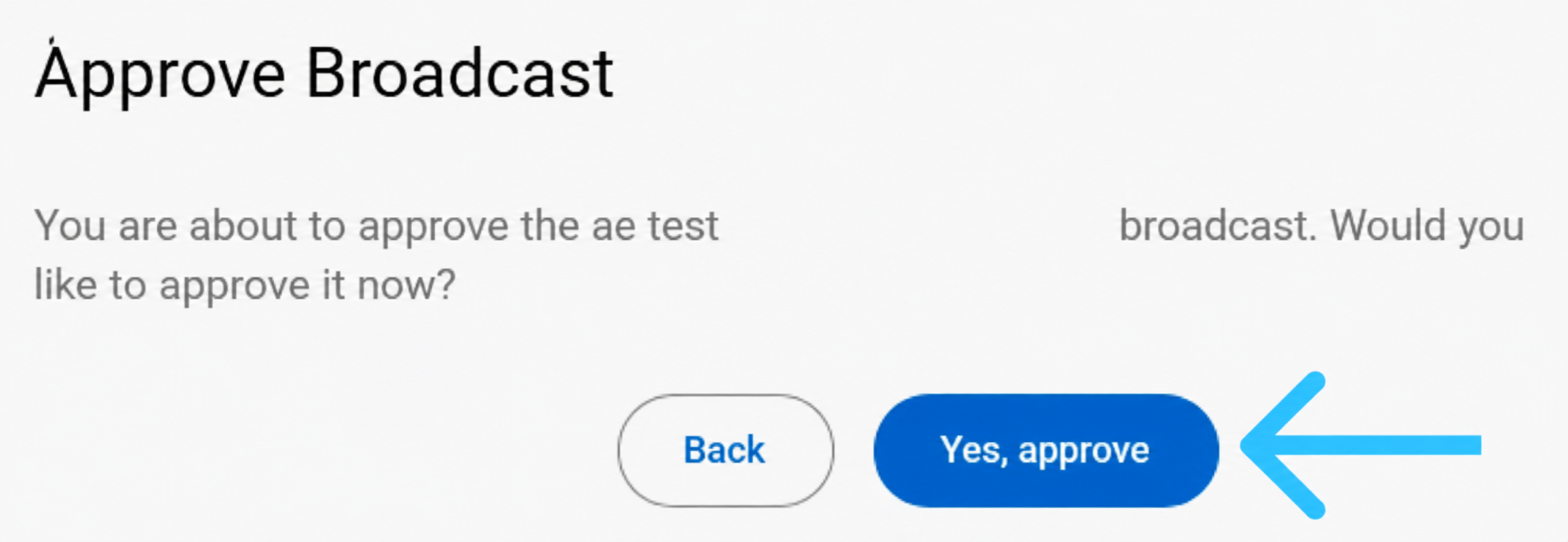
You see a confirmation dialog asking whether you want to approve the broadcast. You select Yes, approve to complete the approval process.
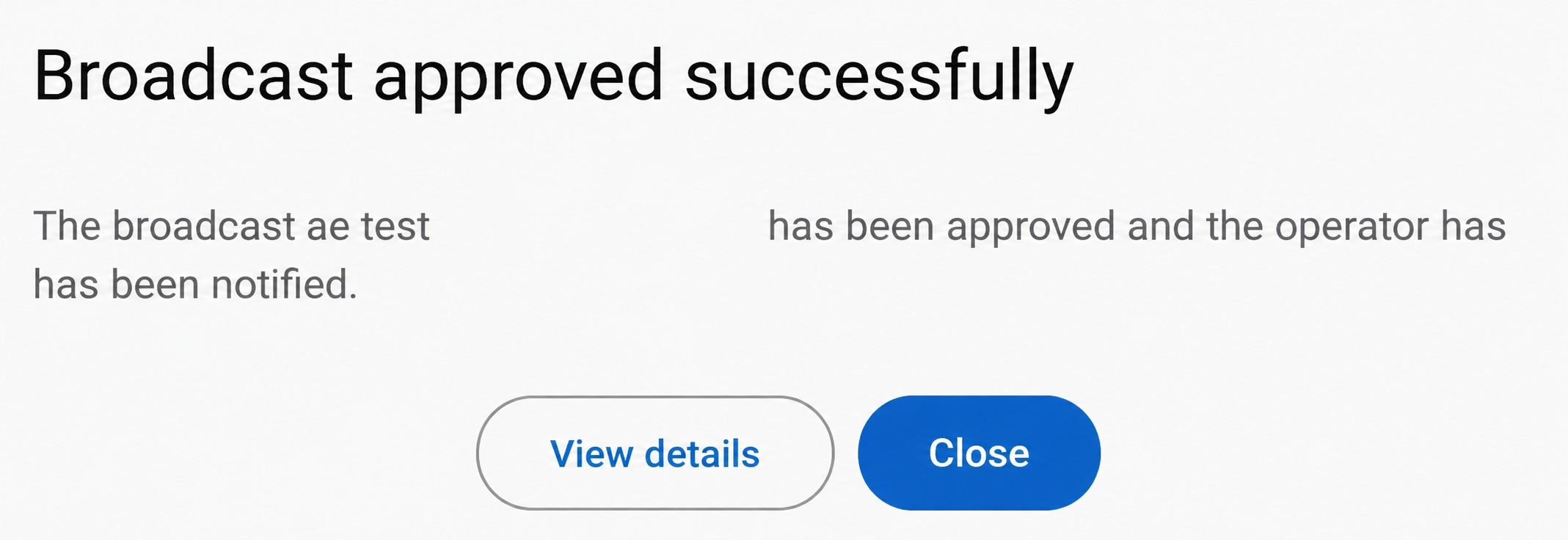
Immediately after confirmation, you see a message indicating that the broadcast has been approved successfully.
At the same time, the platform sends an email notification to both the Administrator and the Operator confirming the approval and the relevant broadcast details.
From this moment, the broadcast is scheduled. The platform executes it according to the updated delivery configuration.
Broadcast is deleted after being approved
After an Administrator approves a broadcast, its status changes to Scheduled. You still remove the broadcast before execution if needed.
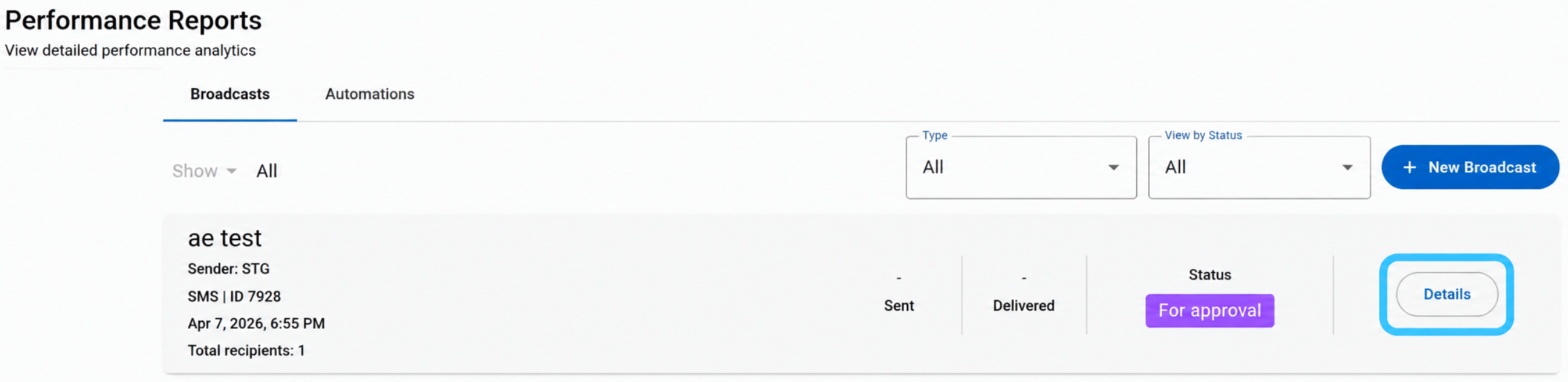
From the Performance Reports section, you select the broadcast and select Details to access the broadcast summary view.
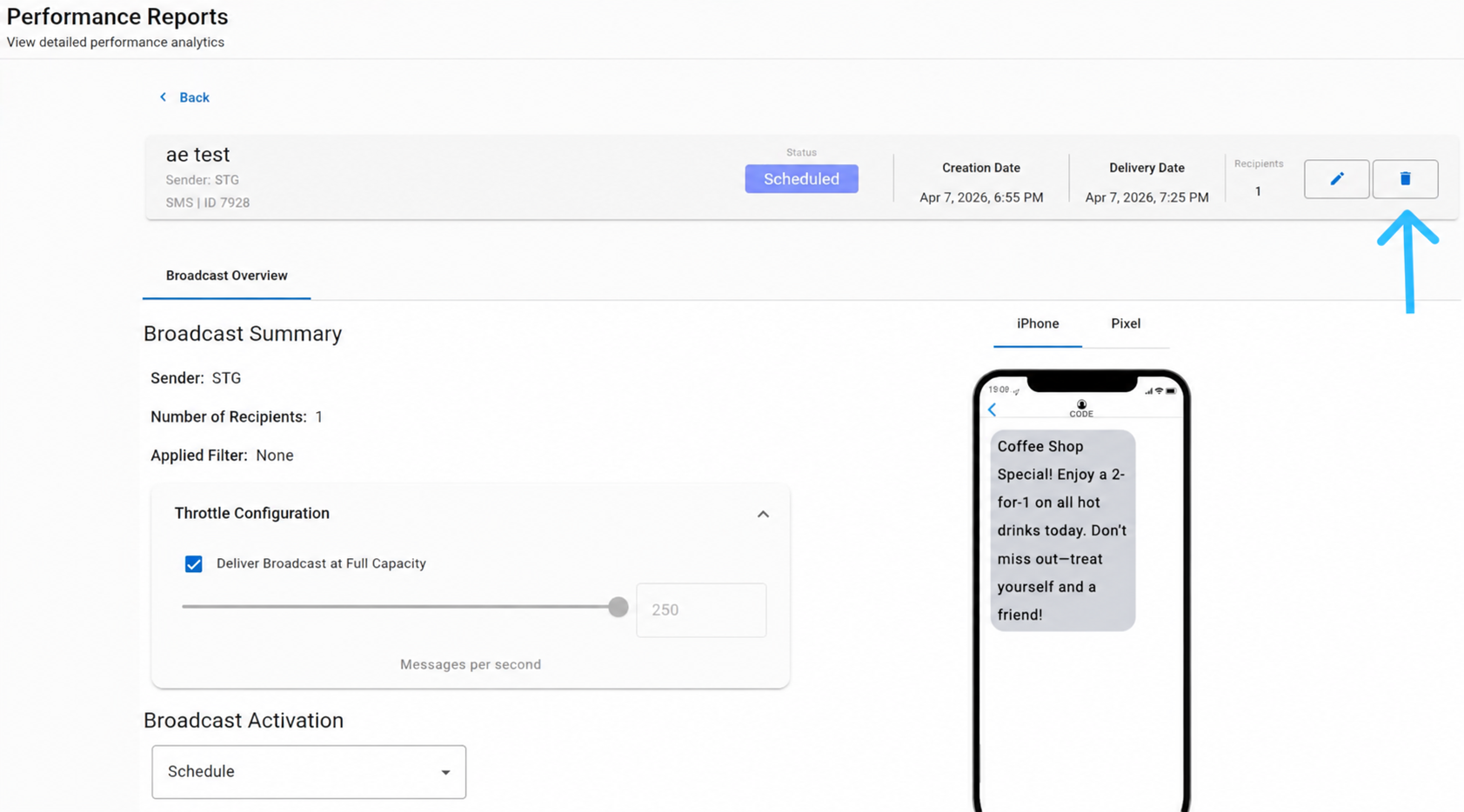
Inside the broadcast summary view, you see a Delete icon (trash icon) in the top right corner.
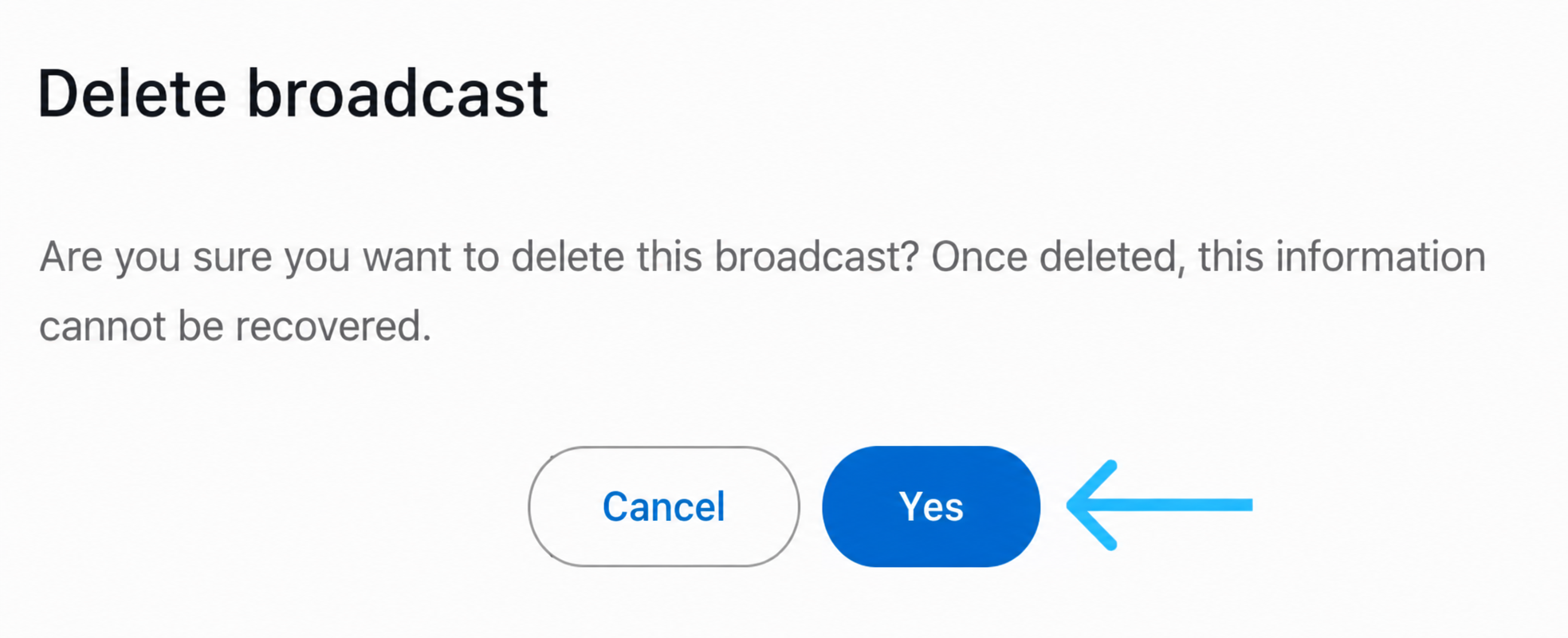
When you select this icon, you see a confirmation dialog asking whether you are sure you want to delete the broadcast. This step prevents accidental deletions. The action cannot be undone.
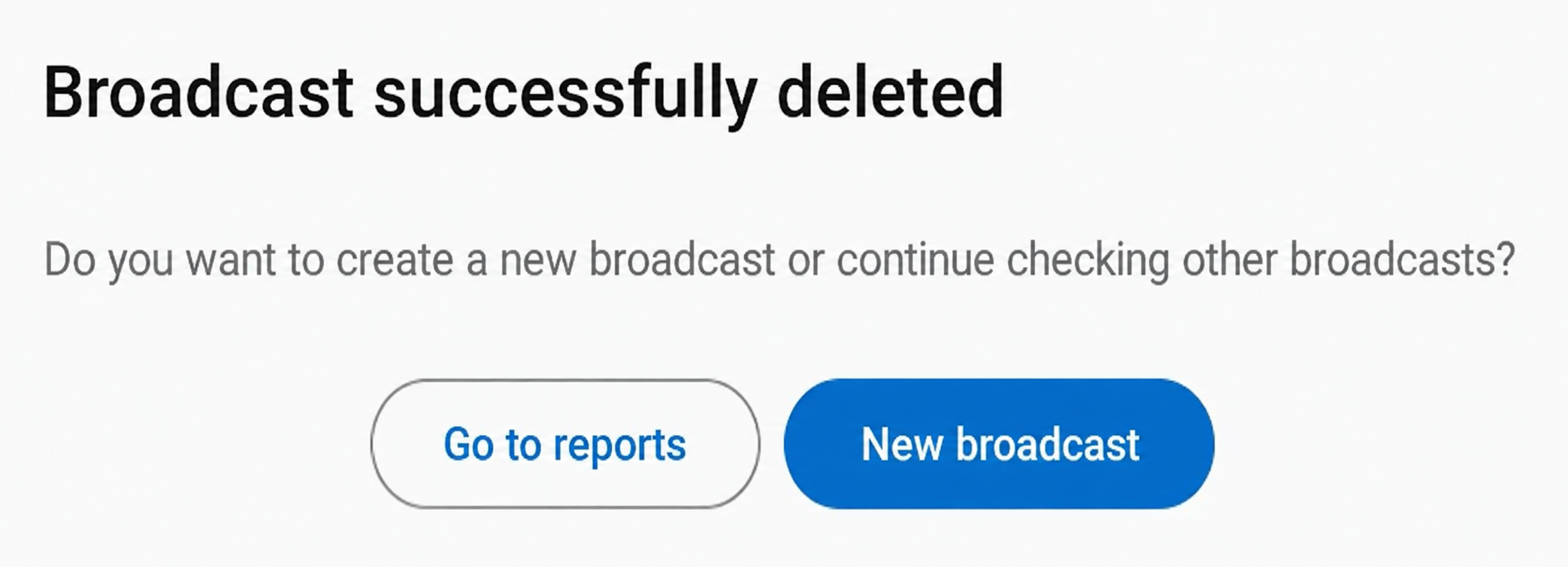
When you select Yes, you see a message indicating that the broadcast has been successfully deleted. The platform permanently removes the broadcast and does not execute it, even if it was previously scheduled.
Simultaneously, the platform sends an email notification to both the Administrator and the Operator informing them that the broadcast has been deleted.
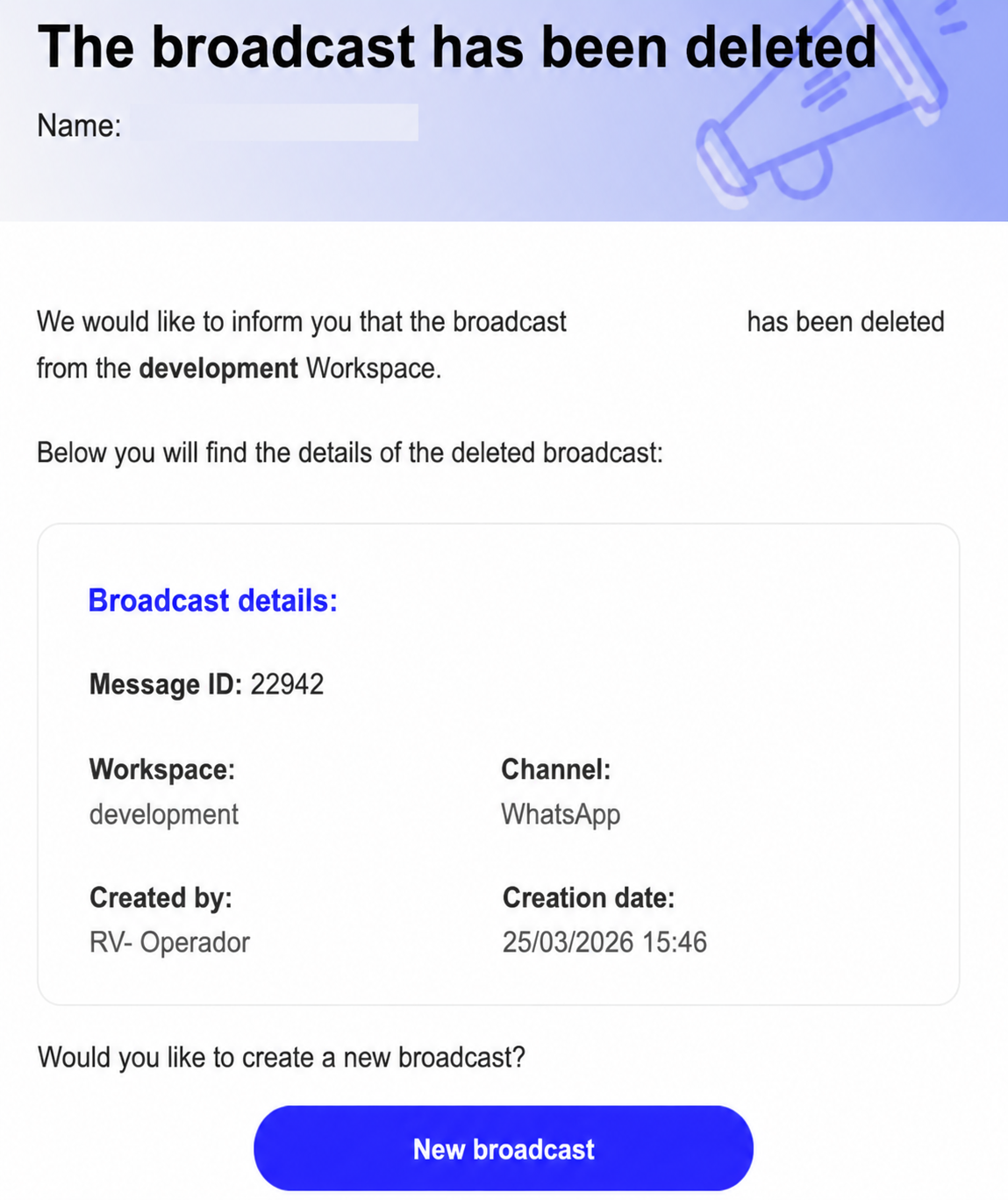
The email includes a New broadcast button. You use it to create a new broadcast if needed.
Updated about 1 month ago