
SMPP traffic (analytics & reporting)
Monitor, filter, analyze, and export SMS traffic submitted through an SMPP connection from the Messaging tab of the Dashboard. For teams tracking bidirectional SMPP delivery performance.
Use the Communications Platform Dashboard to monitor, filter, analyze, and export SMS traffic submitted through your SMPP connection.
Access the Messaging tab
- Complete the registration instructions sent in your Workspace access email.
- Sign in to the Communications Platform.
- Open the Dashboard, then select the Messaging tab.
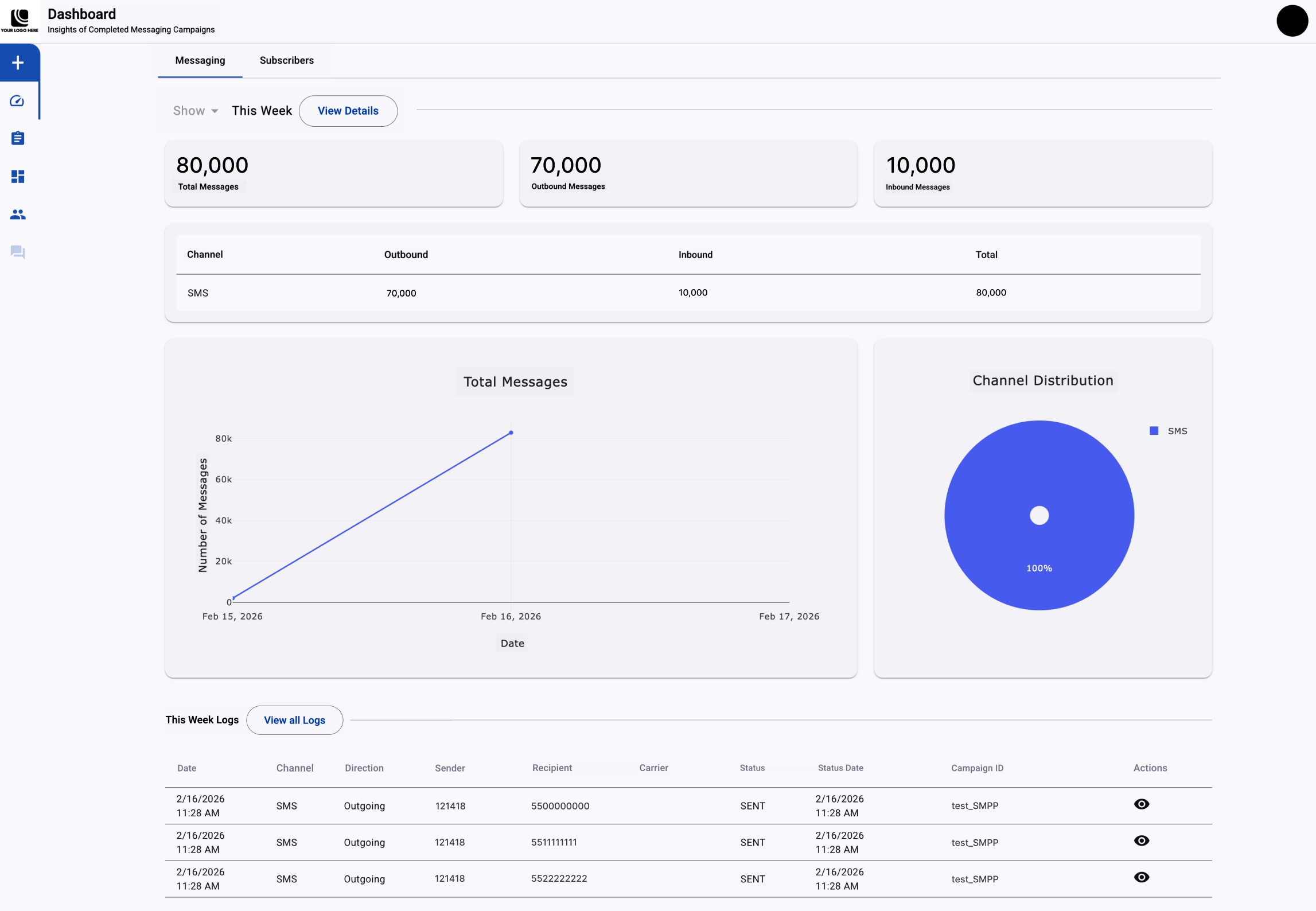
SMPP acts as a transport layer to the platform's centralized messaging infrastructure. The Messaging tab is your central view for bidirectional SMS activity, delivery performance, and sender-level metrics.
Filter by date range
Use the date range filter to display data generated during a specific period.
-
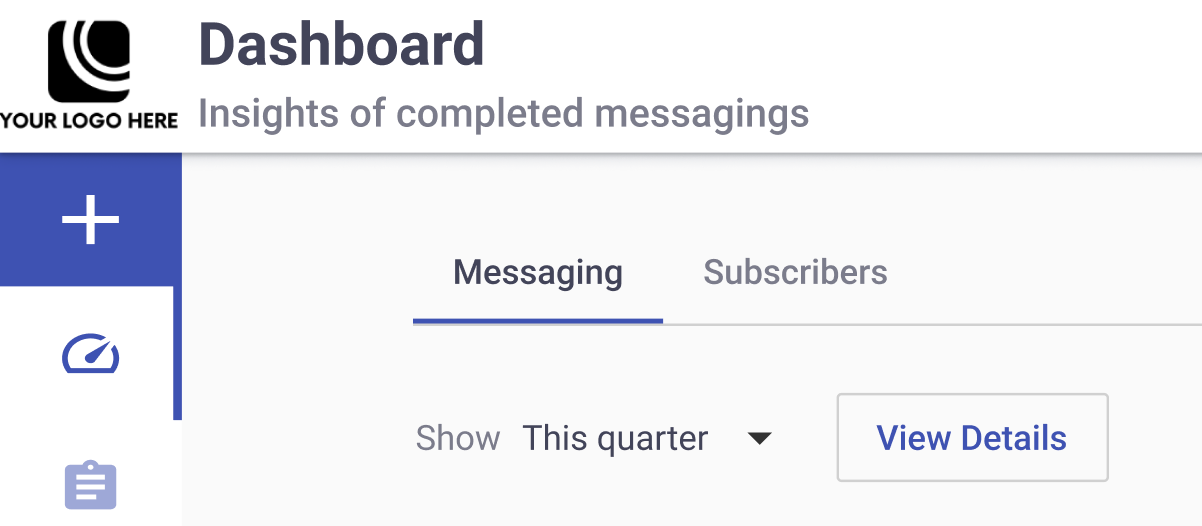
Click the Show dropdown in the upper-right corner of the tab.
-
Select a predefined range: Today, Yesterday, This Week, This Month, Last Month, This Quarter, or Last Two Weeks. To specify dates, select Custom range, choose a start and end date, and click OKAY.
The dashboard refreshes automatically with data for the selected range.
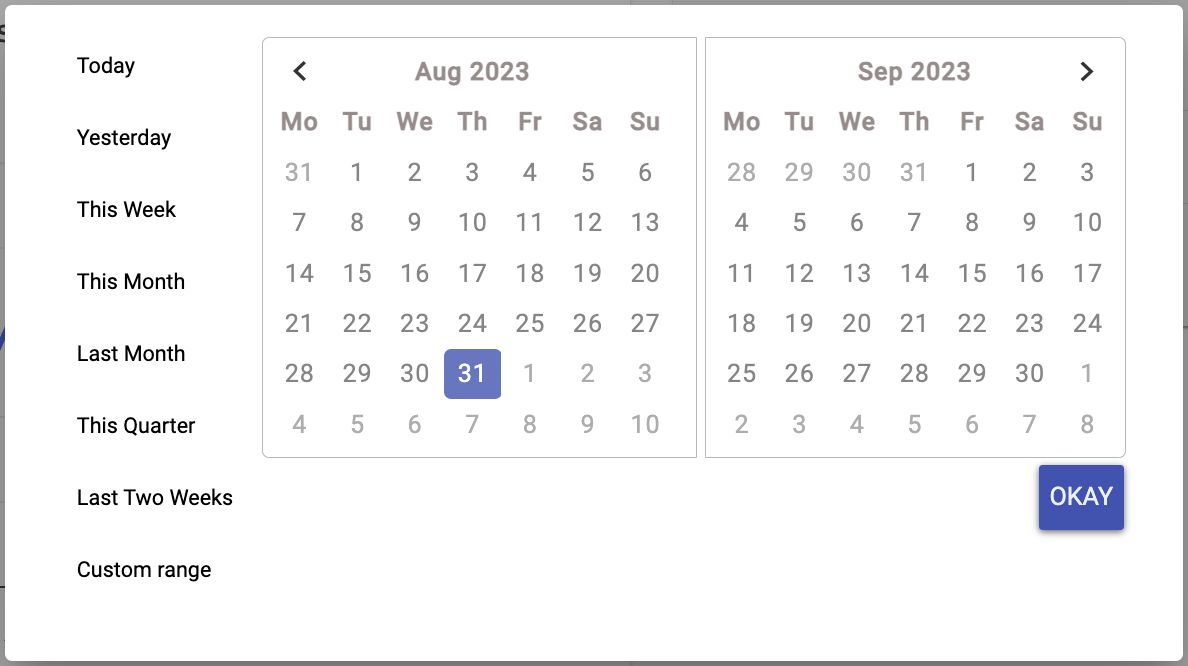
Depending on your browser's timezone, This Week may use Sunday as the first day of the week.
KPI snapshots
The KPI snapshots show totals for the selected date range.

- Total Messages: The total number of inbound and outbound SMS messages processed through the configured SMPP connection.
- Outbound Messages: The number of SMS messages sent from your system through the SMPP session to mobile network operators.
- Inbound Messages: The number of SMS messages received from end users.
Messages exchanged
The Messages Exchanged table breaks down SMS traffic for the selected period by direction.

The table includes these columns:
- Channel: The SMS channel that processes the SMPP traffic.
- Outbound: The number of SMS messages submitted from your system through the SMPP session and routed to mobile network operators.
- Inbound: The number of SMS messages received from end users.
- Total: The combined number of inbound and outbound SMS messages processed during the selected period.
Traffic visualizations
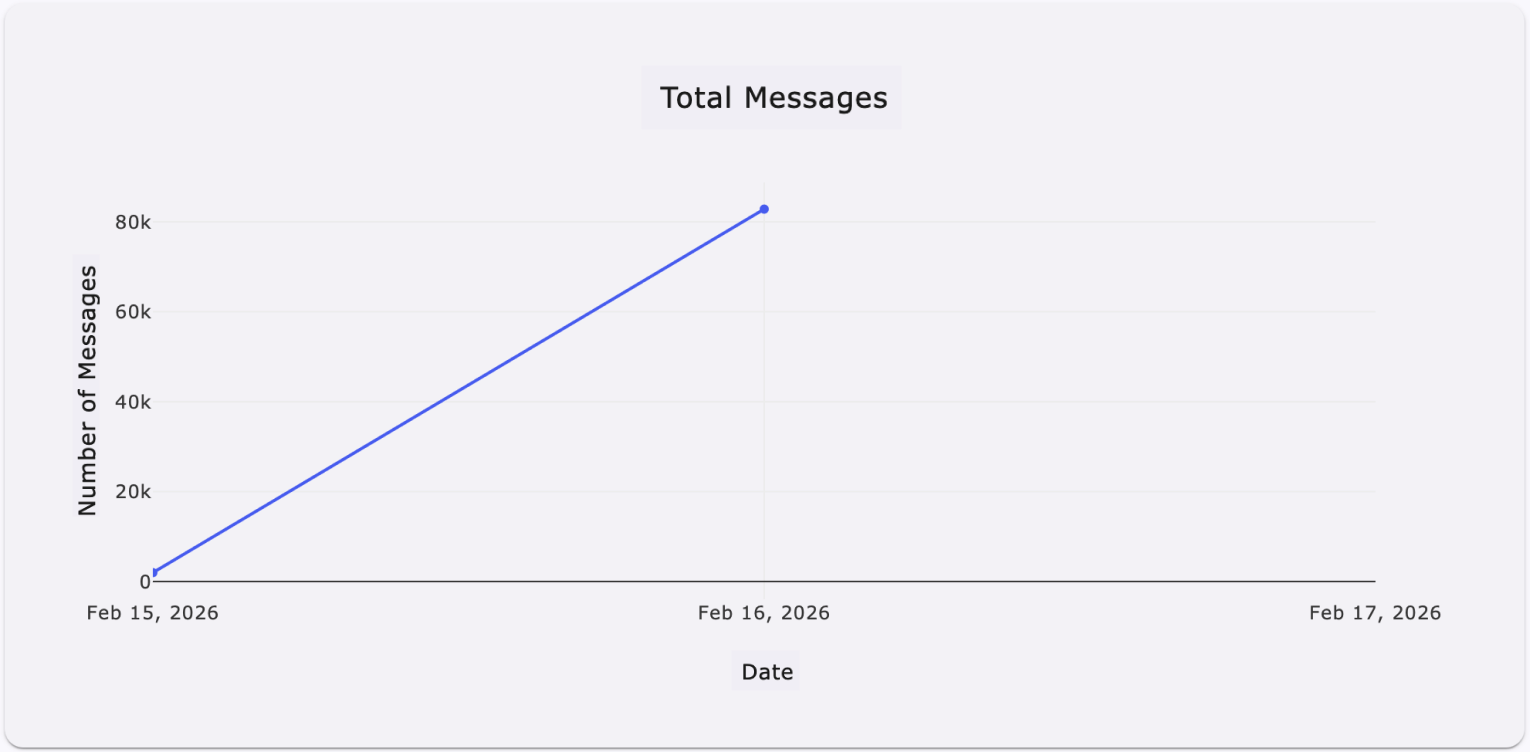
Use the charts below the Messages Exchanged table to review traffic patterns for the selected date range.
-
Total Messages Line Graph: Shows inbound and outbound SMS traffic over time. The horizontal axis shows the selected period, and the vertical axis shows the number of messages processed on each date.
-
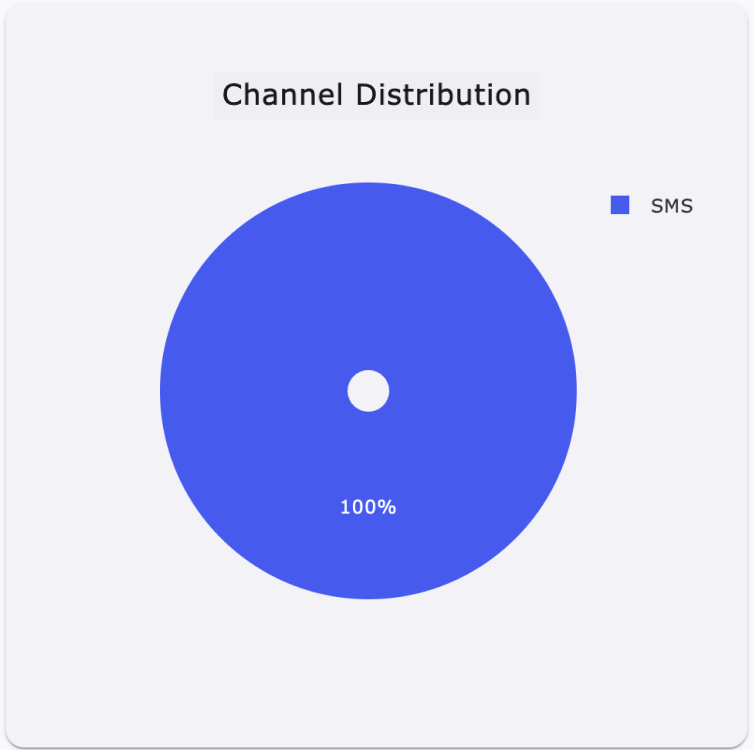
Channel Distribution Pie Chart: Shows the proportion of SMS traffic processed by each channel.
Traffic by sender
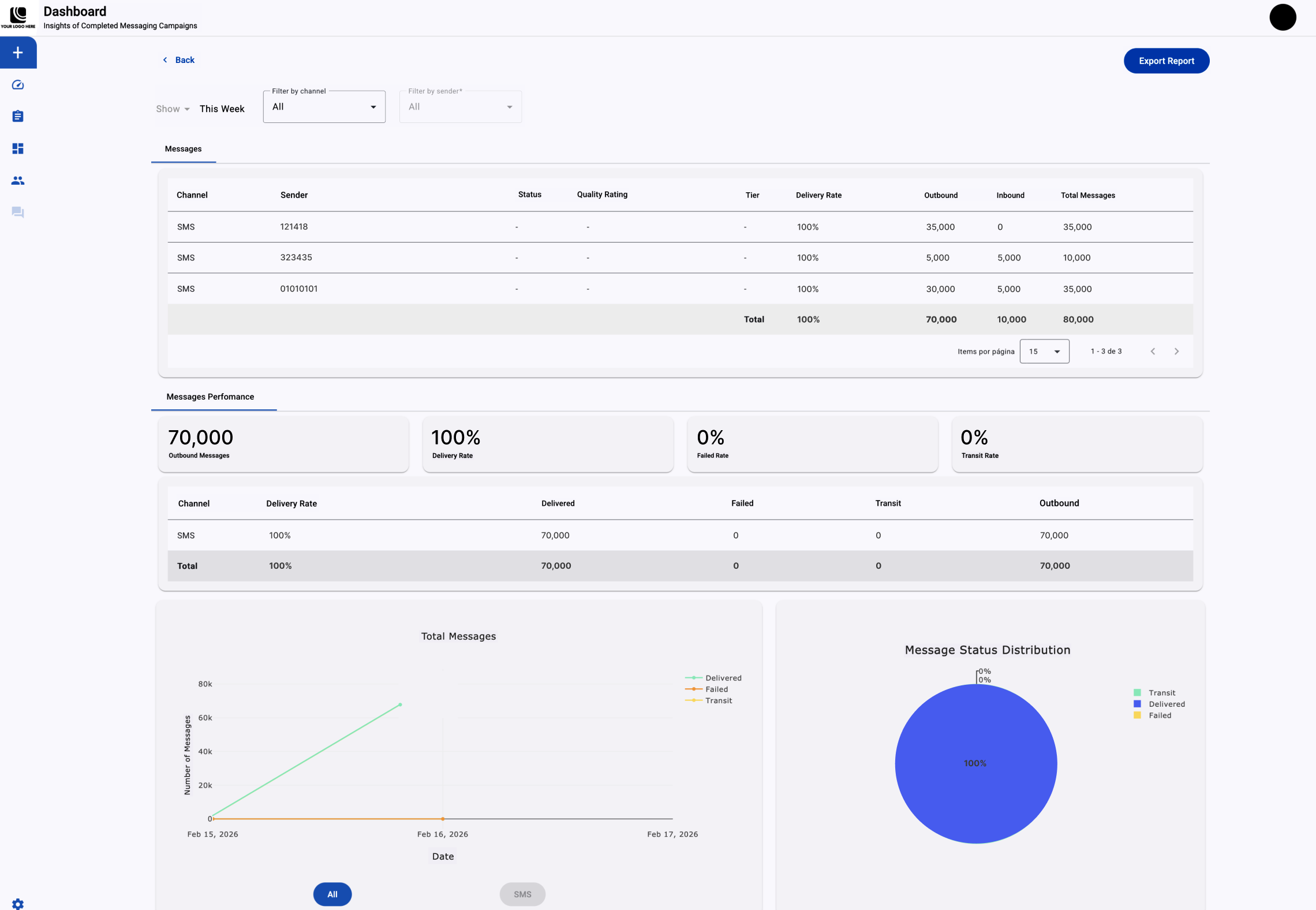
Use Traffic by Sender to review message volume, delivery performance, and directional traffic for each sender identity configured for the SMPP connection. MT (mobile terminated) refers to outbound messages, and MO (mobile originated) refers to inbound messages.
-
Click View Details next to the date range filter.

-
Select either the Messages or Messages Performance tab.
Messages tab
The Messages tab summarizes sent (MT) and received (MO) messages and delivery rates for each sender.
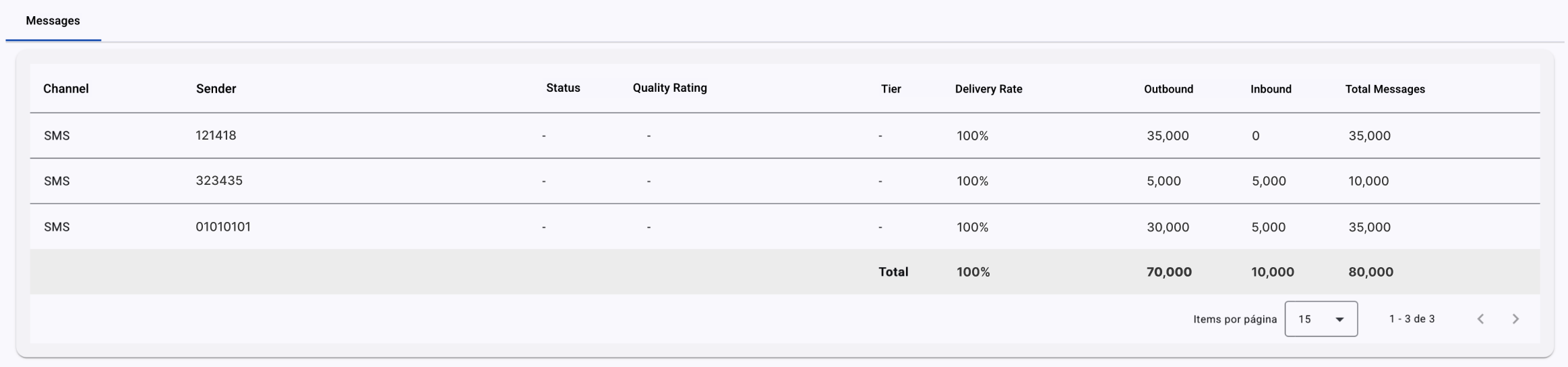
The table includes these columns:
- Channel: The SMS channel associated with the sender.
- Sender: The configured SMS sending identity, such as a short code, long code, or alphanumeric sender ID.
- Delivery Rate: The percentage of outbound SMS messages successfully delivered to end users.
- Outbound: The number of SMS messages submitted through the SMPP connection with that sender.
- Inbound: The number of SMS messages received from end users.
- Total Messages: The combined number of inbound and outbound SMS messages associated with the sender during the selected period.
Messages Performance tab
The Messages Performance tab shows delivery outcomes for SMS traffic. Use it to monitor performance metrics and identify delivery issues.
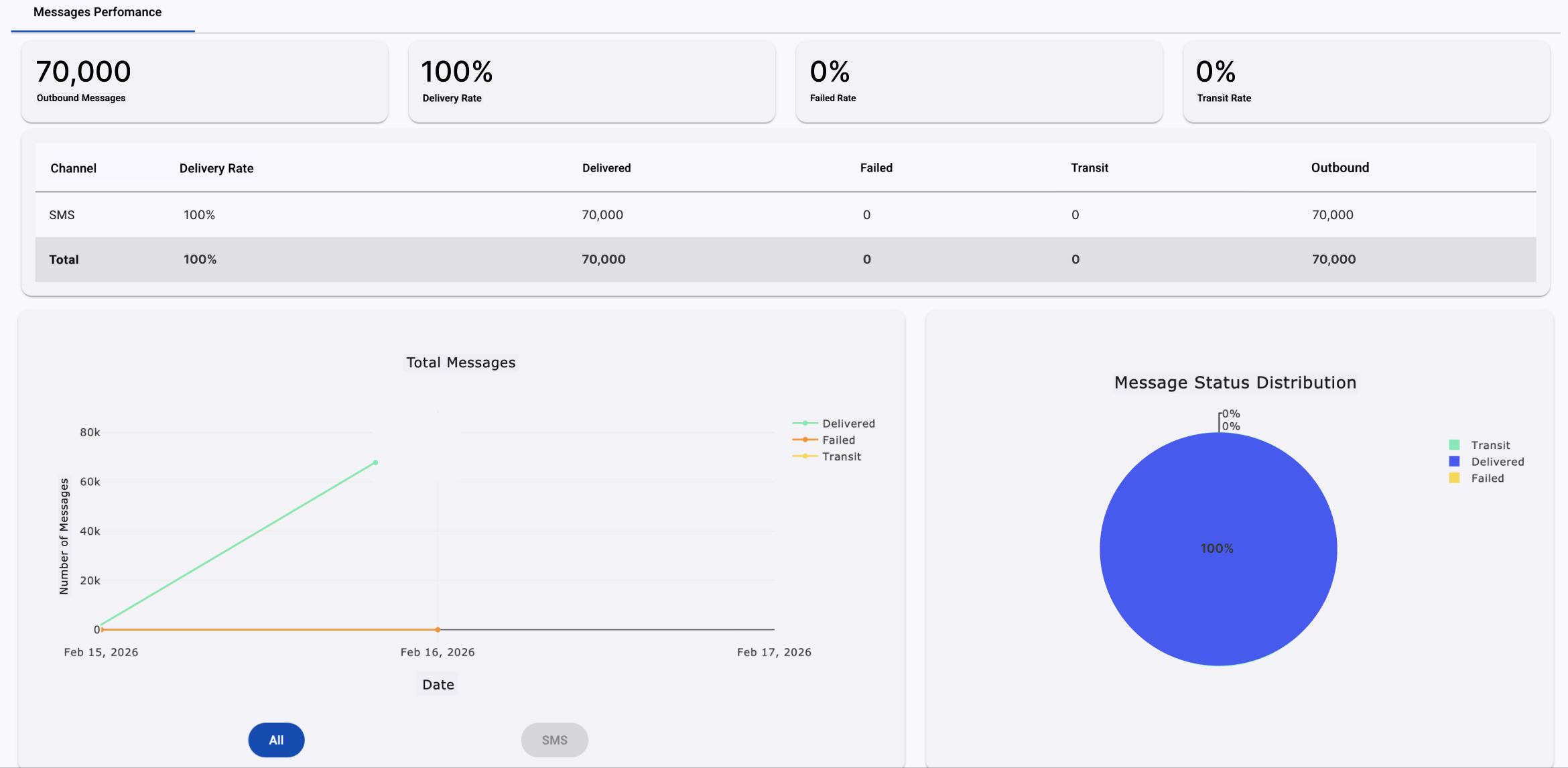
This tab includes the following components:
- KPIs:
- Outbound Messages: The number of SMS messages submitted through the SMPP connection.
- Delivery Rate: The percentage of outbound SMS messages successfully delivered to end users.
- Failed Rate: The percentage of messages that failed before reaching the recipient.
- Transit Rate: The percentage of SMS messages awaiting a final delivery status when the report is generated.
- Performance Table:
- Channel: The SMS channel associated with the sender.
- Delivery Rate: The percentage of SMS messages successfully delivered.
- Delivered: The number of messages successfully delivered.
- Failed: The number of messages that did not reach the recipient.
- Transit: The number of messages awaiting final delivery confirmation.
- Outbound: The number of SMS messages submitted through SMPP.
- Charts:
- Total Messages by Status: Shows outbound, delivered, in-transit, and failed SMS messages across the selected date range. The horizontal axis shows time, and the vertical axis shows message volume by status.
- Message Status Distribution: Shows the proportion of messages with a Delivered, Transit, or Failed status.
To export the displayed results, click Export Report. The platform sends a .csv report to the email address associated with your session.
Messaging logs
At the bottom of the Messaging tab, the Messaging Logs table lists SMS messages processed during the selected date range. Records appear in reverse chronological order, from newest to oldest.
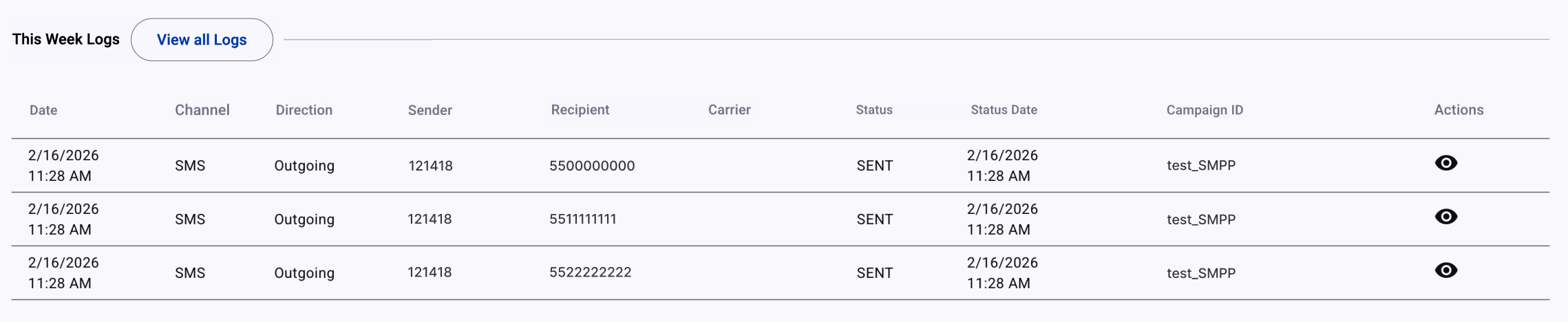
Each row represents one SMS transaction and includes these fields:
- Date: The date and time when the SMS was submitted or received.
- Channel: The SMS channel.
- Direction: Whether the message is outbound (MT) or inbound (MO).
- Sender: The SMS sending identity, such as a short code, long code, or alphanumeric sender ID.
- Recipient: The mobile number that received an outbound message or originated an inbound message.
- Carrier: The recipient's mobile network operator for outbound messages, when available. Carrier information may not appear immediately while delivery status processing is in progress.
- Status: The message's current delivery state. See SMS Status for definitions of each status.
- Status Date: The date and time when the current status was recorded.
- Message ID: The associated broadcast or external identifier specified during message submission.
- Action: Opens the complete message record.
Click View All Logs above the table to open an extended log view with additional filters and column controls.
View all logs
View All Logs lets you isolate message records and customize the log table for your reporting needs.
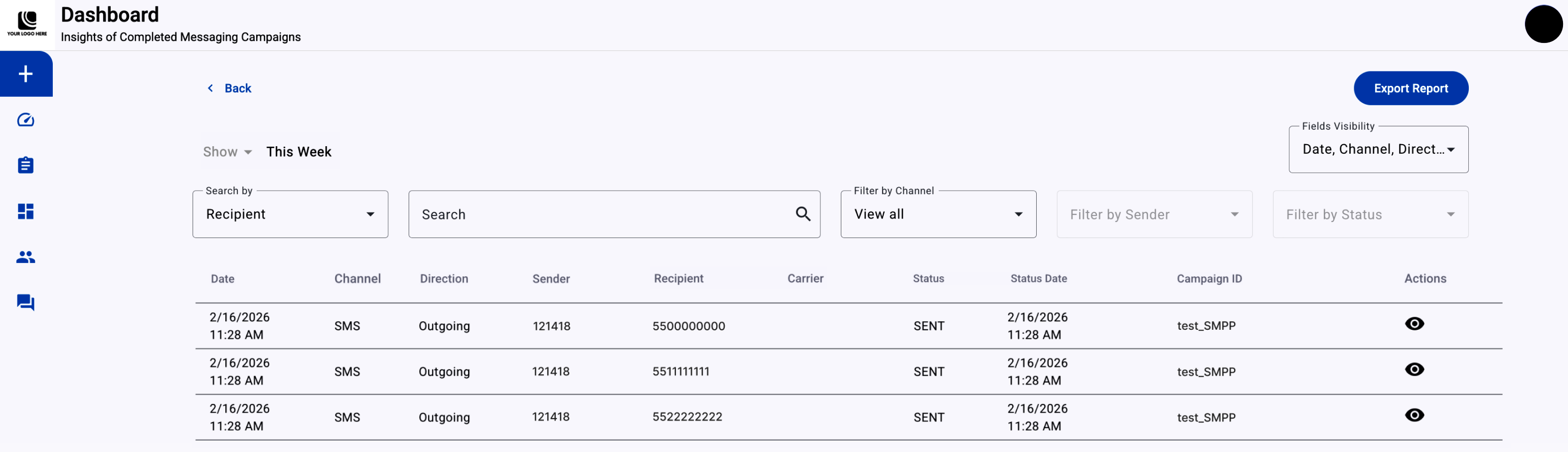
Use these filters and controls:
- Date Range Filter: Shows SMS records generated during the selected period. The results update when you change the range. When you select This Week, the start of the week may depend on your browser's timezone.
- Search By: Select Recipient (mobile number) or Message ID as the search criterion.
- Search Field: Enter the mobile number or Message ID for the message record you want to find.
- Filter by Channel: Limit results to a specific SMS channel.
- Filter by Sender: Limit results to a sender identity, such as a short code, long code, or alphanumeric sender ID.
- Filter by Status: Limit results by delivery status. See SMS Status for status definitions.
- Fields Visibility: Choose which columns appear in the table.
To export the filtered results, click Export Report. The platform sends a .csv report to the email address associated with your session.
Updated about 2 months ago