
Enabled Channels
Use the Enabled Channels table to review the channels and sender IDs available for broadcasts, automations, and Live Chat.
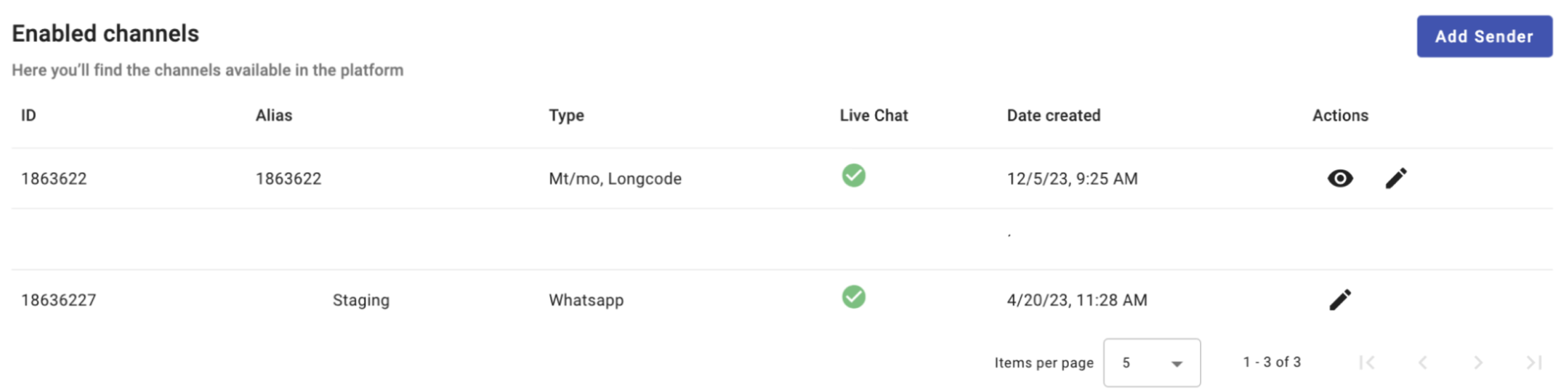
The table consists of six columns:
-
ID: The unique sender identifier for a messaging channel, such as SMS, email, or WhatsApp.
- For SMS, the sender ID identifies the origin of text messages. Common sender ID types include:
- Short Codes: Five- or six-digit numbers commonly used for bulk broadcasts and marketing automations.
- Long Codes: Standard phone numbers, usually 10 digits, commonly used for personalized, two-way communication.
- For Email, the sender ID is the email address that sends the message.
- For WhatsApp, the sender ID identifies the business account or phone number used to send messages to customers.
- For SMS, the sender ID identifies the origin of text messages. Common sender ID types include:
-
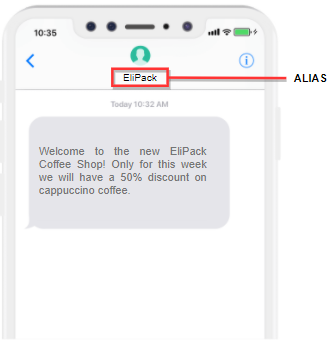
Alias: An easy-to-recognize label for a sender ID. Recipients see this alias as the message originator.
-
Type: Displays the channel type associated with the sender.
- For SMS, the type is MT (Mobile Terminated), MO (Mobile Originated), or both (bidirectional). The sender ID can be a short code or long code.

-
For WhatsApp, this column distinguishes the WhatsApp Business Account (WABA) from the phone numbers (senders) that use it.
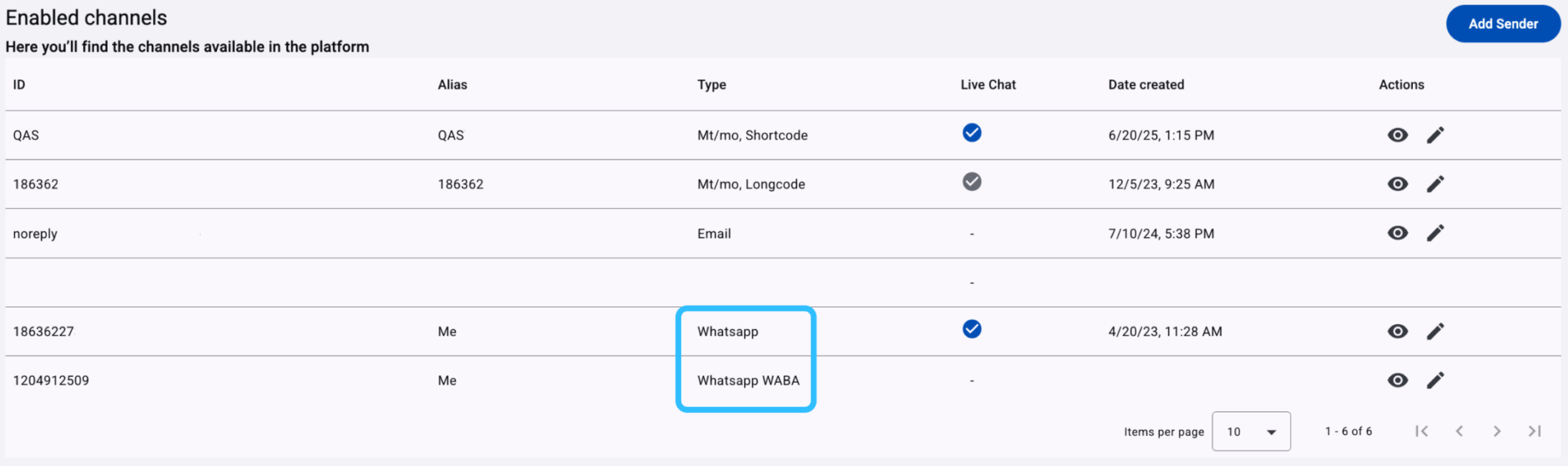
The Type column can display the following WhatsApp values:
-
WhatsApp: An individual phone number linked to your WhatsApp Business Account (WABA). The number sends and receives messages for your business. Multiple senders can use the same WABA, but each sender can belong to only one Workspace at a time.
-
WhatsApp WABA: The WhatsApp Business Account (WABA). It contains related sender phone numbers, message templates, and business profile settings. A Workspace can have only one assigned WABA at a time.
-
WhatsApp Shared WABA: A WABA added to the Workspace through Embedded Sign-Up.
IMPORTANTIf a warning icon (⚠️) is displayed in the Actions column, and the following message is displayed:
“Meta access has been revoked. Please contact support.”It means that the platform no longer has permission to access your WhatsApp Business Account in Meta.
In this scenerario, the selected sender may still appear in the list, but its connection is no longer active.
As a result, the platform cannot validate the sender’s connectivity or allow message delivery.
This situation occurs when access to your WhatsApp account has been removed or modified in your Meta Business Manager.
To resolve this issue, please contact your Account Manager to restore access to your WhatsApp Business account.
-
-
Live Chat: Controls whether the sender is used exclusively for Live Chat.
A gray checkmark indicates that the sender is available for Live Chat but is not active. A green checkmark indicates that the sender is active and reserved for Live Chat.
When Live Chat is active, incoming messages and keywords sent to the sender ID and channel type route directly to a live chat agent. You do not need to configure chatbot automation.
NOTEOnly the checkmark is available for those senders that are bidirectional (MT / MO), from SMS and WhatsApp type.
To activate a sender for Live Chat, see Live Chat Connection.
-
Date created: The date when the sender ID was added to the Workspace.
-
Actions: Provides a View Details icon (eye) and, when available, an Edit icon (pencil).
-
Select the View Details icon (eye) for a WhatsApp sender to open a summary of its configuration.
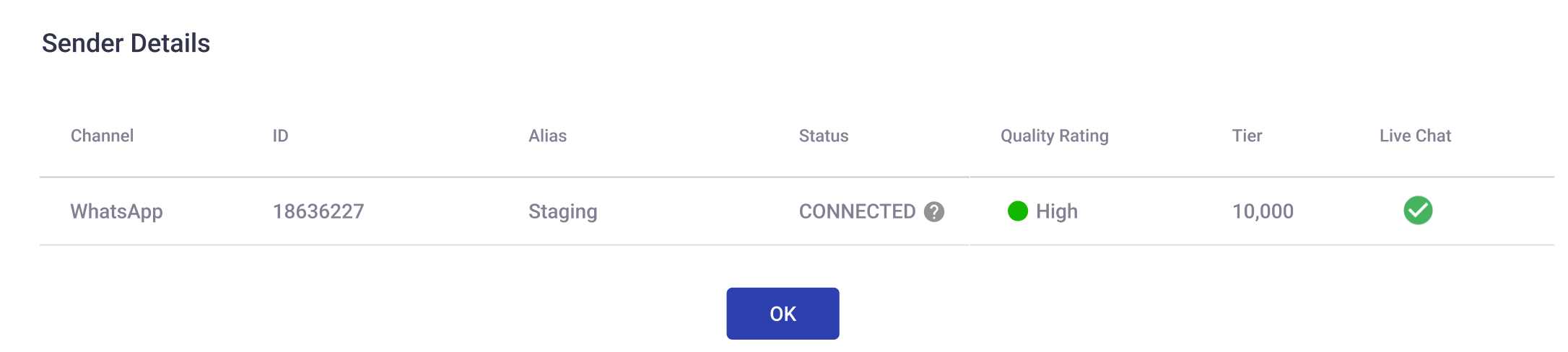
The summary includes the following fields:
- Channel: The communication channel. For this sender, the value is WhatsApp.
- ID: The phone number assigned to the sender.
- Alias: The custom name associated with the sender.
- Status: The sender’s connection status. CONNECTED means the sender can send and receive messages.
- Quality Rating: Meta’s assessment of sender performance based on user engagement and message quality. A High rating indicates good delivery performance and user experience.
- Tier: The maximum number of business-initiated conversations allowed each day. For example, a tier of 1,000 permits up to 1,000 customer-initiated conversations per day using approved message templates.
- Live Chat: Whether Live Chat is active for the sender. A checkmark confirms that it is active.
- Channel: The communication channel. For this sender, the value is WhatsApp.
-
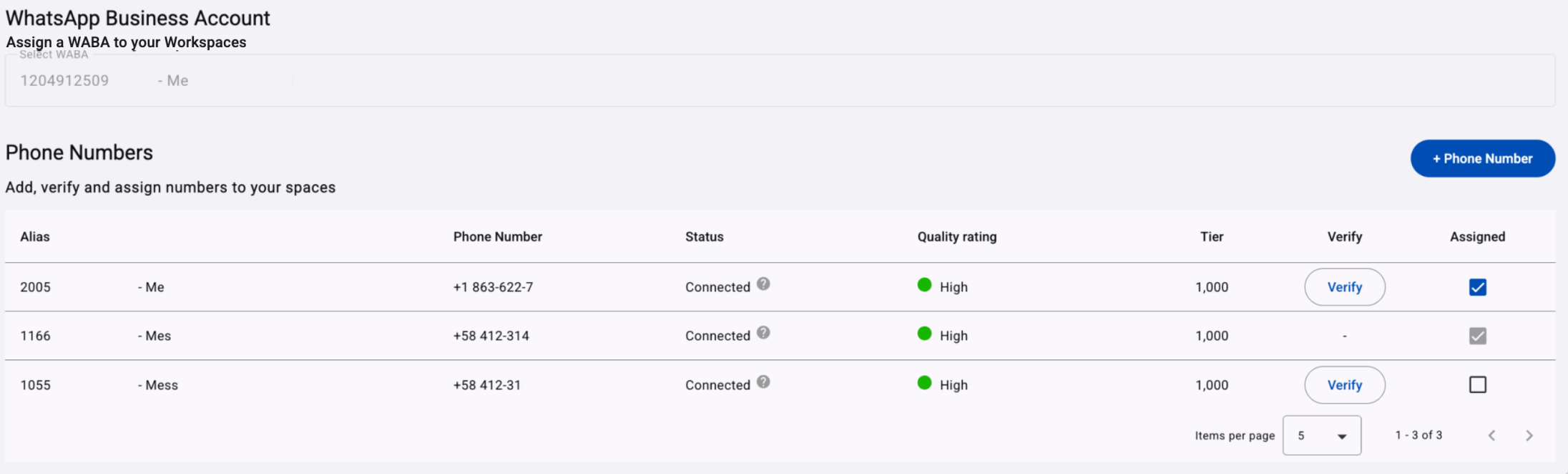
Select the Edit icon (pencil) for a WhatsApp WABA to manage its phone numbers. You can add and verify phone numbers, then assign them to your Workspace.
-
Alias: The custom name used to identify the sender phone number.
-
Phone Number: The sender phone number configured under the WABA to send and receive WhatsApp messages.
-
Status: The sender’s connection status. CONNECTED means the sender can send and receive messages.
-
Quality Rating: Meta’s assessment of sender performance based on user engagement and message quality. A High rating indicates good delivery performance and user experience.
-
Tier: The maximum number of business-initiated conversations allowed each day. For example, a tier of 1,000 permits up to 1,000 customer-initiated conversations per day using approved message templates.
-
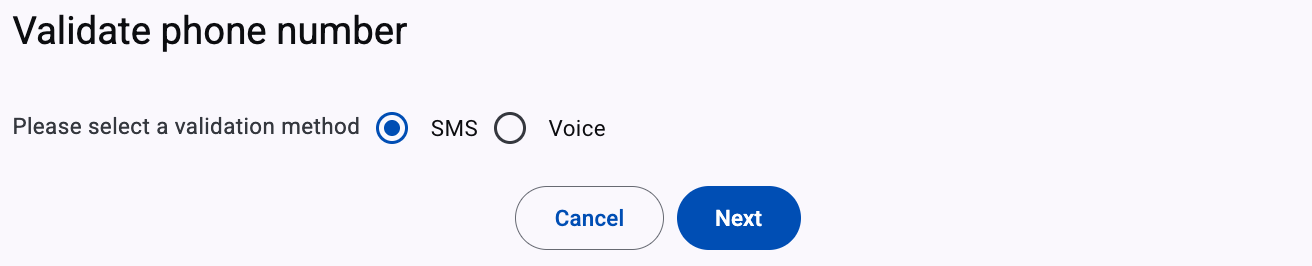
Verify: Verifies the phone number with a one-time password (OTP) sent by SMS or voice call. This button is unavailable when the phone number belongs to another Workspace.
-
Assigned: Assigns the phone number to the current Workspace. Select the checkbox when it is available. A disabled (gray) checkbox means the number is already assigned to another Workspace.
To add a phone number to the selected WABA, see Add Phone Number to WABA.
-
For definitions of tiers, Quality Rating values, and statuses, see WhatsApp Sender Quality Rating & Status.
-
Add Sender
The Support Team assigns and configures SMS, WhatsApp, and RCS channels for your platform environment. The team reviews the routes and codes used in broadcasts and automations before activating them.
NOTETo add SMS, RCS and WhatsApp channels, you must contact our support team.
If you have already a WABA, go to the Embedded Signup (WhatsApp) section to linked your WABA with our system.
To add an Email sender or create a WhatsApp Business Account (WABA) and its sender phone numbers, select Add Sender. The available channel options appear:

Updated 4 days ago