
Credits overview
Monitor your active credit plan and consumption across delivery channels from the Credits tab in Preferences. For teams tracking credit allocation without switching to the usage-detail view.
Monitor your active credit plan and credit consumption across delivery channels from the Credits tab in Preferences.
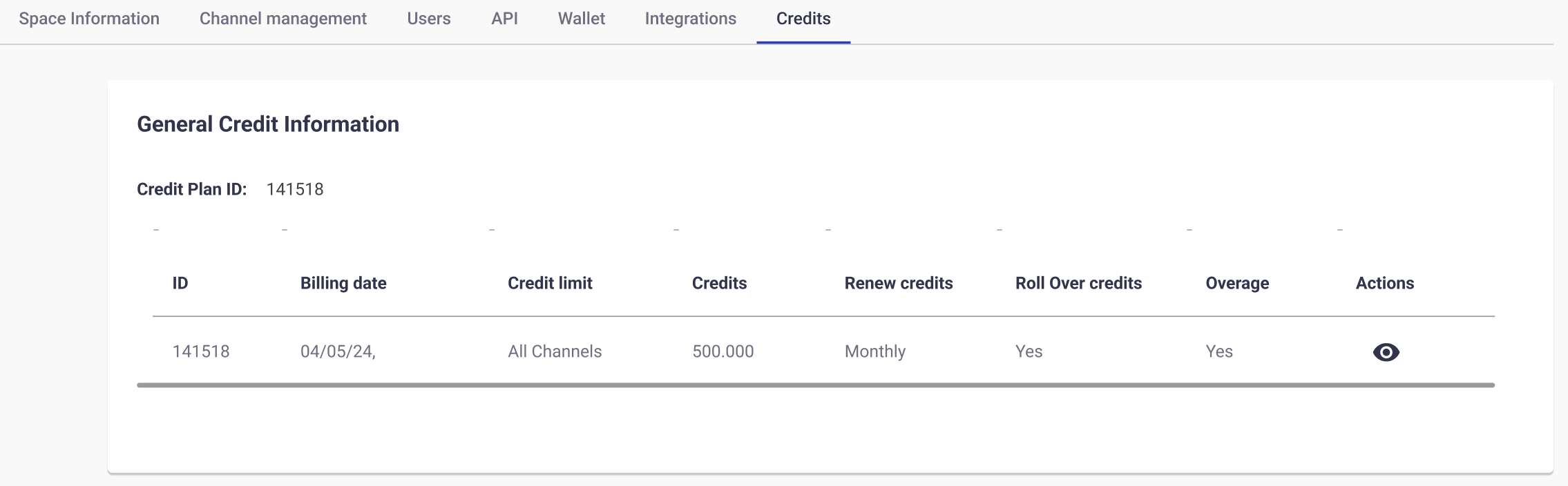
The General Credit Information table summarizes your active credit plan:
- Credit Plan ID: The plan's unique identifier.
- Billing date: The credit plan's start date.
- Credit limit: The credit-allocation type: All Channels or Channel Specific.
- Credits: The total assigned credits. For All Channels, this is a shared pool; for Channel Specific, it is the total of the credits configured for each channel.
- Renew credits: Whether credit renewal is enabled and its period, such as weekly, monthly, or quarterly.
- Roll Over credits: Whether unused credits carry over to the next renewal cycle (Yes) or reset at the start of the new cycle (No).
- Overage: Whether overage is enabled. When enabled, credit use can exceed the configured limit after the plan is consumed. When disabled, delivery stops when the limit is reached.
- Actions: Select View details (the eye icon) to view the plan's credits, consumption, and remaining balances.
The platform sends email notifications to the Account Manager at 25%, 50%, 75%, 95%, and 100% consumption. The monitoring view depends on the credit-allocation type:
- All Channels: Shows the shared credit pool across all delivery channels.
- Channel Specific: Shows credits, consumption, and balances for each delivery channel.
All Channels
- In the Actual Credit Plans table, select View details (the eye icon).
- Review the credit plan data and shared credit pool in real time.
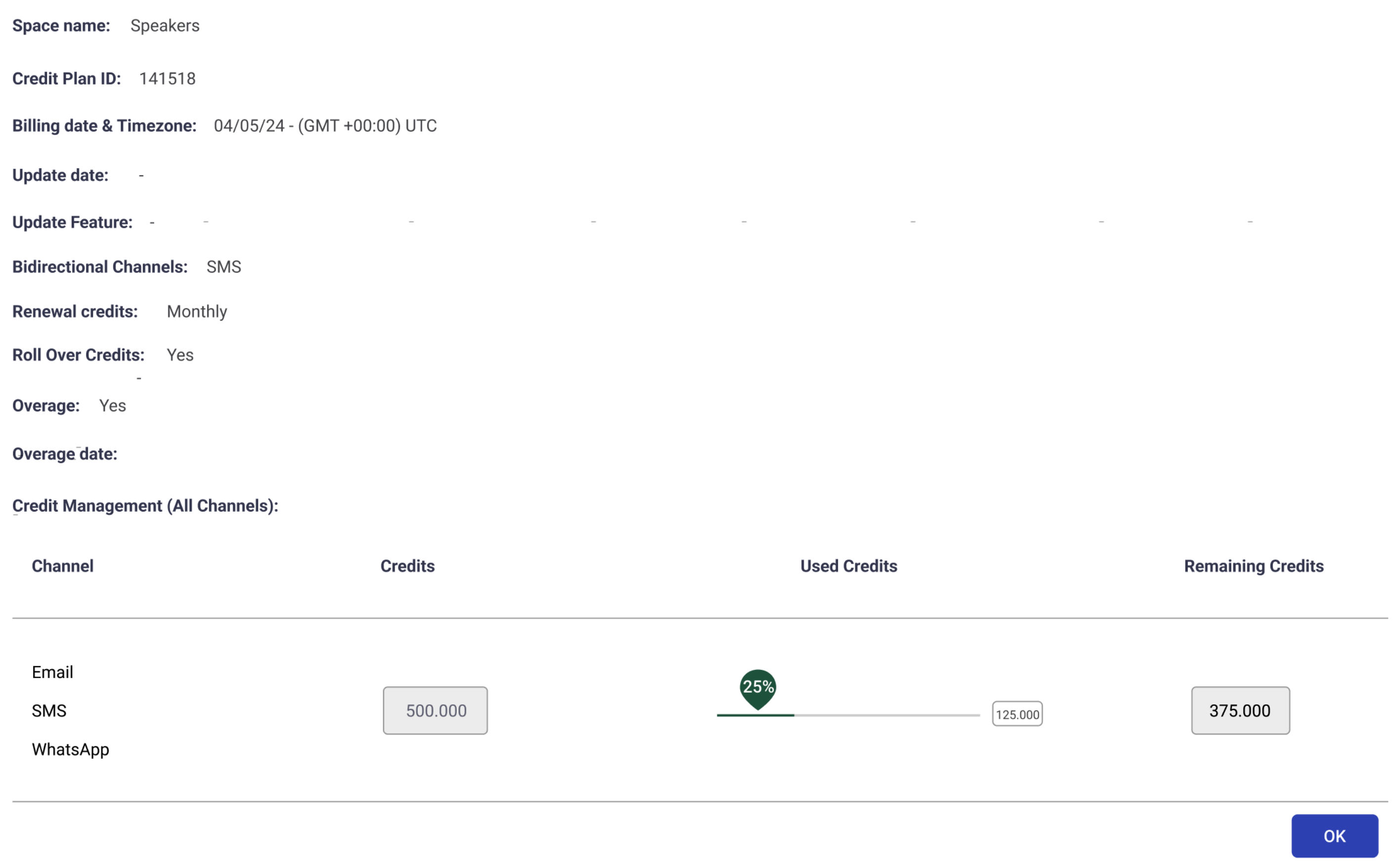
Monitoring view fields (all channels)
The monitoring view includes the following credit plan information:
- Workspace name: The Workspace where the credit plan is configured.
- Credit Plan ID: The credit plan's unique identifier.
- Billing date & Timezone: The credit plan's start date and time zone.
- Update date / Update Feature: Reserved fields that show when the plan was last updated, if applicable.
- Renewal credits: Whether credit renewal is enabled and its period, such as weekly, monthly, or quarterly.
- Roll Over Credits: Whether unused credits carry over to the next renewal cycle (Yes) or reset at the start of the new cycle (No).
- Overage: Whether overage is enabled. If it is enabled, the view also shows the date when overage was applied.
Credit management (all channels)
This table shows the shared credit pool across all delivery channels.
- Channel: Delivery channels in the Workspace, such as Email, SMS, and WhatsApp.
- Credits: The total credit pool configured for the plan.
- Used Credits: Credits consumed from the shared pool, regardless of the originating channel.
- Remaining Credits: Credits still available in the shared pool.
The platform monitors the shared pool during the current period and emails the Account Manager at each consumption threshold:
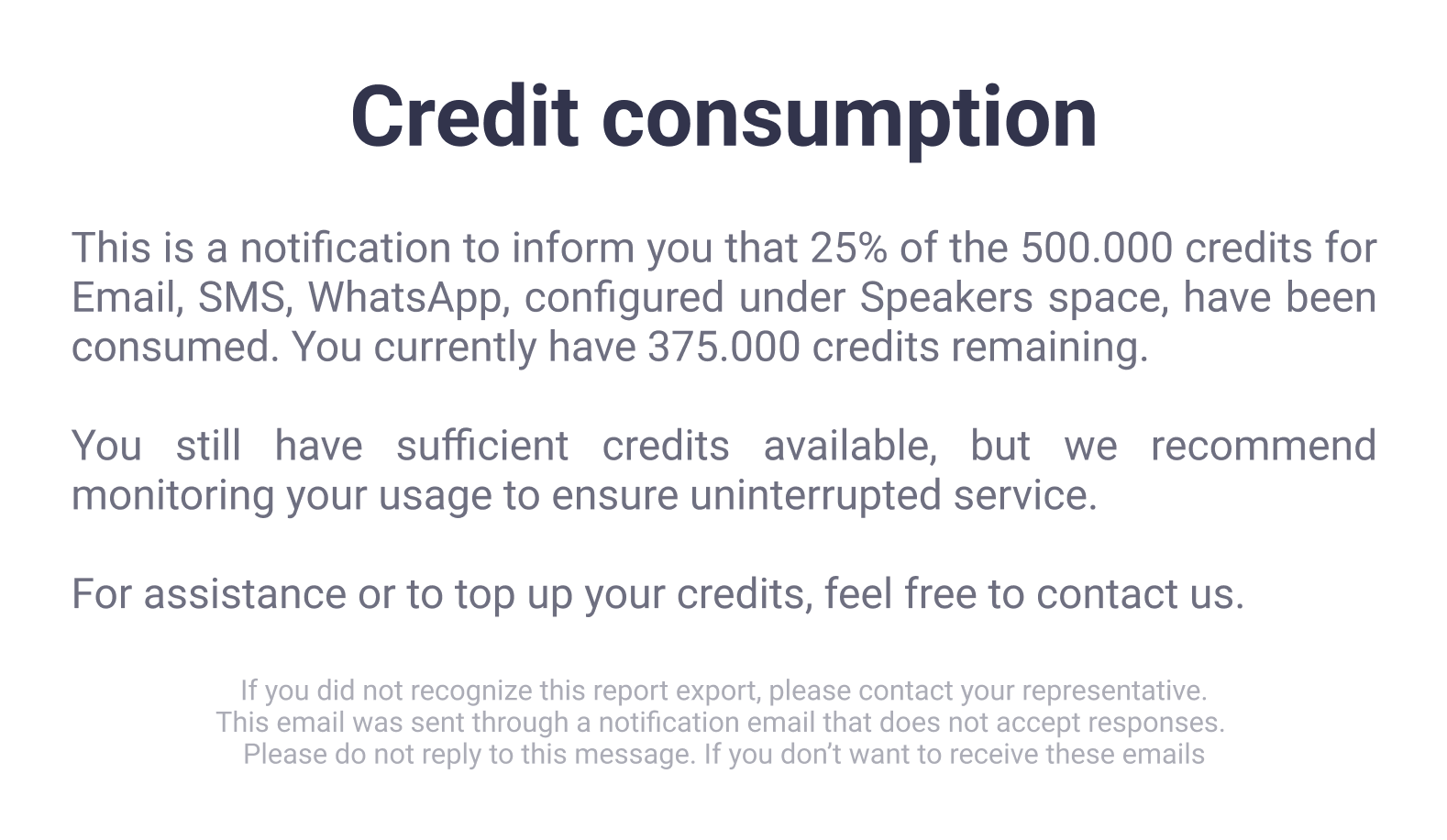
- 25% consumed: A notice that one quarter of the assigned credits has been used, including the remaining balance and a recommendation to monitor consumption.
- 50% consumed: A mid-cycle update that half of the assigned credits has been consumed and a reminder to review usage trends.
- 75% consumed: A high-usage warning that three quarters of the credits has been consumed, including the remaining balance and a suggestion to plan a top-up if demand continues.
- 95% consumed: A critical pre-exhaustion alert that approximately 5% of credits remain and action is needed to avoid interruption.
- 100% consumed (Fully consumed): An exhaustion alert confirming that all credits have been consumed.
- Overage Credit Activated: When the plan is fully consumed and Overage is enabled, the system adds credits equal to 100% of the original amount and emails the Account Manager.
For example, consider an All Channels credit plan with 500,000 credits for a Workspace. When 125,000 credits (25%) are consumed across Email, SMS, and WhatsApp, the Account Manager receives a notification that shows the remaining balance.
Channel Specific
- In the Actual Credit Plans table, select View details (the eye icon).
- Review the credit allocation, consumption, and remaining balance for each delivery channel in real time.
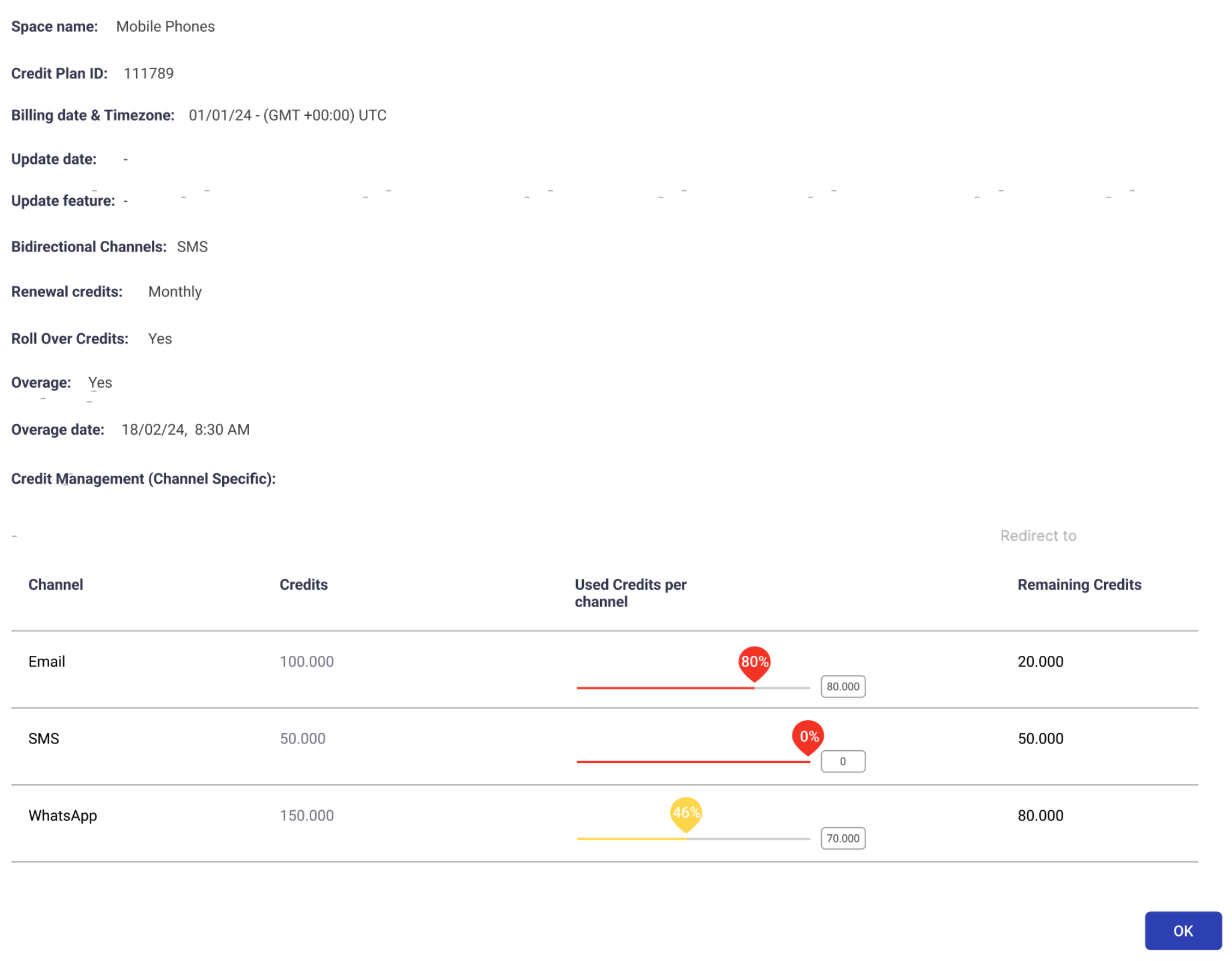
Monitoring view fields (channel specific)
The monitoring view includes the following credit plan information:
- Workspace name: The Workspace where the credit plan is configured.
- Credit Plan ID: The credit plan's unique identifier.
- Billing date & Timezone: The credit plan's start date and time zone.
- Update date / Update Feature: Reserved fields that show when the plan was last updated, if applicable.
- Renewal credits: Whether credit renewal is enabled and its period, such as weekly, monthly, or quarterly.
- Roll Over Credits: Whether unused credits carry over to the next renewal cycle (Yes) or reset at the start of the new cycle (No).
- Overage: Whether overage is enabled. If it is enabled, the view also shows the date when overage was applied.
Credit management (channel specific)
This table shows credits assigned to each delivery channel. Unlike an All Channels plan, each channel has its own allocation and is monitored independently.
- Channel: Each delivery channel included in the credit plan.
- Credits: Credits allocated to that channel.
- Used Credits by Channel: The percentage of that channel's credits already consumed.
- Remaining Credits: Credits still available for that channel.
The platform monitors each channel independently and emails the Account Manager when a channel reaches a consumption threshold:
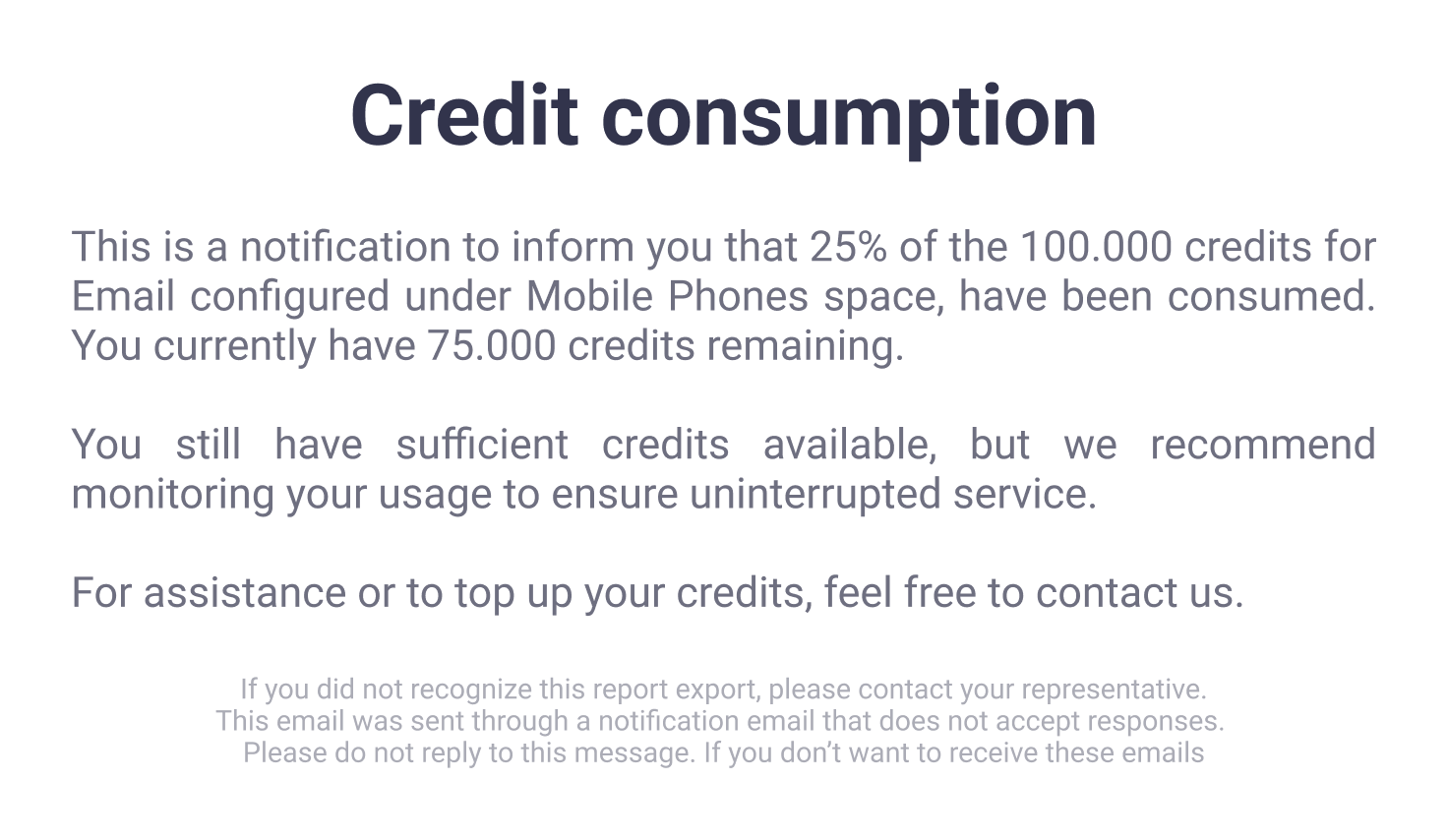
- 25% consumed: A notice that one quarter of the channel's assigned credits has been used, including the remaining balance and a recommendation to monitor consumption.
- 50% consumed: A mid-cycle update that half of the channel's assigned credits has been consumed and a reminder to review usage trends.
- 75% consumed: A high-usage warning that three quarters of the channel's credits has been consumed, including the remaining balance and a suggestion to plan a top-up if demand continues.
- 95% consumed: A critical pre-exhaustion alert that approximately 5% of the channel's credits remain and action is needed to avoid interruption.
- 100% consumed (Fully consumed): An exhaustion alert confirming that the channel's credits have been consumed.
- Overage Credit Activated: When a channel's credits are fully consumed and Overage is enabled, the system adds credits equal to 100% of that channel's original allocation and emails the Account Manager.
For example, consider a plan with 100,000 credits for Email, 50,000 for SMS, and 150,000 for WhatsApp.
-
When Email reaches 25% consumption (25,000 credits), the Account Manager receives an Email-channel notification.
-
When WhatsApp reaches 75% consumption (112,500 credits), the platform sends a separate high-usage notification for WhatsApp.
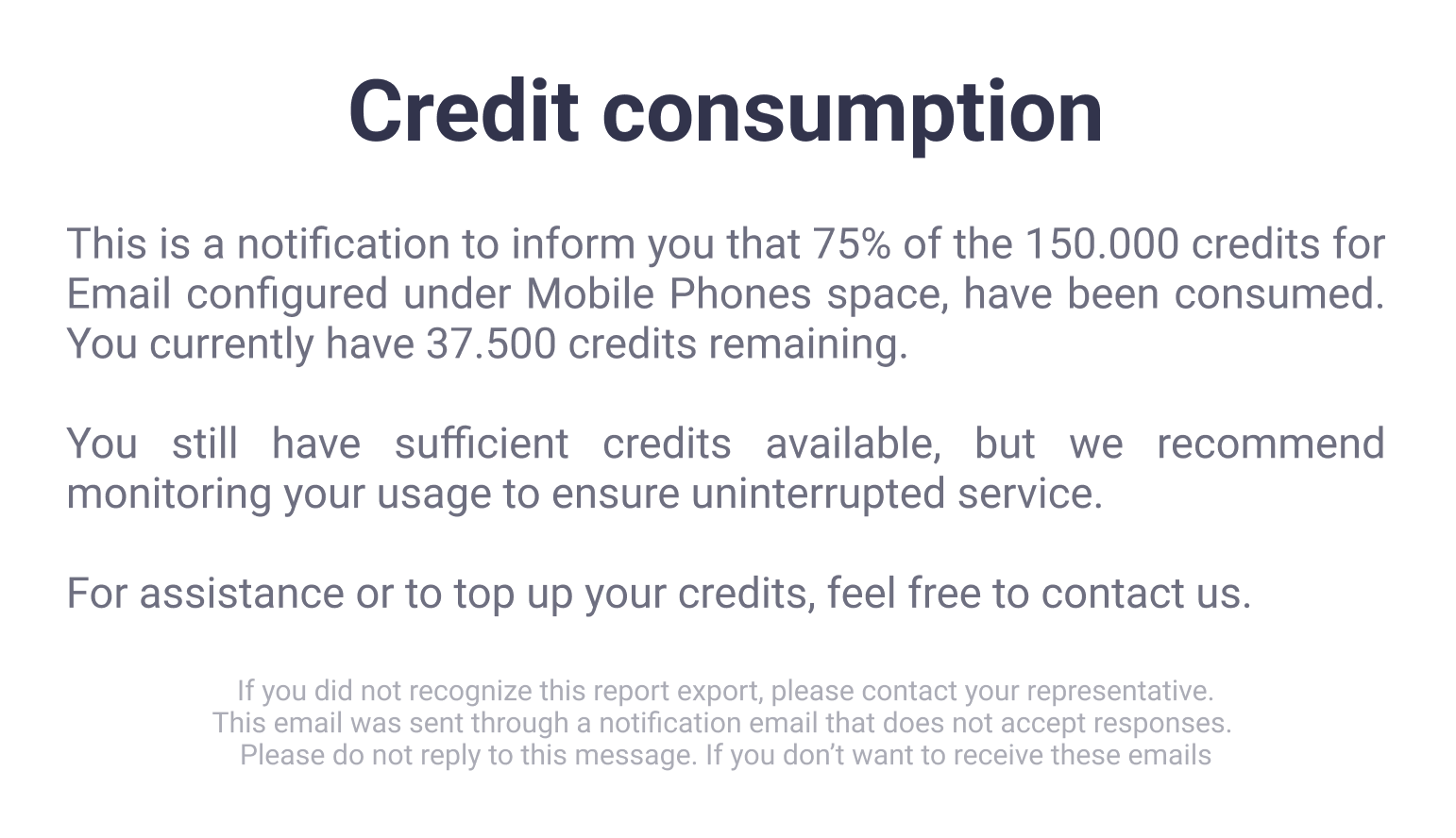
Each channel operates independently, so notifications apply to individual channels rather than combined usage.
Updated about 1 month ago