
WhatsApp broadcast analytics
Review Performance, Broadcast Overview, and delivery-status KPIs generated automatically after a WhatsApp broadcast launches. For teams analyzing message delivery, transit, and failure rates.
Once a WhatsApp broadcast launches, the platform automatically generates a dedicated report. It consolidates key performance metrics, delivery results, and configuration details for that broadcast. The WhatsApp broadcast report includes three core sections:
-
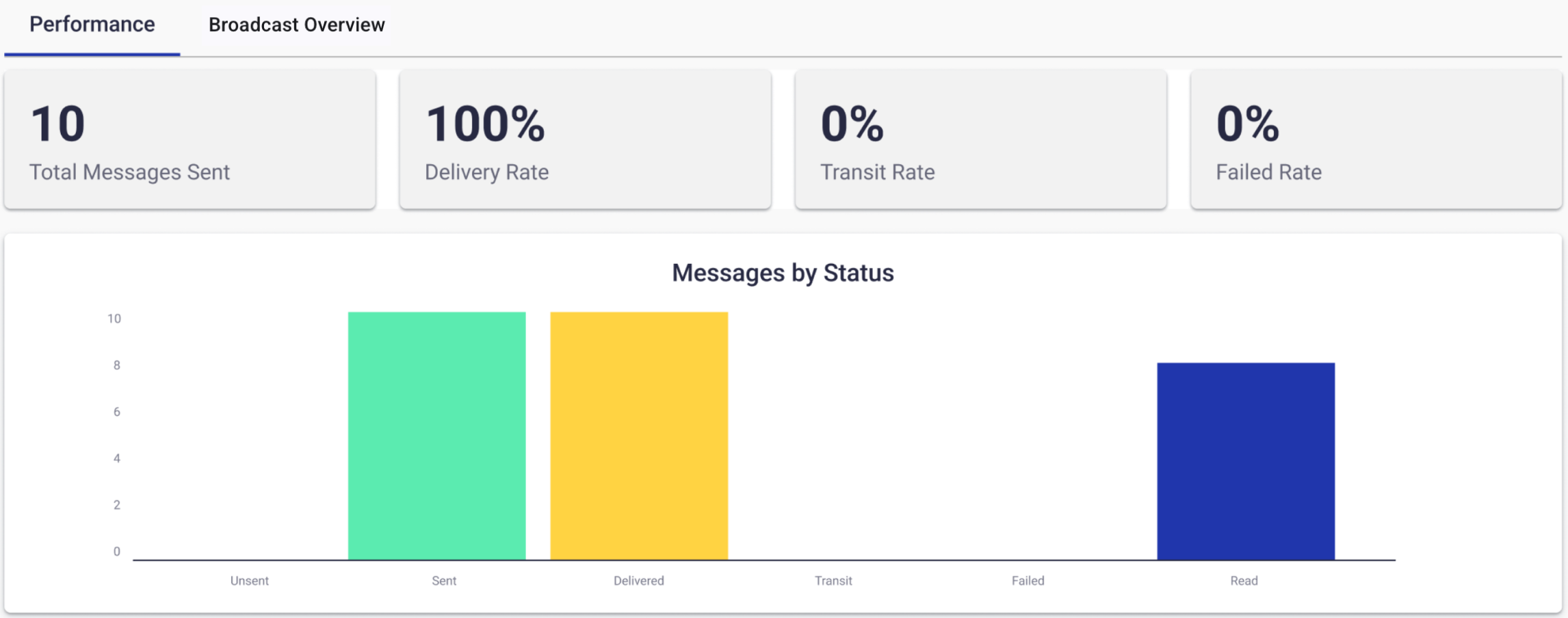
Performance: Provides a visual breakdown of broadcast performance with KPIs including Total Messages Sent, Delivery Rate, Transit Rate, and Failed Rate. It includes a bar chart showing message distribution by status for a quick analytical snapshot.
-
Broadcast Overview: Displays the main broadcast attributes, including sender information, recipient count, applied filters, and throttle configuration. It also provides a visual preview of the message as it was delivered to users' devices.
-
Recipient Search: Supports searching for specific recipients by delivery status, timestamps, and message count. This view helps identify individual delivery outcomes and troubleshoot messaging issues granularly.
The report provides actionable insights for strategic decision-making and operational troubleshooting.
Performance tab
You view metrics and visualizations to evaluate broadcast delivery performance.
KPIs
Four performance KPIs appear at the top:
-
Total Messages Sent - Represents the total number of WhatsApp messages sent during the broadcast execution.
-
Delivery Rate - Indicates the percentage of messages successfully delivered to recipients.
-
Transit Rate - Percentage of messages still in transit and pending final delivery status.
-
Failed Rate - Percentage of messages that could not be delivered.
Messages by status graph
The Performance tab displays a bar chart of message statuses reported by Meta for each category. The Messages by Status chart illustrates how messages progressed through each delivery category. The bar chart contains 5 categories. Each category shows the WhatsApp message statuses reported by Meta:
-
Unsent: Total number of messages that were not dispatched to WhatsApp.
-
Sent: Total number of messages that were successfully submitted to WhatsApp for delivery.
-
Delivered: Total number of messages that reached the recipient's device.
-
Transit: Total number of messages still pending delivery confirmation.
-
Failed: Total number of messages that could not be delivered.
-
Read: Total number of messages that were opened by recipients.
The graph helps quickly identify delivery success, delays, and failures.
Broadcast Overview tab
You review broadcast configuration and message content appearance in this section.
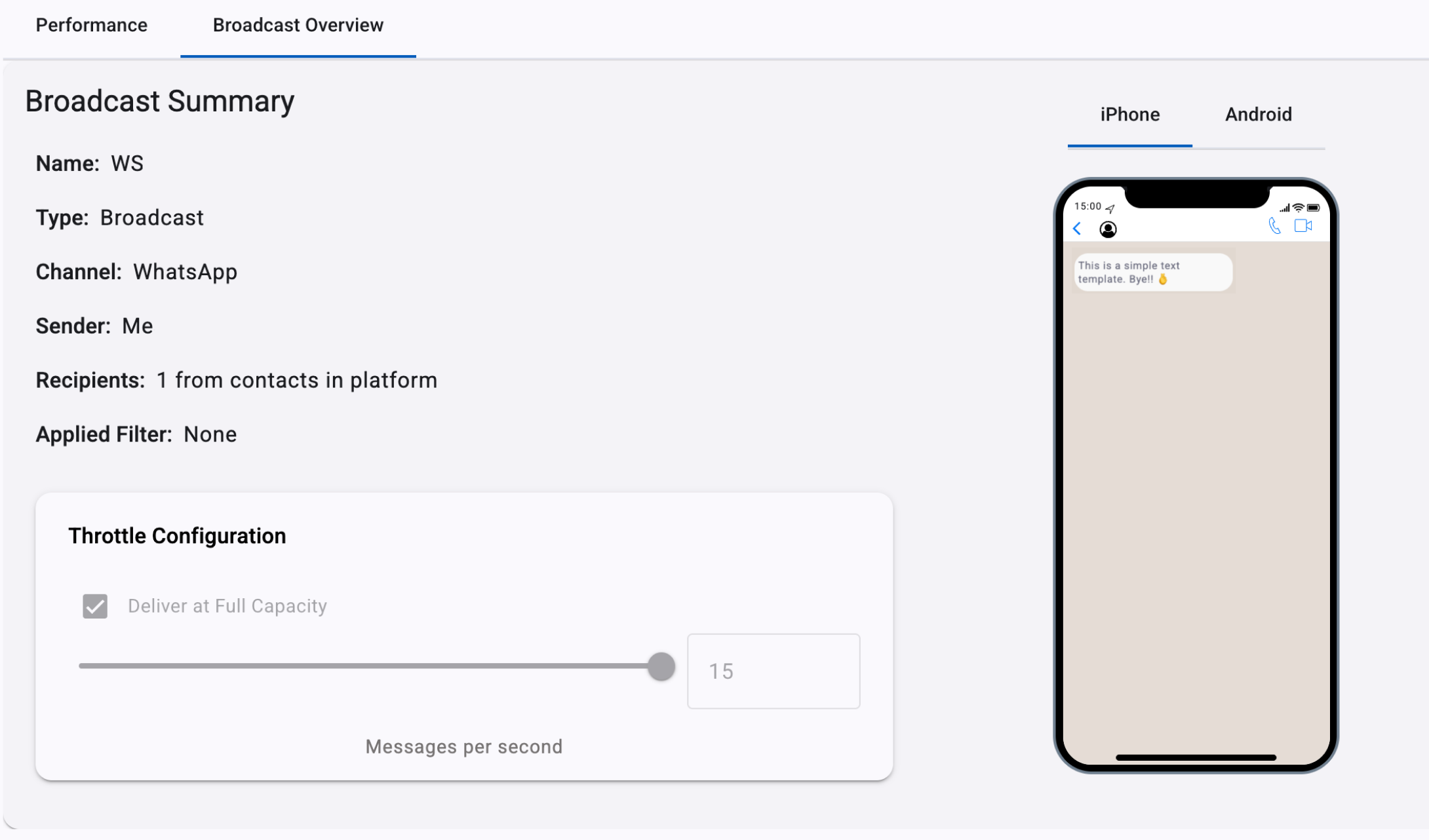
- Name: Broadcast Name: Indicates the internal name assigned to the broadcast.
- Type: Type of the broadcast. In this case, WhatsApp is a Messaging broadcast.
- Channel: Delivery channel.
- Sender: The WhatsApp number used to send the messages.
- Recipients: Total number of recipients.
- Applied Filter: Indicates if a filter was applied to target a specific audience.
Recipient Search tab
The Recipient Search section shows individual message deliveries and delivery status per recipient. This feature is especially useful for support teams, broadcast analysts, or any user who needs to verify delivery outcomes for specific contacts.
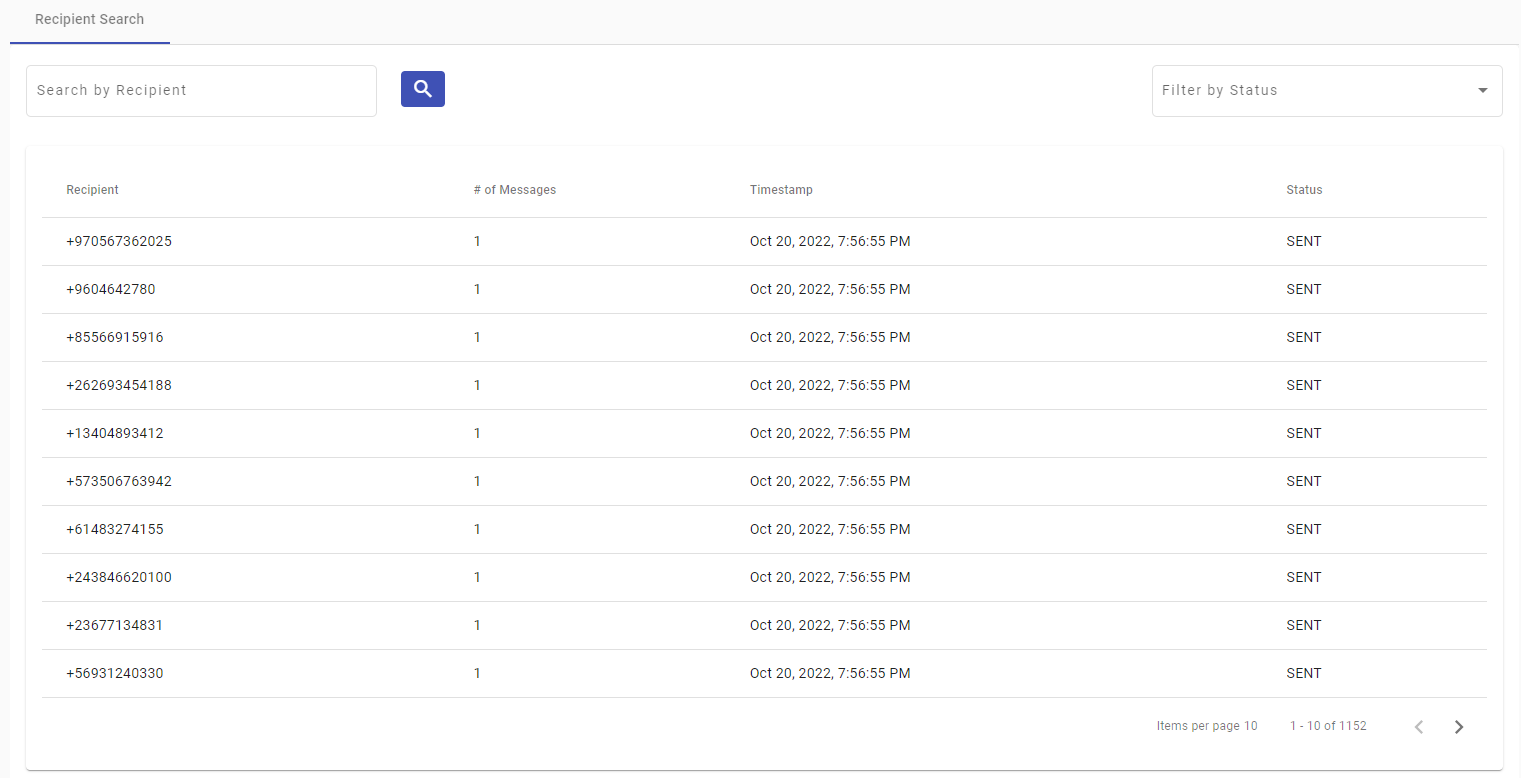
Two main controls appear at the top of the tab:
- Search by Recipient - Input field for looking up a specific phone number. The table below filters the records to show only matching results.
- Filter by Status - Dropdown for filtering results by message status. It is helpful for isolating failed or undelivered messages for follow-up actions.
Below the search and filter inputs, the platform displays a table containing all message attempts for the selected broadcast. The table includes the following columns:
- Recipient - Phone number of the recipient.
- Number of Messages - Number of messages sent to this recipient (usually 1 per broadcast).
- Timestamp - Date and time when the message was sent to the recipient.
- Status - Status of the sent message. The Message Status section covers WhatsApp status details.
Exporting a Report
Export Report appears at the top right of each broadcast section.

After you select it, a confirmation dialog appears showing the email address associated with your current session.
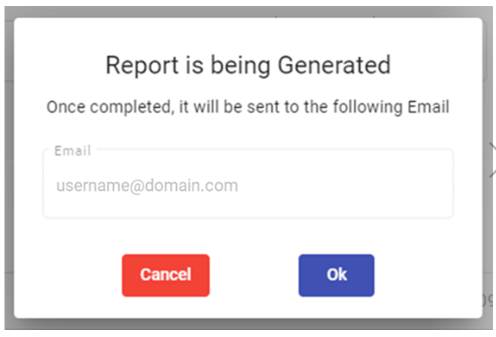
You click OK or press Enter to send the report to the email shown in the dialog.
When the email arrives in your inbox, it contains a link to download the analytics report. The figure below shows an example of the download email.
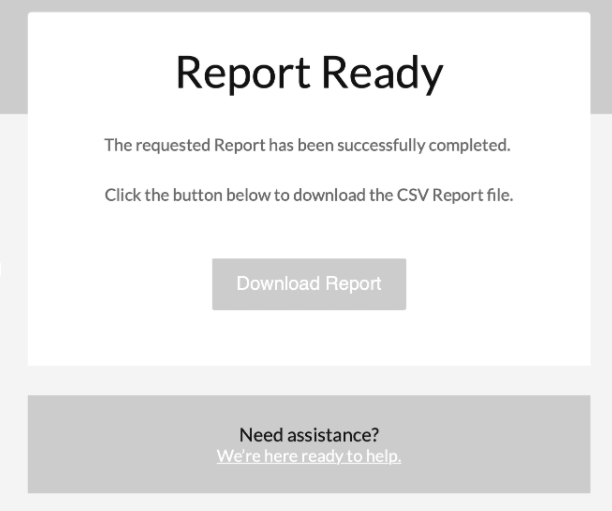
You click Download Report to save the report to your device.
Updated about 2 months ago