
Delivery & recipients
Configure the delivery channel and recipient source for a broadcast or automation before launch. For teams selecting SMS, Email, WhatsApp, or RCS delivery and defining the contacts who receive it.
Configure a delivery channel and recipient source for each broadcast or automation before you launch it.
This setup has two parts:
- Delivery defines the channel that sends your broadcast or automation to users.
- Recipients defines the contacts or audience that receive it.
Delivery
Select the channel that sends your broadcast or automation. Available channels can include SMS, Email, WhatsApp, and RCS, depending on the automation type. The following table shows the delivery and engagement options available for each automation.

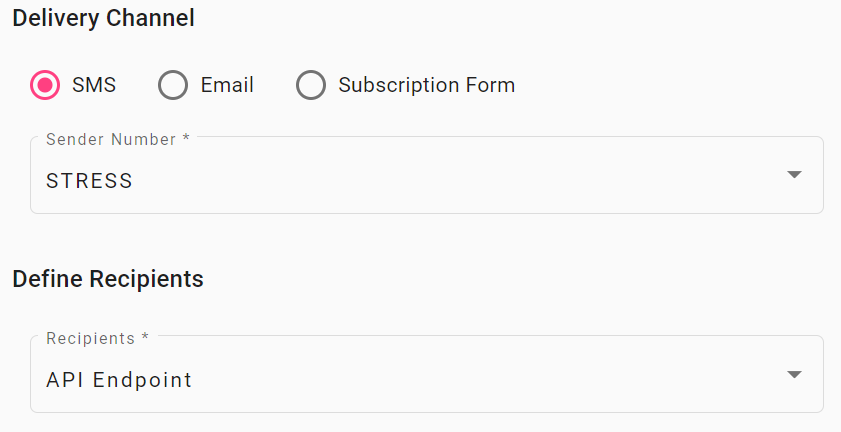
SMS
SMS is available for Polls & Surveys, Keyword, and Chatbot automations.
- Select SMS.
- Select a Sender Number.
- Select the Recipients option.
For recipient options, see Recipients.
RCS
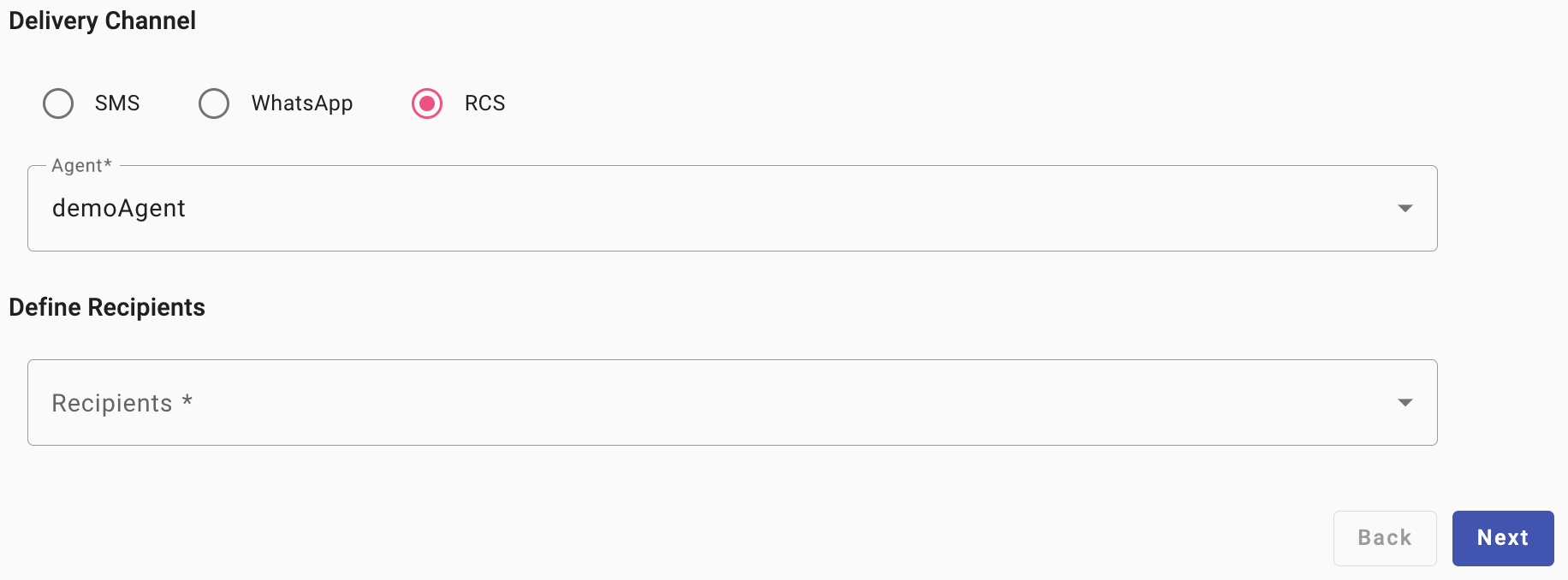
RCS is available for Polls & Surveys, Keyword, and Chatbot automations.
- Select RCS.
- Select an Agent.
- Select a Recipients option.
For recipient options, see Recipients.
WhatsApp
WhatsApp is available for Polls & Surveys, Keyword, and Chatbot automations.
-
Select WHATSAPP.
-
In Sender WhatsApp Business Account, select a WhatsApp sender configured in your Workspace. Each sender displays its alias and associated phone number.
-
Review the WhatsApp Sender Information panel that appears after you select a sender.
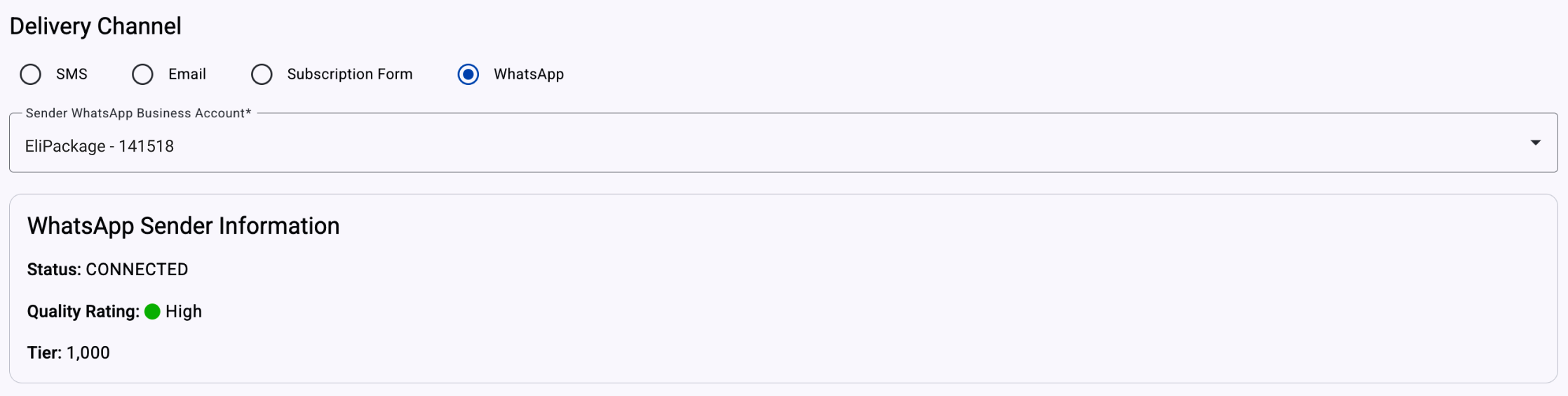
- Status shows the sender's connection state. A status of CONNECTED means the sender can send and receive messages.
- Quality Rating shows the sender's performance level, based on user engagement and message quality as determined by Meta. A High rating indicates good delivery performance and user experience.
- Tier shows the messaging tier, which determines the maximum number of business-initiated conversations allowed per day. For example, a tier of 1,000 permits up to 1,000 business-initiated conversations per day using approved templates.
NOTEYou can continue only when the selected sender has an eligible status. Senders with the following statuses are ineligible:
RESTRICTED,PENDING,DISCONNECTED,UNKNOWN,DELETED, andBANNED.The platform prevents you from selecting recipients or composing a message until you select an eligible sender.
For definitions of tier, quality rating, and sender statuses, see WhatsApp Sender Quality Rating & Status.
Recipients
Choose how to provide recipients for your broadcast or automation. You can use an API endpoint, contacts stored in the platform, a CSV file, manually entered contacts, or a keyword.
API Endpoint
Use API Endpoint to generate a delivery endpoint that your system calls to trigger an automation. After you create the automation and set it to Live Status, open the Delivery Endpoint tab to access the endpoint and payload sample.
The Delivery Endpoint is available for:
- Polls & Surveys
- Chatbot
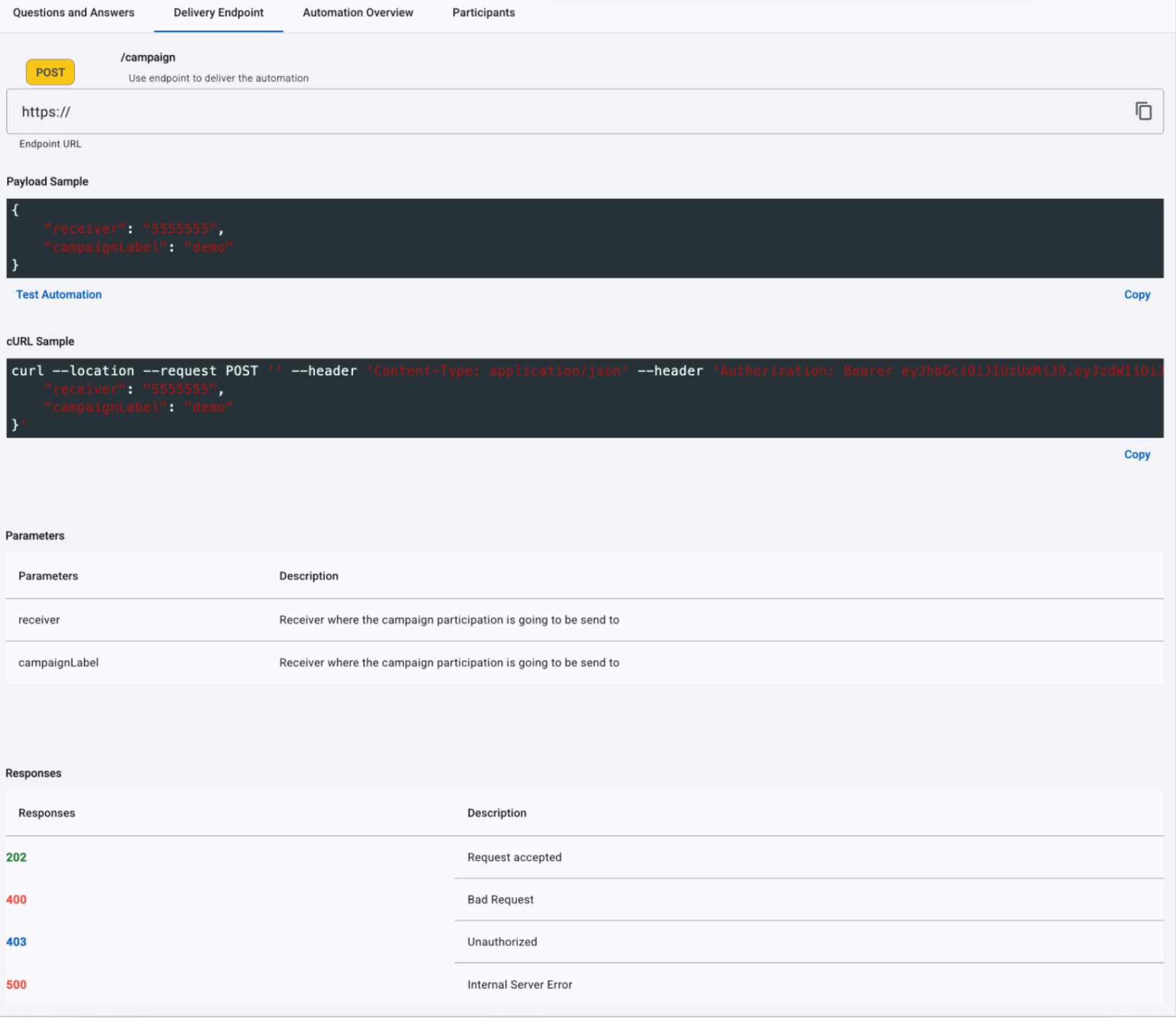
Copy the endpoint URL from the Endpoint URL field.
Call this endpoint from your system to send an SMS message to the recipient. For example, after a user completes a $12 USD recharge, your system can call the endpoint with the recipient's phone number and transaction details. The API then sends the configured SMS message, including its link, to that recipient.
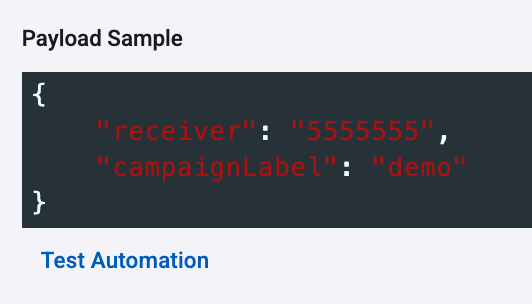
Copy the endpoint and payload sample. For example:
{
  "receiver": "5555555",
  "campaignLabel": "demo"
}
Each automation has a unique Delivery Endpoint. Its automation ID appears in the endpoint URL.

To test the automation:
-
Select Test Automation below the payload.
-
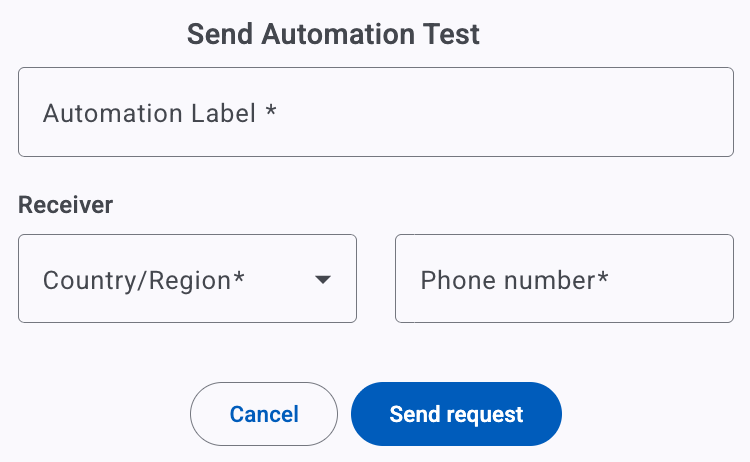
Enter the Automation Label, select the recipient’s Country/Region, and enter the Phone number.
-
Click Send Request. The platform sends the message immediately and displays the result in Try out response.

Contacts in Platform
Use Contacts in Platform to send to contacts in your Contact List. This is the default recipient option.
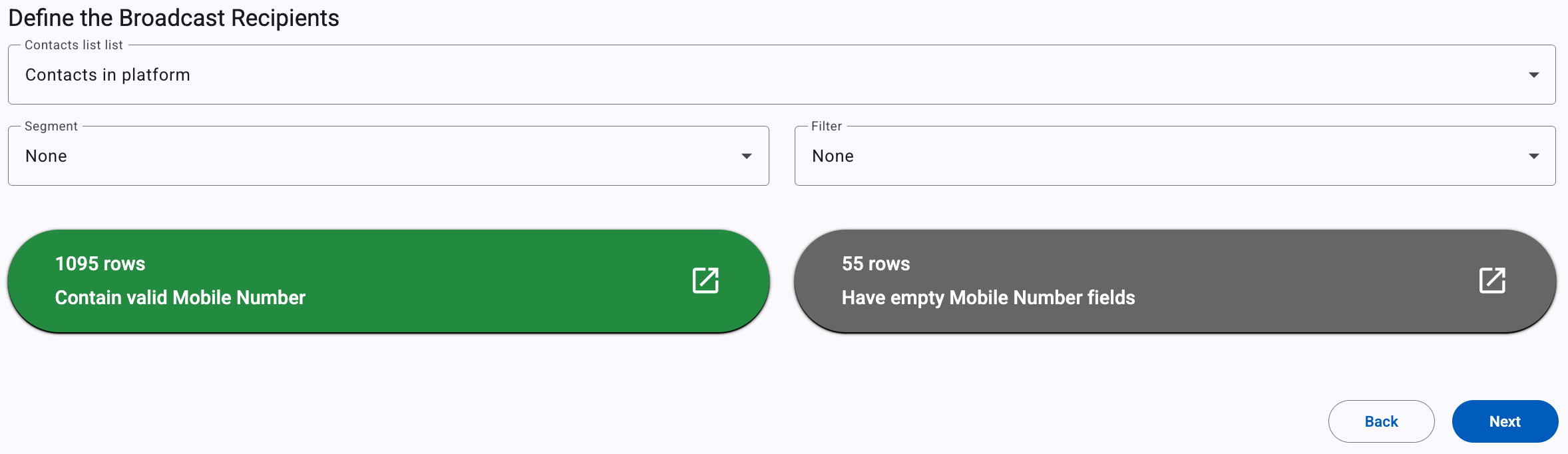
The platform identifies:
- Contacts with a valid mobile number.
- Contacts with an empty mobile number field.
In the example, the Contact List contains 18 contacts with valid mobile numbers and 10 contacts with empty mobile number fields.
Optionally, select a filter or segment from the corresponding dropdown. You can also leave both options unset.
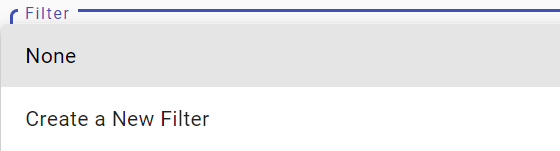
Filter
A filter segments contacts according to rules on Contact List fields.
-
None: Sends the broadcast to all contacts in the platform.
-
Create a New Filter: Opens a dialog where you can create a filter based on Contact List field rules.
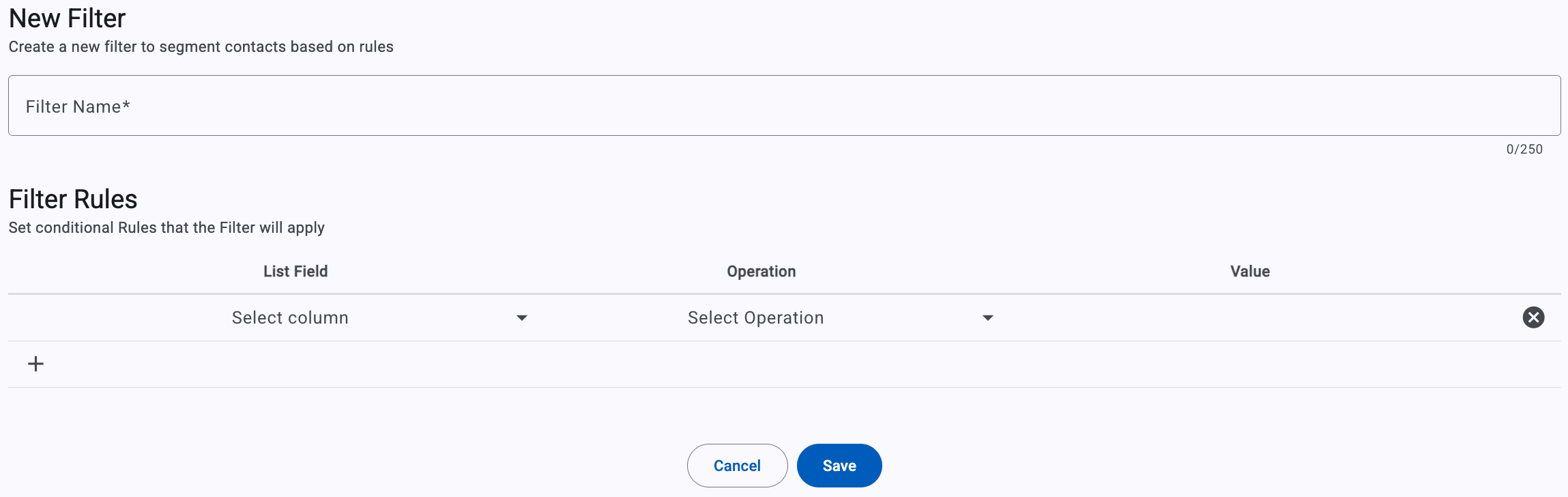
To create a filter, see Filters.
Segment
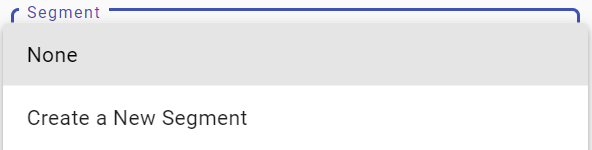
A segment groups contacts into a list for targeted delivery.
-
None: Sends the broadcast to all contacts in the selected option.
-
Create a New Segment: Opens a dialog where you can create a contact segment based on rules.
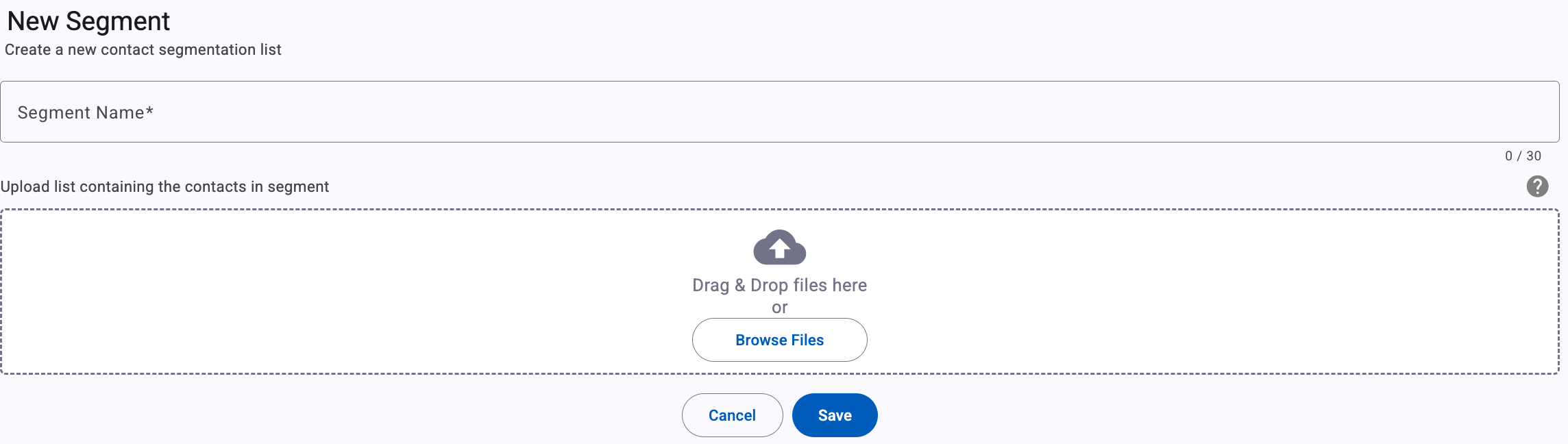
To create a segment, see Segments.
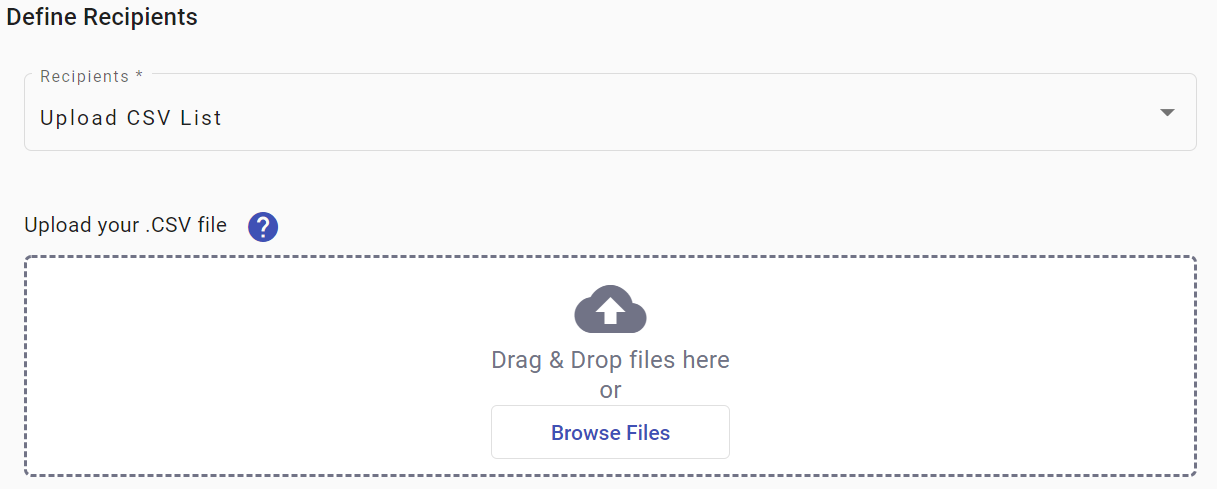
Upload CSV List
Use Upload CSV List to send to recipients in a CSV file.
- Select Upload CSV List.
- Review the Terms of Service and select Confirm to continue. Select Cancel to stop the upload.
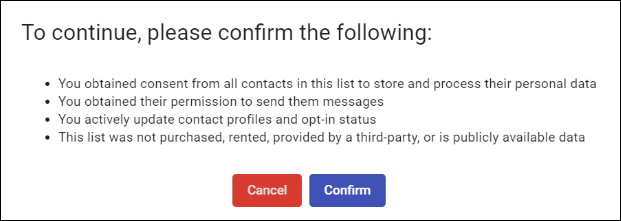
- Upload your CSV file.
Essential Conditions for Uploading a CSV File with Recipients
File Format and Structure
- Use a comma-separated values (CSV) file.
- Include descriptive column headers. Supported headers include
mobile,name.- Do not use duplicate headers, regardless of capitalization.
- Do not include empty fields or extra empty rows.
Data Types and Content
- Mobile Numbers: Use numeric values. Include only symbols required for the number format, such as
+for an international country code, and use a consistent format.- Email Addresses: Use a valid email format, such as [email protected], with one
@symbol and a domain. Use lowercase addresses to avoid case-sensitive issues.- Names: Use text. Avoid numbers or symbols unless they are culturally relevant, and use appropriate capitalization.
Encoding & Size
- Save the file with UTF-8 encoding to support international characters, including accented characters and other diacritics.
SMS (upload mobile numbers by CSV)
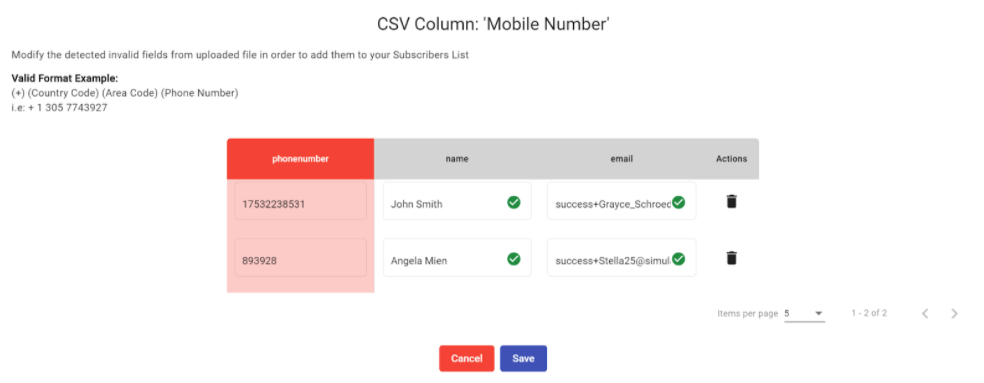
After you upload a CSV file for an SMS delivery channel, select the column that contains each recipient's mobile number. In this example, the mobile number column is PhoneNumber.

The platform identifies:
- Users with a valid mobile number (green box).
- Users with an invalid mobile number (red box).
- Users with an empty mobile number field (gray box).

In the example, the file contains one valid mobile number, two invalid mobile numbers, and no empty mobile number fields.
To correct invalid mobile numbers:
-
Select the red box to open the editing dialog.
-
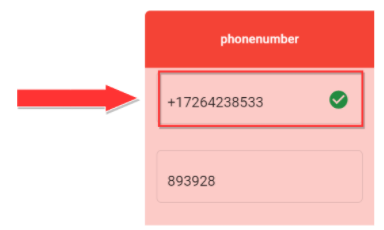
Update each invalid number. A check mark appears next to a corrected number.
-
If more than five recipients have invalid numbers, select Items per page in the lower-right corner of the list to display more recipients.
-
Select Save to return to the Recipients step. A confirmation message appears when the SMS recipients are updated and disappears after a few seconds.
Email (upload email addresses by CSV)
After you upload a CSV file for an Email delivery channel, select the column that contains each recipient's email address.
The platform identifies:
- Users with a valid email address (green box).
- Users with an invalid email address (red box).
- Users with an empty email field (gray box).

In the example, the file contains one valid email address, one invalid email address, and one empty email field.
To correct invalid email addresses:
-
Select the red box to open the editing dialog.
-
Update each invalid email address. A check mark appears next to a corrected address.
If more than five recipients have invalid email addresses, select Items per page in the lower-right corner of the list to display more recipients.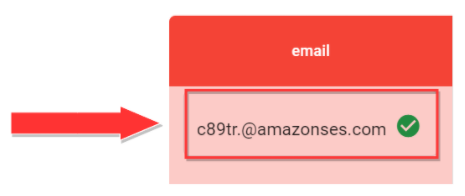
-
Select Save to return to the Recipients step. A confirmation message appears when the email recipients are updated and disappears after a few seconds.
Write down Contacts
Use Write down Contacts to copy, type, or paste contact data into the text box.
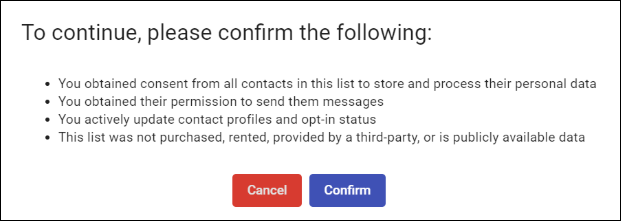
- Select Write down Contacts.
- Review the Terms of Service and select Confirm to continue. Select Cancel to stop.
-
Copy or paste CSV-formatted contact data into the text box.
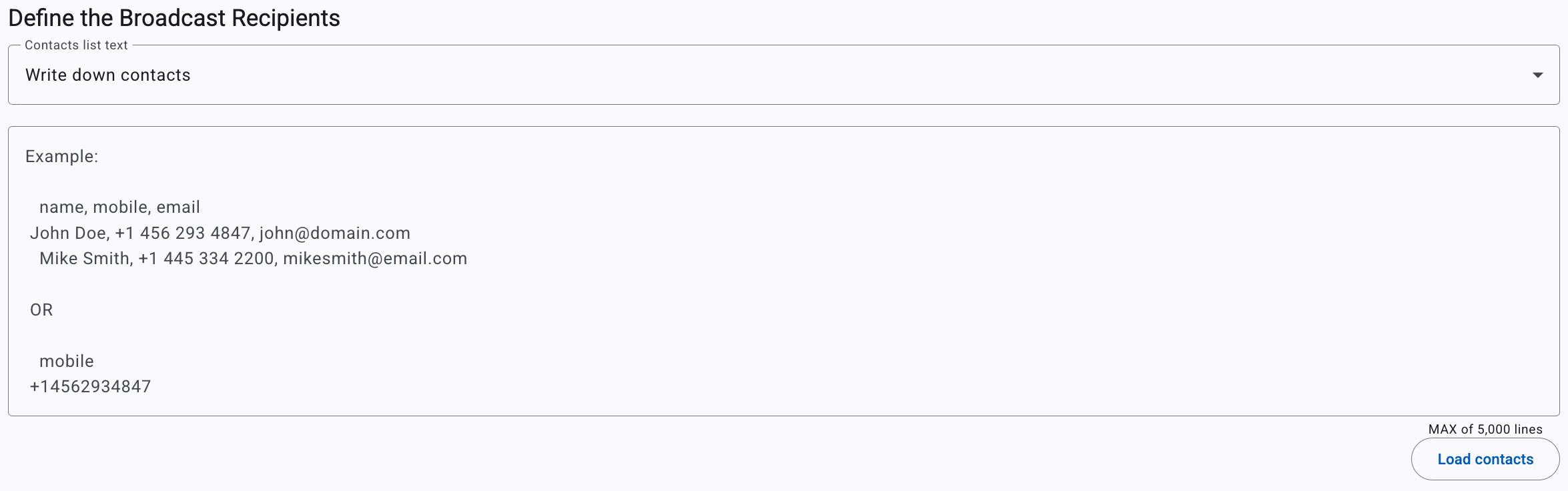
- Select Load contacts to load the contact data.
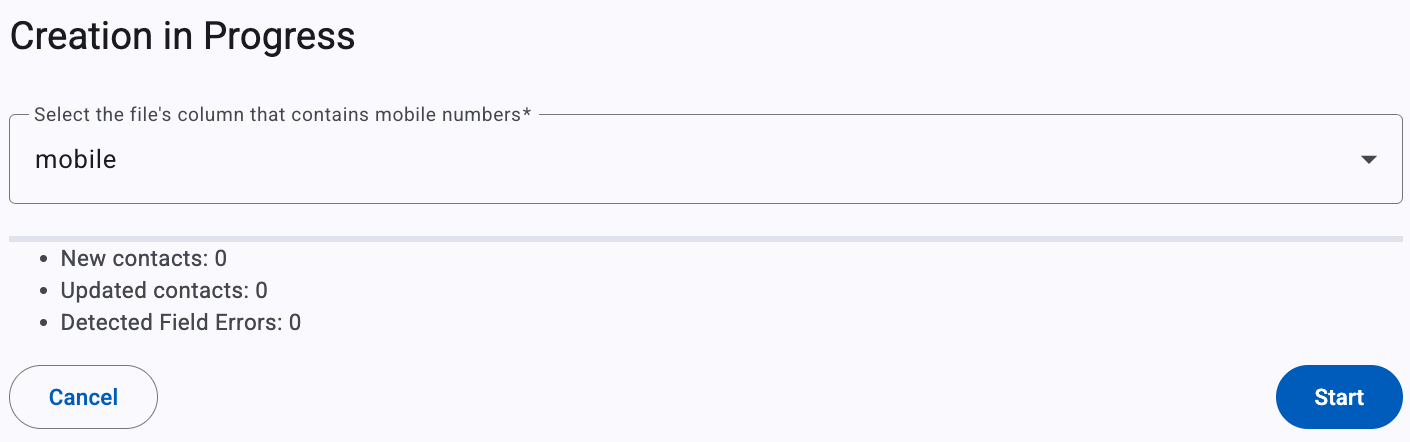
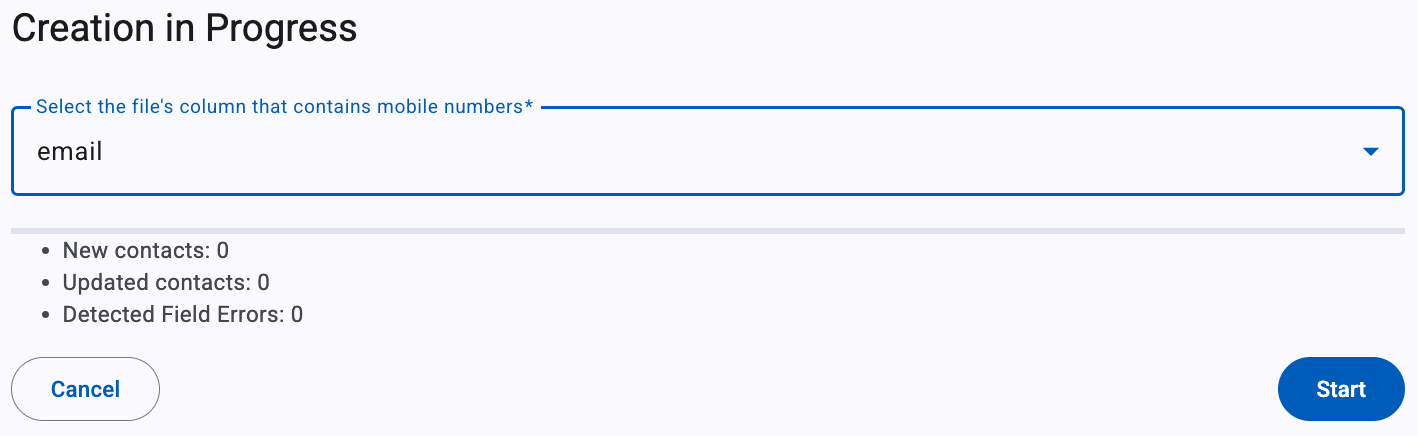
For an SMS and WhatsApp delivery channel, in the Creation in Progress window, select the column that contains the recipient's mobile number.
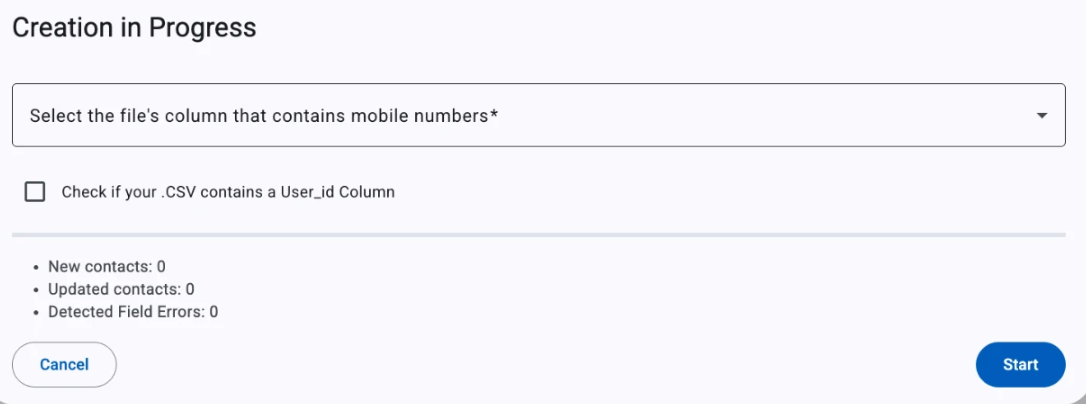
NOTEIf your contact list includes customers with reserved usernames enabled on their WhatsApp account, select Check if your .CSV contains a User_id Column, then select the column that contains each contact's
userId.
The platform uses thatuserIdto address those contacts instead of a mobile number — the same identifier your webhook receives for a reserved-username user. See Reserved usernames for background on this identifier.
The platform identifies:
- Users with a valid mobile number (green box).
- Users with an invalid mobile number (red box).
- Users with an empty mobile number field (gray box).
For an Email delivery channel, select the column that contains the recipient's email address.
Keyword
Use Keyword to let users trigger participation by sending a keyword.
KEYWORD PARTICIPATION AVAILABILITYThis option is available when SMS or WhatsApp are the engagement channels.
The Keyword option is available for SMS, RCS, and WhatsApp. Enter your keywords in the Keyword section.

For example, you might configure a keyword that lets users join a chatbot to receive discounts on their next flights.
NOTE ON "SAVE UP TO 30% ON YOUR NEXT FLIGHT!"Use a clear keyword or prompt that tells users how to participate.
KEYWORDS CONFLICTEach keyword and its associated platform engagement entity must be unique. For example, if shortcode
12345already uses the keywordTRIAL, you cannot create another broadcast or automation with the same shortcode and keyword.You can add up to 30 keywords. Each keyword can contain up to 29 characters. The keyword counter in the lower-right corner of the Keywords section shows how many keywords you have added.
For more information, see Keyword Automation.
Optional: enable Auto-Reply to respond to nonmatching keywords. For example, when a user sends any keyword, a chatbot can send the Welcome Message configured in the Interactions section. For Polls & Surveys automations, the automation sends the content from the Message section and a short URL.
Slide the toggle to the right to enable Auto-Reply. Before you enable it, check the following:
-
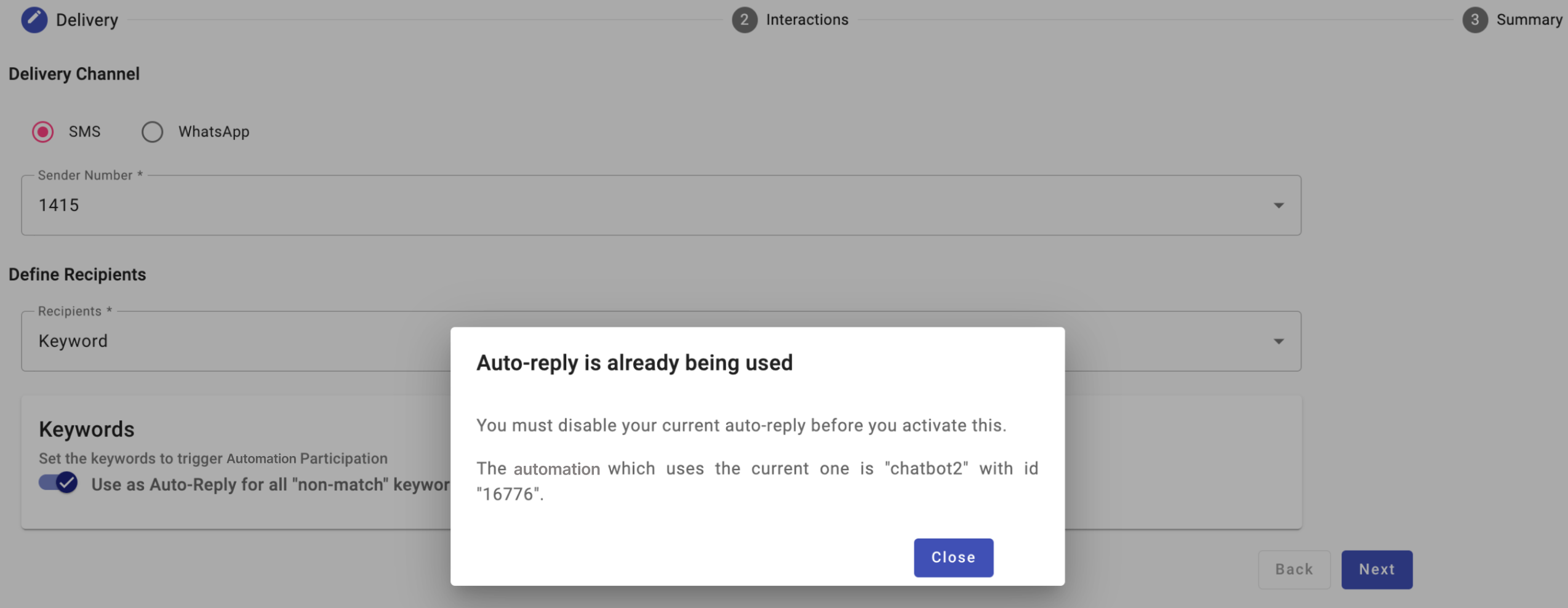
Another automation already uses Auto-Reply for the same sender number. Disable Auto-Reply in that automation before enabling it here. When you slide the toggle to the right, a pop-up identifies the automation by name and ID.
-
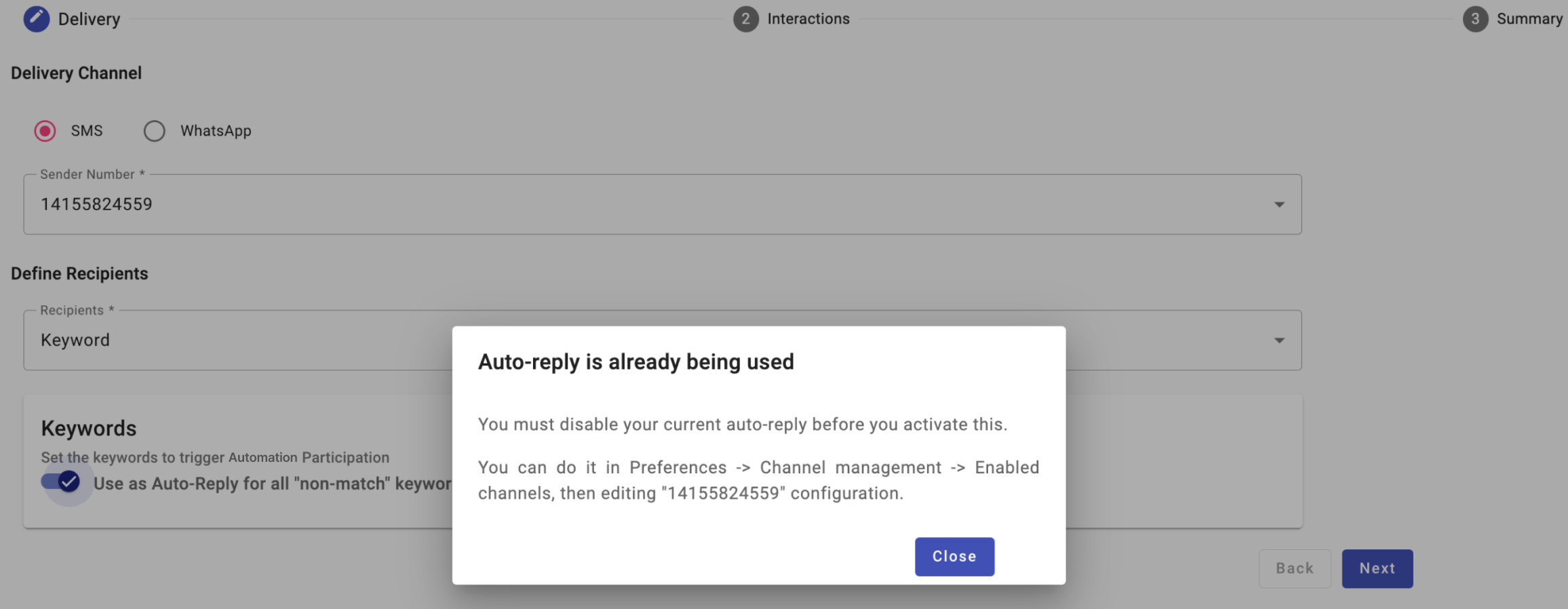
The sender number already uses Auto-Reply Message. Disable Auto-Reply Message by editing the sender number in Sender Number Configuration, on the Channel Management tab in Preferences. When you slide the toggle to the right, a pop-up identifies the sender number.
Updated 11 days ago