
Broadcasts & automations
Manage broadcasts and automations, and their shared message elements, across SMS, WhatsApp, Email, and RCS channels. For teams building and maintaining messaging campaigns on the platform.
Manage broadcasts, automations, and their message elements across supported channels in Communications Platform.
Broadcasts
Use broadcasts to send messages to your audience through the following channels:
- WhatsApp: Send business messages through WhatsApp, which supports both personal-style conversations and large-scale communication.
- SMS: Send text messages directly to mobile phone numbers. Recipients receive messages in their device’s native messaging app.
- Email: Send formatted HTML emails or plain-text messages to contacts’ inboxes. Use email for newsletters, detailed updates, and visual content.
- RCS: Send Rich Communication Services messages with branded experiences, high-resolution images, interactive buttons, and enhanced analytics.
Automations
Use automations to create interactive experiences for your audience. Available automation types include:
- Chatbot: A digital assistant that answers questions and performs actions. Use chatbots to automate support, guide users through processes, and provide responses through SMS and WhatsApp broadcasts.
- Keyword: A keyword-based automation that lets contacts text a word to participate, subscribe, enter a contest, or access content.
- Subscription Form: A web landing page that lets new users join your contact list.
- Polls & Surveys: Interactive polls and surveys that collect customer feedback and responses for analysis.
Message Elements
Configure these elements for each broadcast and automation:
- Delivery & Recipients: Define when and how to send messages, including scheduling and automation settings. Manage and segment the audience that receives automation messages.
- Message Configuration: Customize messages with dynamic variables to make them more relevant to each recipient.
- Summary: Review key settings, adjust delivery and tracking parameters, then launch the broadcast or automation, schedule it, or save it as a draft.
- Keyword (Webhook WhatsApp): Configure the JSON payloads sent to your webhook when end users interact with a WhatsApp Keyword automation. Payloads describe the message types your application receives.
- WhatsApp Sender Quality Rating & Status: Review how WhatsApp sender status, quality rating, and tier affect eligibility, reputation, and messaging capacity.
Create a broadcast or automation
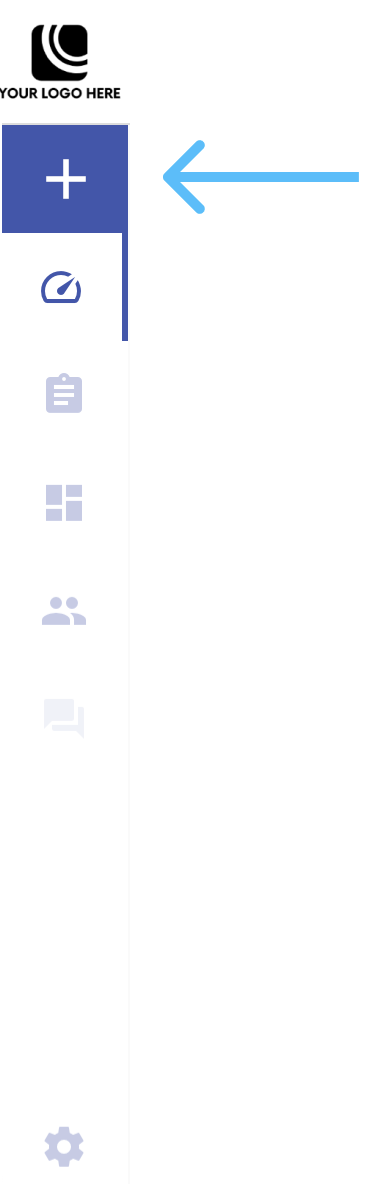
Create a broadcast or automation from New Broadcast / Automation at the top of the left navigation sidebar.
-
Select New Broadcast / Automation.
-
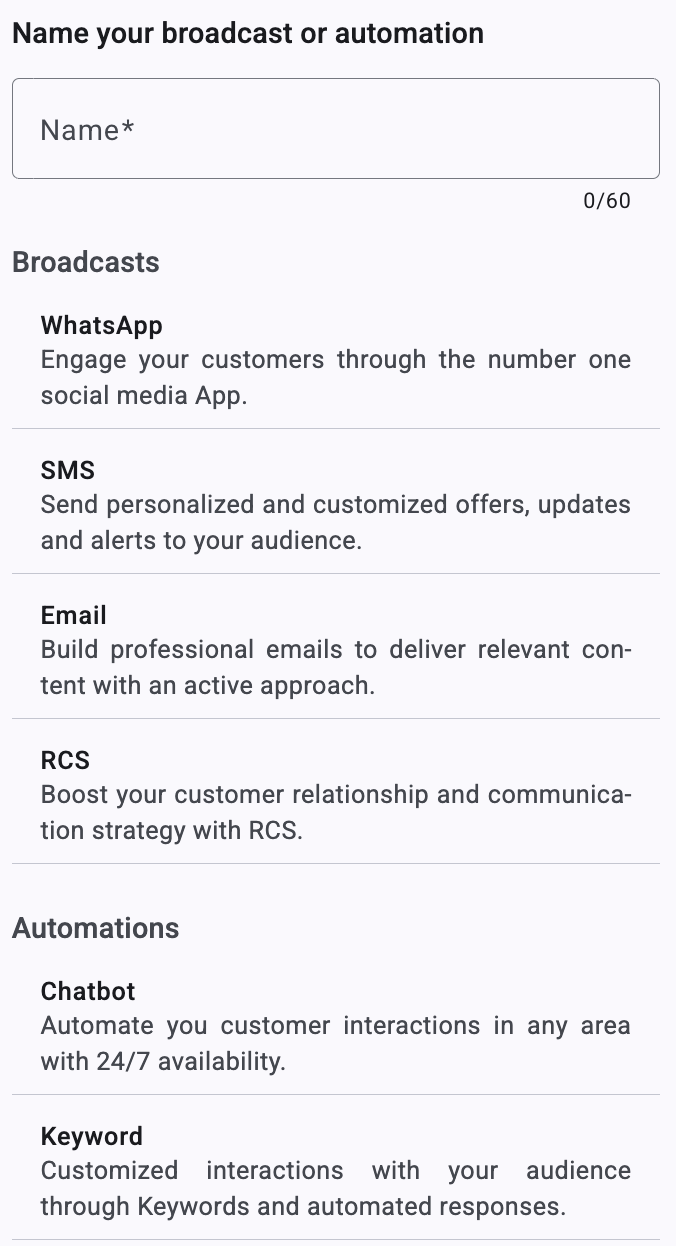
Enter a name for the broadcast or automation.
-
Select a broadcast or automation type. The platform opens the configuration steps for your selection.
Updated about 23 hours ago