
WhatsApp carousel
Send a WhatsApp Carousel message template with up to 10 scrollable media cards, each with its own text and buttons. For developers building product catalogs or multi-option promotions via the API.
Use a WhatsApp Carousel message template to send a marketing message with up to 10 media cards in a horizontally scrollable sequence.
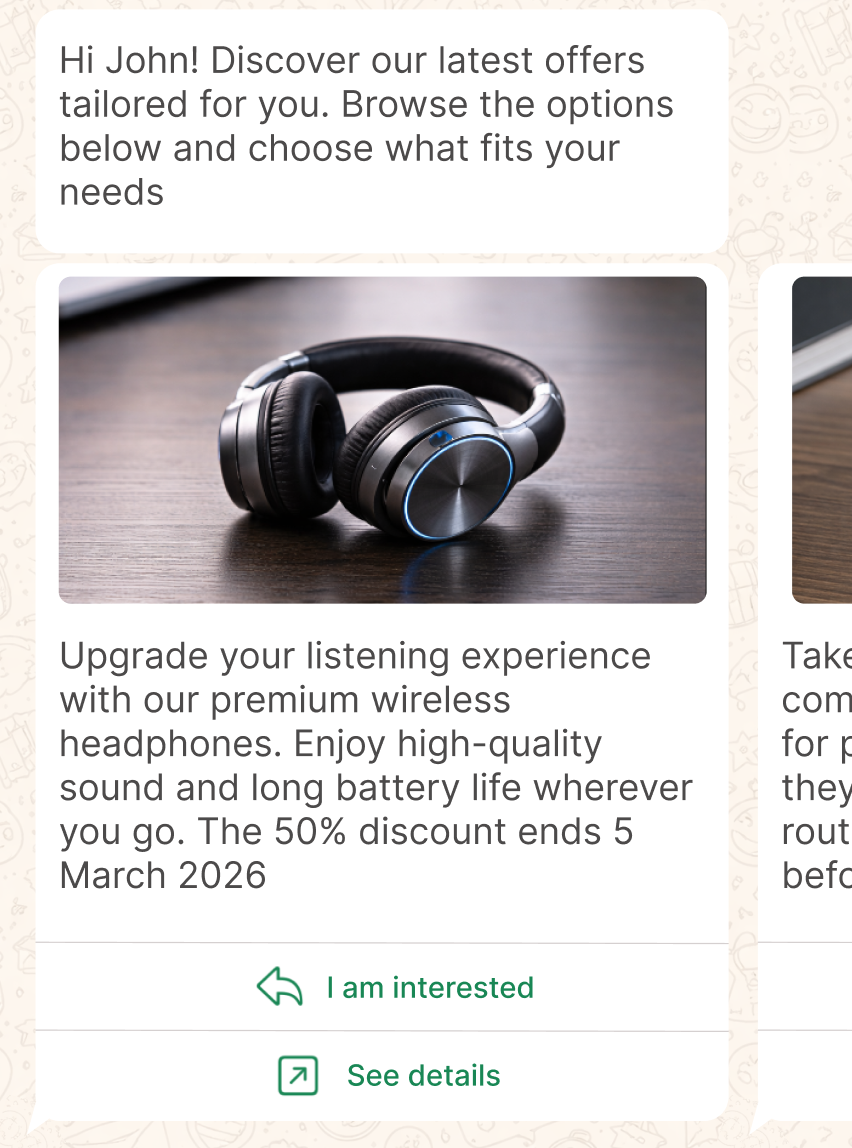
Each card can include media, text, and interactive buttons, enabling users to browse options, compare items, or navigate different actions without leaving the conversation.
Use this format to present structured, interactive content in a compact message. Common use cases include:
- Product catalogs or featured items
- Promotional events with multiple offers
- Step-based navigation or guided experiences
- Content discovery (articles, services, categories)
Carousel message template components
A WhatsApp Carousel message template contains a message body and a set of media cards in one horizontally scrollable message.
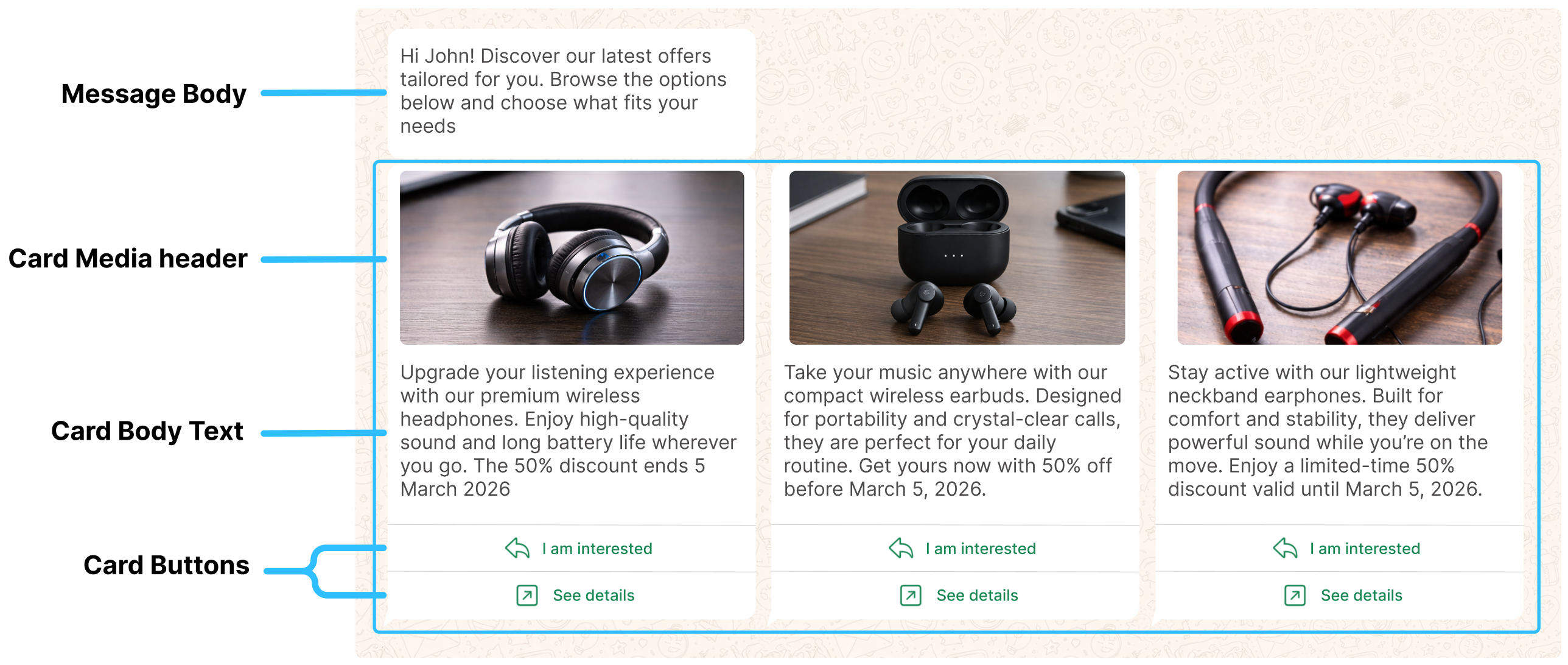
The carousel itself is defined as a collection of cards:
- Minimum: 2 cards
- Maximum: 10 cards
Place your highest-priority cards first because they receive the most visibility.
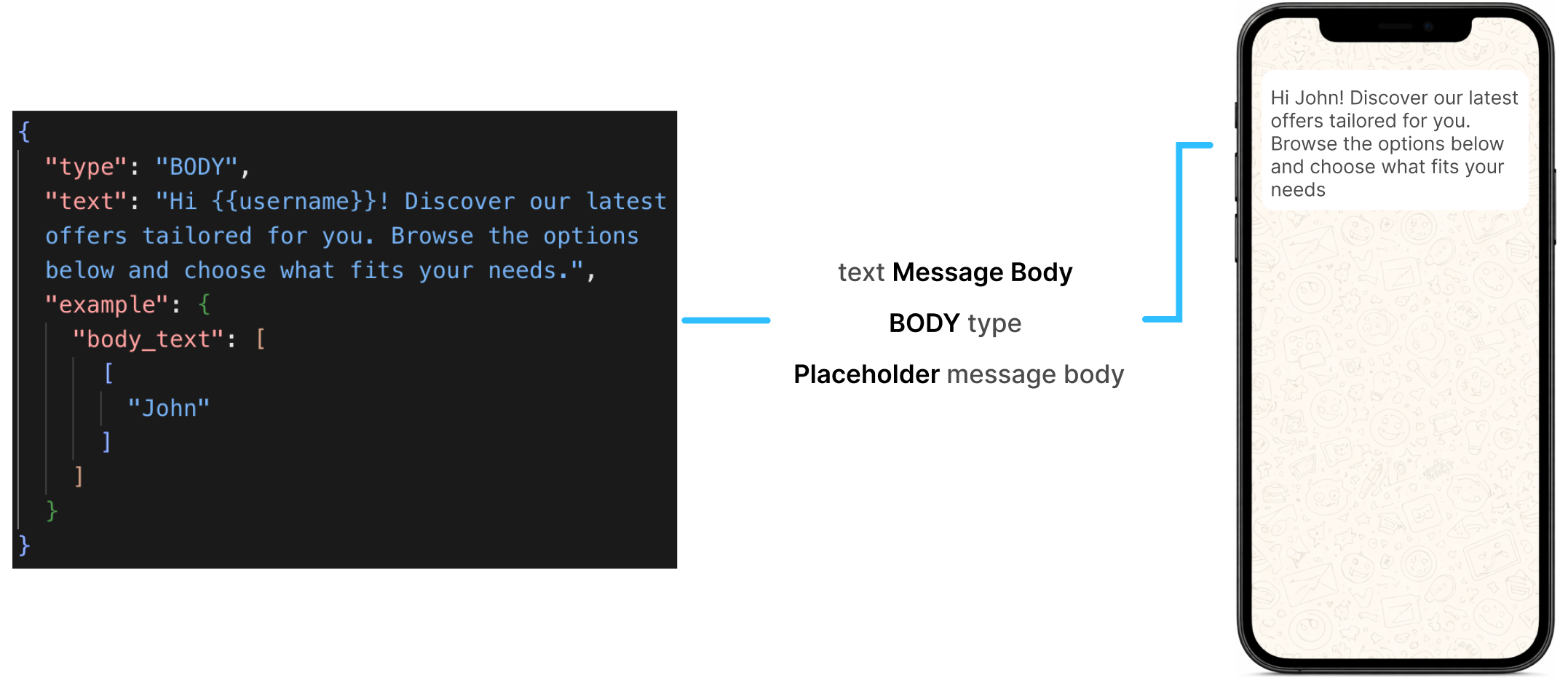
Message body (component)
Define the message body once. It appears above the carousel, applies to the entire message, and can include personalized fields (placeholders).
Enter the text in your selected language. Use only text, placeholders, markdown, and emojis; the body cannot exceed 1024 characters.
The following diagram shows where the message body appears in the JSON request and in the user’s message.
Card media header (component)
Every card requires a media header, which appears first and provides the card’s primary visual context.
Each media header contains one image or video asset.
Use one of the following supported media formats:
| File type | Supported formats | Maximum file size |
|---|---|---|
| Image | .jpeg, .jpg, .png | 5 MB |
| Video | .mp4 | 16 MB |
Note:
- Images must be 8-bit, RGB or RGBA.
- Video files must use the H.264 video codec.
The following diagram shows the media-header fields in the JSON request and how the header appears to the user.
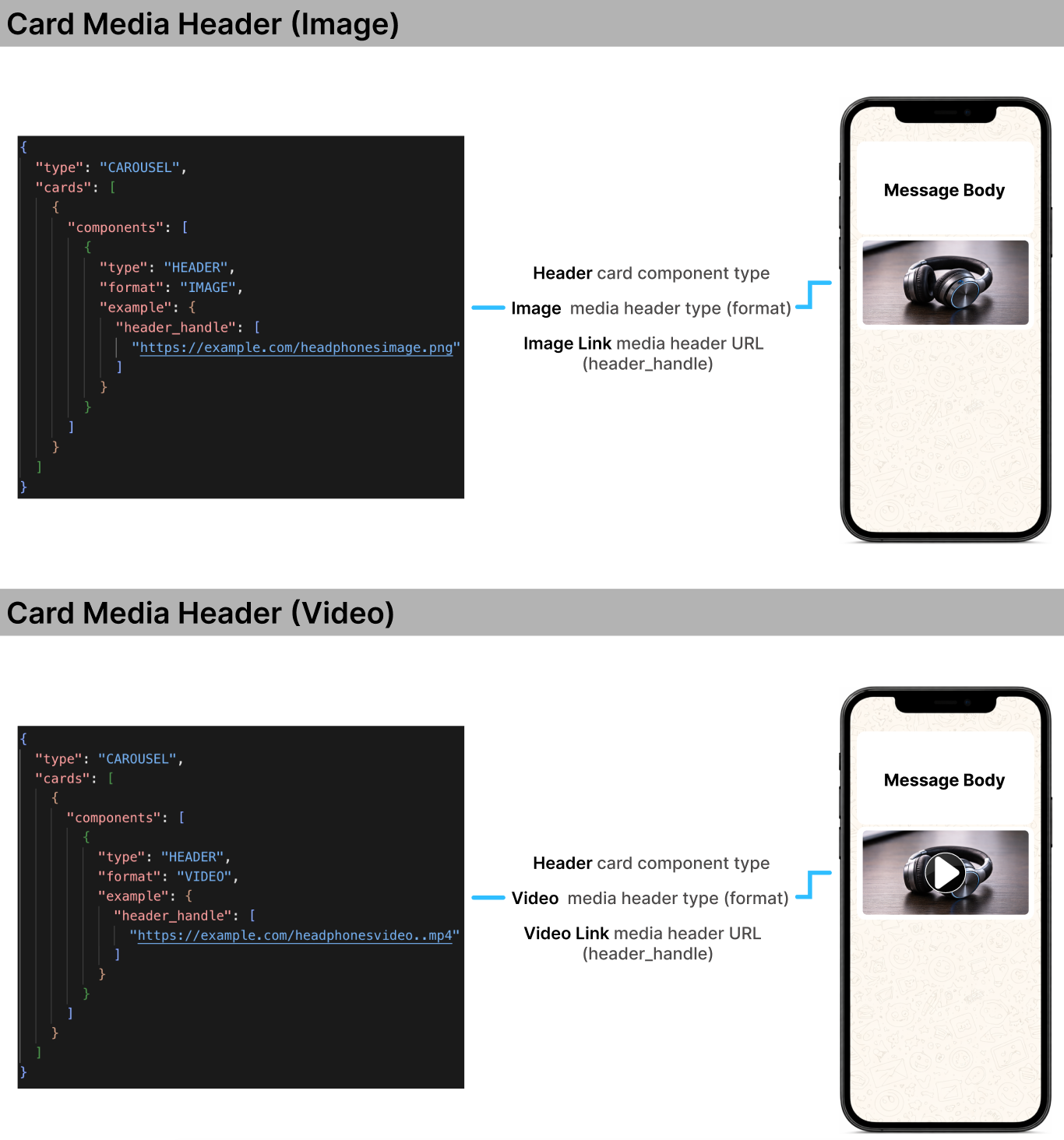
Keep media headers consistent across all cards: use the same type and similar dimensions.
Media URL CachingWhen updating a card media header (Image or Video), use a new URL for the updated media file.
If you replace a media file on your server while keeping the same URL, Meta may continue using the previously cached version of the file instead of retrieving the updated resource.
The cached version may remain available for more than 40 minutes. To ensure that the updated media file is used, always provide a new URL when replacing a media resource.
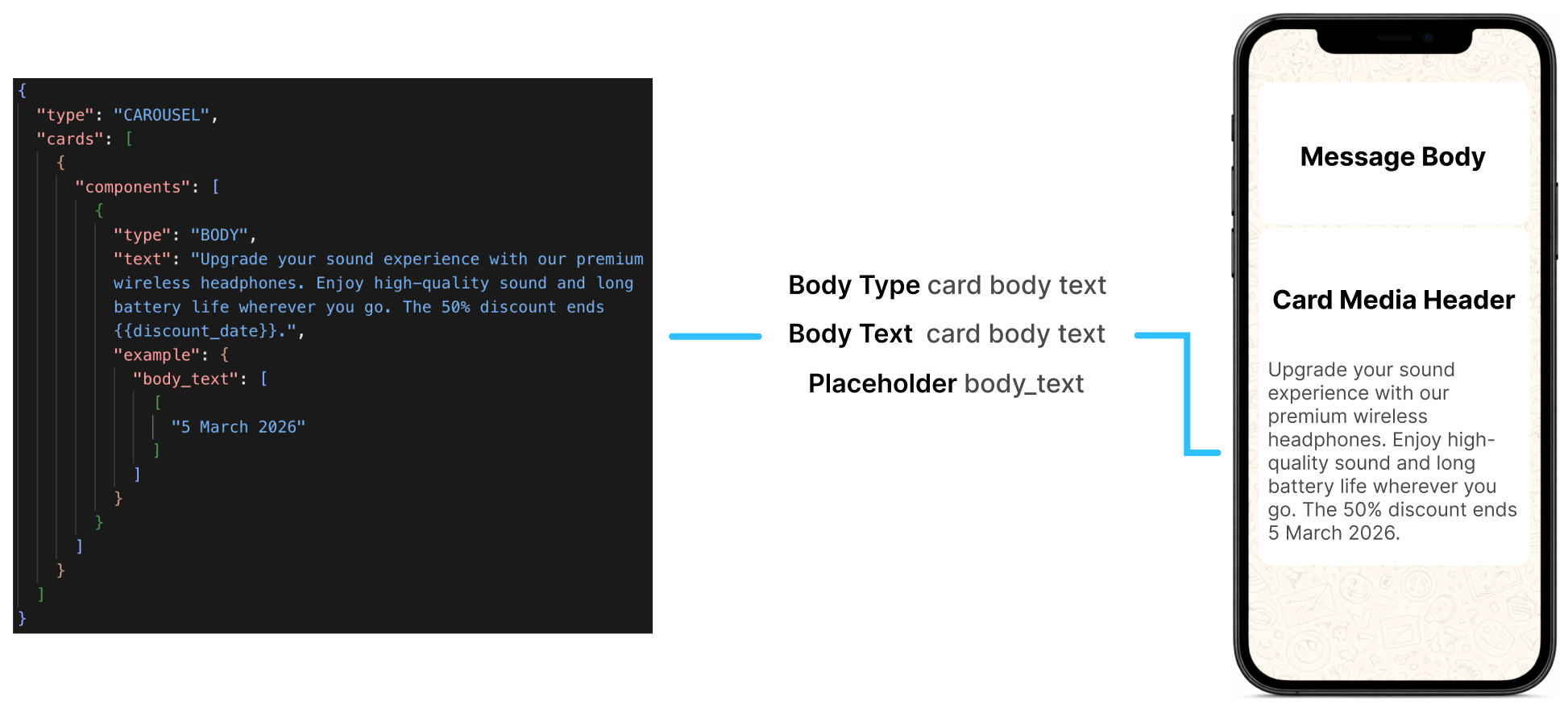
Card body text (component)
Each card can include optional body text below the media header to describe the card’s content. Body text can include personalized fields (placeholders). If one card includes body text, every card must include it.
The following diagram shows where card body text appears in the JSON request and in the user’s message.
Card Buttons
Cards can include buttons for actions associated with the displayed item. Supported button types include:
- Quick Reply buttons
- URL buttons
- Phone number button
Each card can include up to 2 buttons. You can combine button types, but every card must use the same button structure: the same number of buttons, types, and order. For example, if one card uses a quick reply button followed by a URL button, every card must use that arrangement.
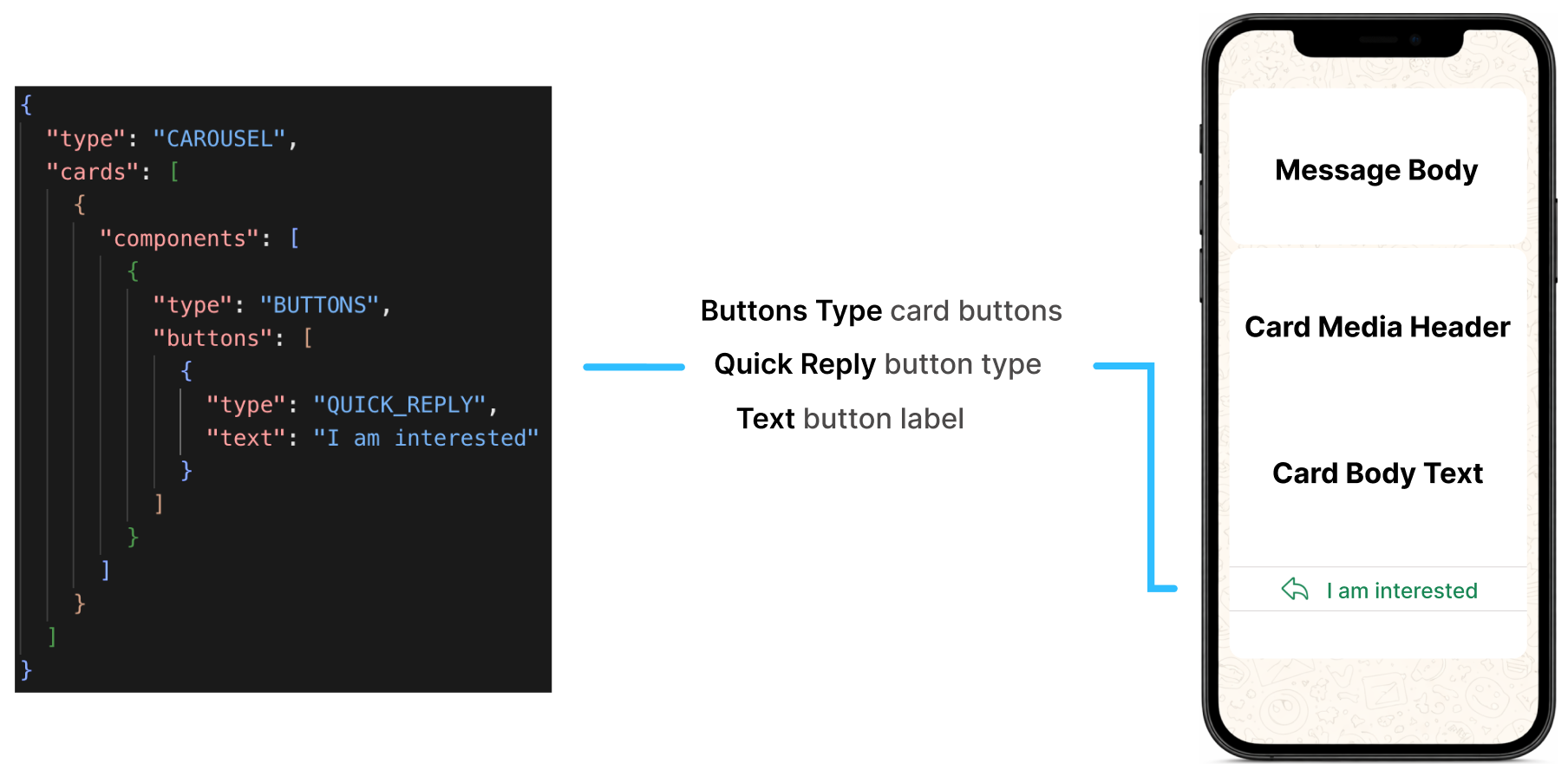
Quick Reply buttons
Quick Reply buttons allow users to respond to a message with a single tap by sending a predefined option back to the business. In carousel cards, these buttons are useful when the goal is to let users express interest, request more information, confirm a preference, or continue a guided interaction without leaving the conversation.
Unlike URL or phone number buttons, Quick Reply buttons do not redirect the user outside WhatsApp. Instead, they trigger an immediate response within the chat, which makes them especially effective for conversational flows and decision-based journeys.
You can configure up to two quick reply buttons per card. Each button includes a visible label (Button Text) and a value that is sent back to the platform when the user selects it.
Quick Reply buttons can be used in different contexts depending on how the payload is configured:
-
Consent Management actions: The payload can be mapped to predefined system actions such as Auto-Reply, Opt-Out, Help Response, or Join Response. In this case, the button triggers a built-in behavior managed by the platform.
For example, we are going to add two buttons to the message content:
- Button Text = Yes, Button payload: agree
- Button Text = No, Button payload: NotAgree
If the end user selects the button ‘Yes’, the platform receives the payload value ´agree´ and processes it accordingly.
You set the value of the Button payloads to Consent Management (Auto-Reply, Opt-Out, Help Response, Join Response).
-
Custom automations (keyword-based): The payload acts as a keyword that triggers a specific automation, such as a chatbot or conversational flow.
The entered value in the button field must match exactly the keyword defined in the automation. The platform uses this value to trigger the corresponding automation. If the value does not match the configured keyword, the automation will not be activated.
For example,
- Button Text = Chat with us
- Button Text = Sign me up
These two button texts (Chat with us, Sign me up) are keywords that were defined when creating the automations. This action triggers an automated response that directs the user to the corresponding automation. Therefore, once the end user selects one of these options, they will be redirected to the automation that is linked to the quick reply button selected, which contains the keyword to trigger the automation.
URL buttons
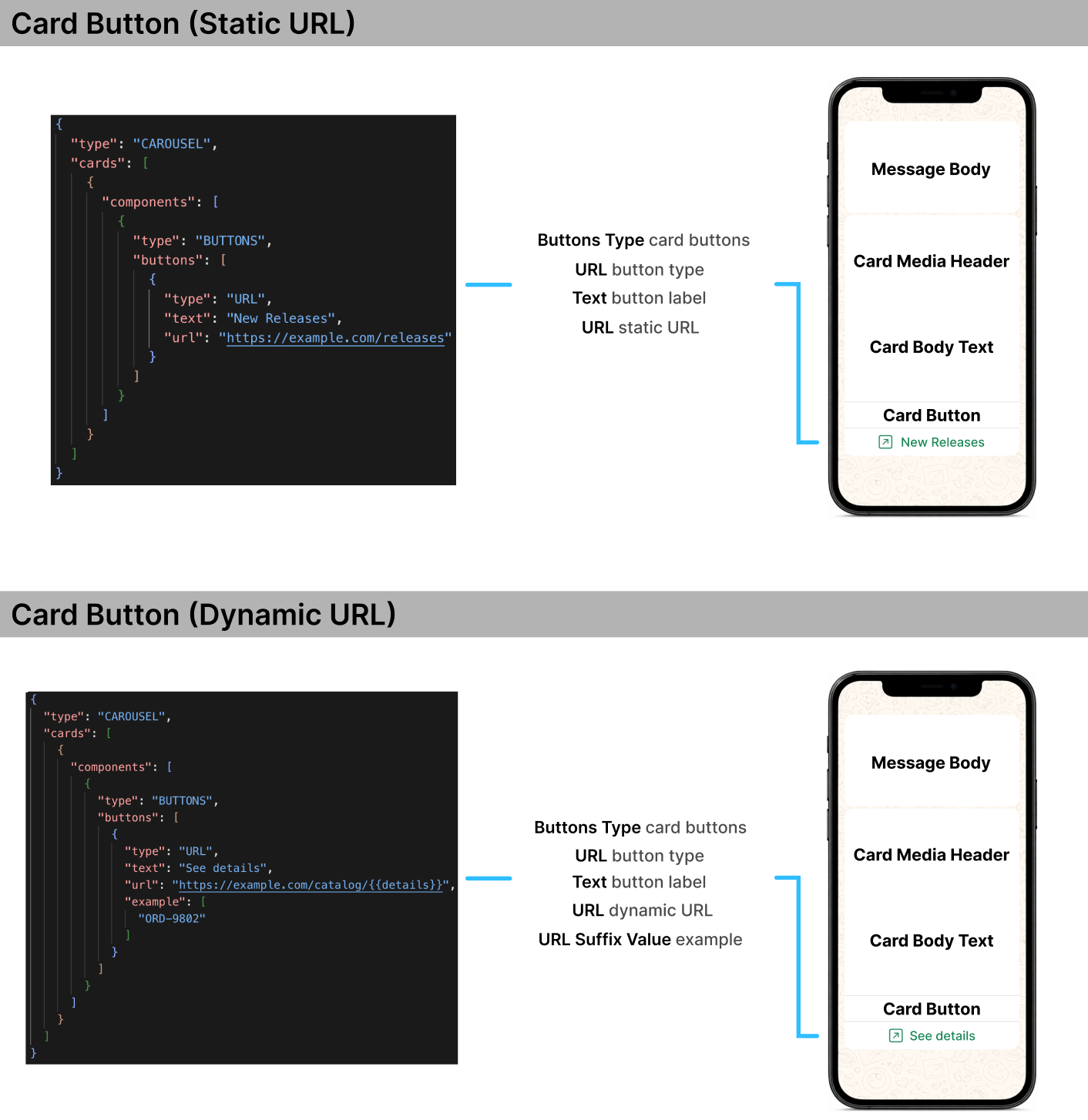
URL buttons allow users to open an external link directly from a carousel card with a single tap. Unlike Quick Reply buttons, which keep the interaction inside WhatsApp, URL buttons redirect the user outside the conversation to a web experience, such as a landing page, product detail page, or checkout flow.
Each URL button consists of a visible label (Button Text) and a destination link (URL) that is opened when the user taps the button. Depending on the device and configuration, the link is opened either in the default browser or within an in-app browser.
URL buttons can be configured in two ways:
-
Static URLs: A fixed link that is the same for all users. These are typically used for general landing pages, product pages, or promotional content.
Example:
https://example.com/product/123 -
Dynamic URLs: A link that includes a URL Suffix Value that is replaced at send time. This allows you to personalize the destination.
Example:
https://example.com/{{url_suffix_value}}
From an implementation perspective, URLs must use HTTPS, be valid and accessible at the time of delivery, and should not redirect to broken or unsupported destinations, as this can negatively impact the user experience. The button text should remain concise and clearly indicate the action, such as “View product”, “Buy now”, or “Learn more”.
As with all carousel components, URL buttons must follow a consistent structure across all cards. If a URL button is included in one card, it must be included in all cards, and its position relative to other buttons must remain the same. For example, if the first button is a URL button and the second is a Quick Reply button in one card, all other cards must follow that same order.
URL buttons can use either static or dynamic links. This does not affect message template validation, as both are considered the same button type. However, the button position and type must remain consistent across all cards.
WARNINGWhatsApp does not allow direct links to WhatsApp in Call-to-Action buttons.
Card Buttons can only be used to open external websites. If you need to share a WhatsApp link (for example, a wa.me link), include it directly in the message body instead of using a button.
Example:
❌ Not supported (CTA button) - Using a card button with a direct WhatsApp link:
Button URL:
https://wa.me/XXXXXXXX✅ Supported (message body) - Including the WhatsApp link directly in the message body:
Message body: Chat with us on WhatsApp (
https://wa.me/XXXXXXXX)
Phone number button
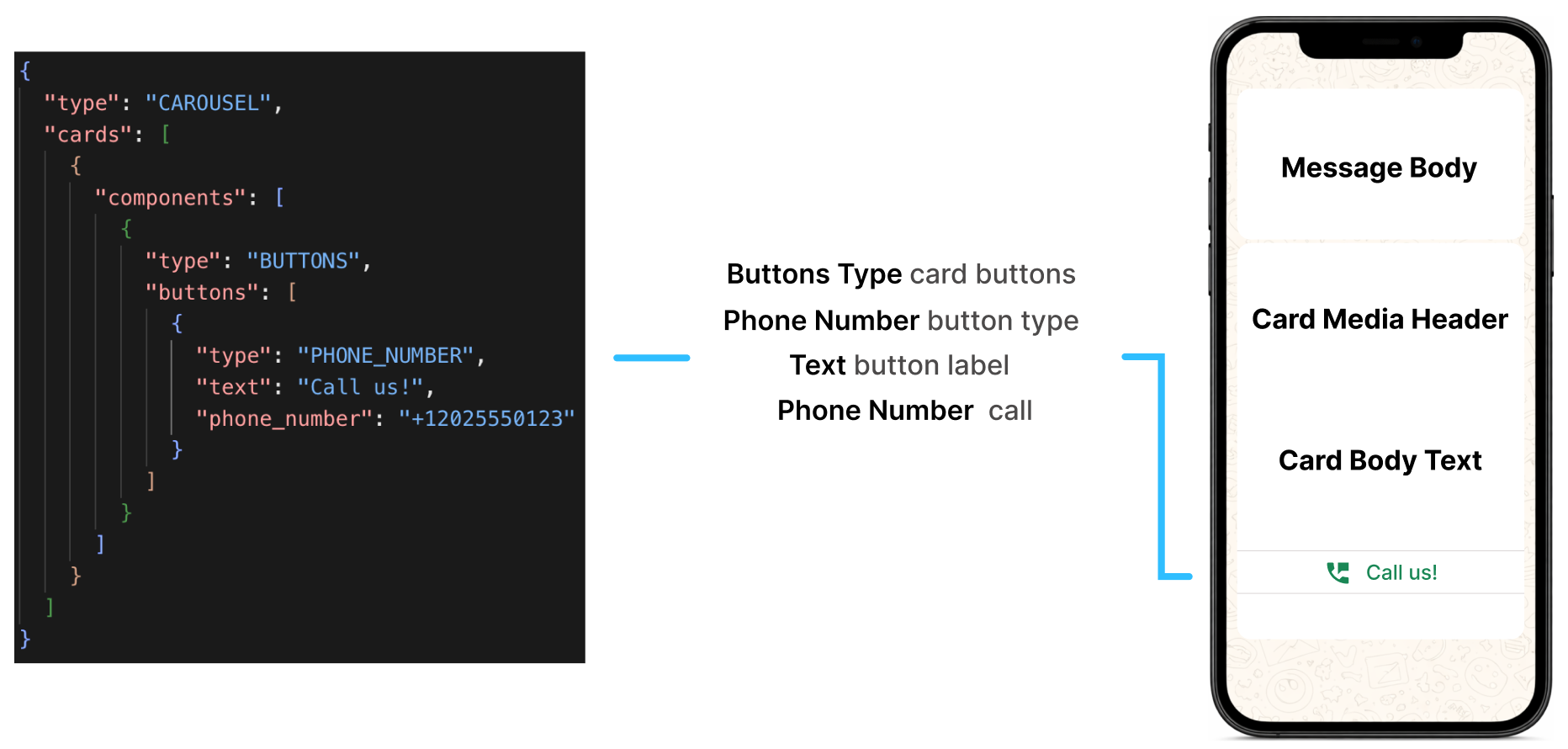
Phone Number buttons allow users to initiate a phone call directly from a carousel card with a single tap. Unlike Quick Reply buttons, which trigger an in-chat response, or URL buttons, which open a web page, this button type enables direct voice communication by launching the device’s native dialer with a predefined phone number.
Each Phone Number button includes:
- Button Text: The visible label shown to the user. This should clearly indicate that the action will initiate a call, such as “Call now”, “Contact us”, or “Speak to an agent”.
- Phone Number: The destination phone number that will be dialed when the user taps the button.
This example helps you understand how Phone Number buttons are structured in JSON format. It shows the parameters required to define the button, including its type, display text, and phone number, and how it will be displayed by the user.
Considerations
Before you send a WhatsApp Carousel message template through the WhatsApp Business API:
- First, create the carousel message template through the Message Templates API.
- The Message Template Category must be Marketing.
- Once you have created the carousel message template, you'll need to submit it for WhatsApp approval.
- It takes WhatsApp up to 48 hours to review the carousel message template.
- After the carousel message template is created and approved, you can send it to recipients via API.
WARNINGCarousel cards must follow the same internal structure across the entire message template. This means that optional components cannot be added to only some cards and omitted from others.
For example, if Body Text is included in one card, it must also be included in all remaining cards. The same rule applies to button configuration: all cards must define the same number of buttons, using the same button types and in the same order.
This requirement exists because WhatsApp validates carousel cards as repeated instances of a single card structure, rather than as fully independent elements. If one card differs from the others in its component layout, the message template may fail validation or render incorrectly.
To avoid the message template being rejected, make sure all cards in the carousel follow a consistent structure before submitting the message template.
Create carousel message template
To create a carousel message template with the Message Templates API, provide either the WhatsApp Business Account ID (WABA) or the sender’s unique identifier in the request body.
HTTP Request: POST /whatsapp/templates
| Required Parameter | Description |
|---|---|
| wabaId | WhatsApp Business Account ID (WABA). |
| senderId | Unique identifier of the Sender. |
The following request creates a template with one message-body placeholder and two cards. The first card includes an image header, card body text with two placeholders, a quick reply button, and a dynamic URL button. The second card includes an image header, card body text without placeholders, a quick reply button, and a static URL button.
{
  "name": "carousel_demo_template",
  "category": "MARKETING",
  "templateLanguages": [
    {
      "language": "en",
      "components": [
        {
          "type": "BODY",
          "text": "Hi {{customer_name}}! Explore our solutions and choose the best option for you:",
          "example": {
            "body_text": [
              ["John"]
            ]
          }
        },
        {
          "type": "CAROUSEL",
          "cards": [
            {
              "components": [
                {
                  "type": "HEADER",
                  "format": "IMAGE",
                  "example": {
                    "header_handle": [
                      "https://example.com/image1.png"
                    ]
                  }
                },
                {
                  "type": "BODY",
                  "text": "Track your order {{order_id}} placed on {{order_date}} and check the delivery status in real time.",
                  "example": {
                    "body_text": [
                      ["#12345", "March 10"]
                    ]
                  }
                },
                {
                  "type": "BUTTONS",
                  "buttons": [
                    {
                      "type": "QUICK_REPLY",
                      "text": "Track order"
                    },
                    {
                      "type": "URL",
                      "text": "View details",
                      "url": "https://example.com/orders/{{order_path}}",
                      "example": [
                        "12345"
                      ]
                    }
                  ]
                }
              ]
            },
            {
              "components": [
                {
                  "type": "HEADER",
                  "format": "IMAGE",
                  "example": {
                    "header_handle": [
                      "https://example.com/image2.png"
                    ]
                  }
                },
                {
                  "type": "BODY",
                  "text": "Browse our other products and find your favorite item in just a few taps."
                },
                {
                  "type": "BUTTONS",
                  "buttons": [
                    {
                      "type": "QUICK_REPLY",
                      "text": "Show products"
                    },
                    {
                      "type": "URL",
                      "text": "Browse catalog",
                      "url": "https://example.com/products"
                    }
                  ]
                }
              ]
            }
          ]
        }
      ]
    }
  ]
}
The parameters of the request body are divided into two main sections to create a WhatsApp Carousel message template:
- Main parameters: Define the core configuration of the message template. This section includes the message template name, category, and language settings, as well as the main message body that is displayed above the carousel. These parameters establish the message template's base structure and are required for message template creation and approval.
- Carousel cards parameters: Define the structure and content of the carousel itself through the
CAROUSELcomponent. This section contains the cards array, where each card is composed of its own set of components, including a media header (image or video), body text, and buttons. Each card must follow the same structure, ensuring consistency across the carousel. This includes maintaining the same media type, presence of body text, and button configuration (type, number, and order). These parameters control how each card is rendered and how users interact with the carousel content.
Main parameters (create)
| Parameter | Required | Description |
|---|---|---|
| name | Yes | Unique name of the message template within your WhatsApp Business Account (WABA). Message Template names must be unique and cannot be reused once created. |
| category | Yes | Type of message template. Supported Message Template Categories for WhatsApp Carousel Message Template.
|
| templateLanguages | Yes | Array of languages objects containing the language that message template may be rendered in and the components. |
| templateLanguages. language |
Yes | Language of the message template. Currently the API supports 3 Languages: English, Spanish and Portuguese. Required if you want to send message templates in languages other than English.English: Spanish: Portuguese: |
| templateLanguages. components |
Yes | The parts of the message template. Array of components that define the structure and content of the message template for the specified language. These components determine how the message is rendered to the end user. |
| templateLanguages. components. type |
Yes | Type of component of the message template you want to send.
|
| templateLanguages. components. text |
Yes |
Only applies to the Enter the text message body to be sent. Only contain text, personalized fields (placeholders), markdown, and emojis. A text body has a limit of 1024 characters including emojis. You can include personalized fields, also known as placeholders. These placeholders are defined within double curly braces |
| templateLanguages. components. example |
No |
Only applies to the Object that provides an example of possible data for your message template. This helps Meta during the review and approval process, so they can understand what kind of message you plan to send. Make sure these are examples and do not include any confidential or personal information. It is required when the text message body contains placeholders. |
| templateLanguages. components. example. body_text |
No |
Only applies to the It is required when the message body contains placeholders. Specifies the value(s) as a sample data for the placeholder(s) defined in the Array of personalized fields values containing the message body. |
Carousel cards parameters (Create)
| Parameter | Required | Description |
|---|---|---|
| templateLanguages. components. cards |
Yes | Only applies to the Array of card objects that define the content of the carousel. Each item represents a card displayed in the horizontal sequence. |
| templateLanguages. components. cards. components |
Yes | Only applies to the Array of components that define the structure of each card. Supported component types include media header, body text, and buttons. |
| templateLanguages. components. cards. components. type |
Yes | Only applies to the Type of component within a carousel card.
|
| templateLanguages. components. cards. components. format |
Yes | Only applies to the Specifies the format of the media content used in the card header, which is displayed at the top of each carousel card. The media header supports the following format options:
|
| templateLanguages. components. cards. components. text |
No |
Only applies to the Enter the body text to be sent. Only contain text, personalized fields (placeholders), markdown, and emojis. You can include personalized fields, also known as placeholders. These placeholders are defined within double curly braces |
| templateLanguages. components. cards. components. example |
Yes | Only applies to the Object that provides an example of possible data for your message template. This helps Meta during the review and approval process, so they can understand what kind of message you plan to send. Make sure these are examples and do not include any confidential or personal information. By setting a Media Header type, it is required when the card media header contains a media link (image, video). If you set the Body Text type, it is required when the card body text contains placeholder(s). |
| templateLanguages. components. cards. components. example. header_handle |
Yes | Only applies to the Array of the URL containing the media header. If you set a video or image as media file, enter the URL of the chosen media The URL of the media header (image, video) must be a valid URL that starts with |
| templateLanguages. components. cards. components. example. body_text |
No |
Only applies to the Array of personalized fields values containing the text message body. it is required when the body text contains placeholders. Specifies the value(s) as a sample data for the placeholder(s) defined in the |
| templateLanguages. components. cards. components. buttons |
Yes |
Only applies to the Array of button objects that define the interactive actions (Quick Reply, URL, or Phone Number) available within the carousel card. |
| templateLanguages. components. cards. components. buttons. type |
Yes |
Only applies to the Specifies the type of button to include in the carousel card:
Considerations:
|
| templateLanguages. components. cards. components. buttons. text |
Yes |
Only applies to the Specifies the visible label of the button displayed to the end user. Regardless of the button types you choose (Quick Reply, URL, Phone Number), set the text button or keyword (quick reply) to be displayed on the button. |
| templateLanguages. components. cards. components. buttons. phone_number |
No |
Only applies to the Phone number that is called on clicking the button. if you set |
| templateLanguages. components. cards. components. buttons. url |
No |
Only applies to the If you set If the carousel card is defined with a dynamic URL, set the URL suffix. The URL suffix is then propagated as an extension of the registered URL address. For the dynamic website URL button, enter a forward slash at the end of the link → "https://www.google.com/". At least, enter the URL suffix (dynamic content of the url) as placeholder inside double curly braces For example: "https://www.google.com/{{survery_url}}" WhatsApp does not allow direct links to WhatsApp in card buttons. These buttons can only be used to open external websites. If you need to share a WhatsApp link (for example |
| templateLanguages. components. cards. components. buttons. example |
No |
Only applies to the Array that provides an example of possible data for your carousel card. This helps Meta during the review and approval process, so they can understand what kind of message you plan to send. Make sure these are examples and do not include any confidential or personal information. If you set For example: |
When you create a WhatsApp Carousel message template, the response body contains the following data:
{
  "meta": {
    "timestamp": 17780,
    "transactionId": "a9153ea"
  },
  "data": {
    "wabaId": 1518302235,
    "name": "carousel_demo_template",
    "category": "MARKETING",
    "templateLanguages": [
      {
        "id": "1586503969317227",
        "language": "en",
        "components": [
          {
            "type": "BODY",
            "text": "Hi {{customer_name}}! Explore our solutions and choose the best option for you:",
            "example": {
              "body_text": [
                [
                  "John"
                ]
              ]
            }
          },
          {
            "type": "CAROUSEL",
            "cards": [
              {
                "components": [
                  {
                    "type": "HEADER",
                    "format": "IMAGE",
                    "example": {
                      "header_handle": [
                        "https://example.com/image1.png"
                      ]
                    }
                  },
                  {
                    "type": "BODY",
                    "text": "Track your order {{order_id}} placed on {{order_date}} and check the delivery status in real time.",
                    "example": {
                      "body_text": [
                        [
                          "#12345",
                          "March 10"
                        ]
                      ]
                    }
                  },
                  {
                    "type": "BUTTONS",
                    "buttons": [
                      {
                        "type": "QUICK_REPLY",
                        "text": "Track order"
                      },
                      {
                        "type": "URL",
                        "text": "View details",
                        "url": "https://example.com/orders/{{order_path}}",
                        "example": [
                          "12345"
                        ]
                      }
                    ]
                  }
                ]
              },
              {
                "components": [
                  {
                    "type": "HEADER",
                    "format": "IMAGE",
                    "example": {
                      "header_handle": [
                        "https://example.com/image2.png"
                      ]
                    }
                  },
                  {
                    "type": "BODY",
                    "text": "Browse our other products and find your favorite item in just a few taps."
                  },
                  {
                    "type": "BUTTONS",
                    "buttons": [
                      {
                        "type": "QUICK_REPLY",
                        "text": "Show products"
                      },
                      {
                        "type": "URL",
                        "text": "Browse catalog",
                        "url": "https://example.com/products"
                      }
                    ]
                  }
                ]
              }
            ]
          }
        ],
        "disabledTrackingButton": false
      }
    ]
  }
}
Regardless of the types of objects you chose to customize the message template, the response body provides you with the WhatsApp Business Account ID (WABA) ("data.wabaId") and the template ID ("data.templateLanguages.id"), which will allow you to obtain information, edit or delete from a specific message template, and list message templates.
Retrieving the Status of a WhatsApp Message TemplateAfter creating a WhatsApp message template, it is important to monitor its approval status, as this determines whether the message template can be used in messaging events. We provide two API endpoints that allow users to retrieve the current status of each message template created:
- Get Message Template: Returns the status of a specific message template.
- List Message Templates: Returns a list of all message templates associated with the WABA, including the current status of each one.
These endpoints help you verify whether a message template has been approved by WhatsApp, is under review, or requires further action.
Below are the possible statuses a WhatsApp message template can return, along with their meanings:
Status Description APPROVEDThe message template has been reviewed and accepted by Meta. It is now active and can be used in message events. PENDINGThe message template has been submitted and is awaiting initial processing. PENDING_APPROVALThe message template is under review by Meta and is waiting for final approval. REJECTEDThe message template was reviewed and not approved due to content violations or formatting issues. A new version may need to be submitted. IN_APPEALAn appeal has been submitted for a previously rejected message template. It is under re-evaluation. PAUSEDThe message template has been temporarily paused and cannot be used until reactivated. LIMIT_EXCEEDEDThe message template has reached usage or submission limits as defined by Meta. Further use is restricted until limits reset or are adjusted. DISABLEDThe message template has been disabled and is no longer available for use. DELETEDThe message template has been permanently deleted from the account. PENDING_DELETIONThe message template is in the process of being deleted and will no longer be available once deletion is completed.
Send carousel message template
When you send a WhatsApp Carousel message template, include runtime values only for placeholders, media headers, and dynamic URL buttons defined in the approved template. Use each button’s original position index when you provide a dynamic URL value.
Message Throughput (TPS)To know about delivery throughput and how TPS is applied across channels (WhatsApp), go to the Message throughput and rate limits section.
Personalized Fields (placeholders)
Use placeholders in the send request only when you defined personalized fields during template creation.
Message body (placeholder value)
If your template includes placeholders in the message body, include their values in the send request:
"placeholders": {
    "name": "Elizabeth",
    "lastName": "Smith"
}
From the "placeholders" object, set as parameter the placeholder you configured that is inside double curly braces {{...}} when creating the tcarousel message template. Then set the value of the placeholder parameter.
For instance, according to the previous example, the text message body of the created carousel message template is as follows:
{
  "type": "BODY",
  "text": "Welcome {{name}} {{lastName}} we have a new offer for you!",
  "example": {
    "body_text": [
      [
        "Elizabeth",
        "Smith
      ]
    ]
  }
}
The placeholders must be correctly formatted in the order in which the message template was created.
Card media header (placeholder value)
When the carousel message template includes a media file (Image or Video) in the Card Media Header component, the example payload JSON will be as follows:
{
  "cards": [
    {
      "cardIndex": 0,
      "templateHeader": {
        "type": "image",
        "url": "https://example.com?media=image.png"
      }
    }
  ]
}
The "cards.templateHeader.type"parameter includes the header type chosen when creating the carousel message template in lower case: "image" or "video". And enter the URL of the chosen media from the "cards.templateHeader.url" parameter.
From the above example, the media type was an image.
Card body text (placeholder value)
If your template includes placeholders in card body text, include their values in the corresponding card:
{
  "cards": [
    {
      "cardIndex": 0,
      "placeholders": {
        "name": "Julian",
        "date": "02/02/2025"
      }
    }
  ]
}
From the "cards.placeholders" object, set as parameter the placeholder you configured that is inside double curly braces {{...}} when creating the tcarousel message template. Then set the value of the placeholder parameter.
For instance, according to the previous example, the card body text of the created carousel message template is as follows:
{
  "cards": [
    {
      "components": [
        {
          "type": "BODY",
          "text": "Hi {{name}}, would you like to schedule your visit on {{date}}?",
          "example": {
            "body_text": [
              [
                "Julian",
                "02/02/2025"
              ]
            ]
          }
        }
      ]
    }
  ]
}
The placeholders must be correctly formatted in order of how the message template was created.
Position index (buttons)
If your template includes card buttons with dynamic URLs, provide the dynamic URL value by button position. This send request includes a dynamic URL (cta) button in a carousel card:
{
  "cards": [
    {
      "cardIndex": 0,
      "templateButtons": [
        {
          "type": "cta",
          "values": [
            {
              "index": 1,
              "value": "user-71421"
            }
          ]
        }
      ]
    }
  ]
}
For Quick Reply and Dynamic URL buttons, the "cards.templateButtons.values.index" parameter indicates the position index of the button of how it was defined when creating the carousel message template (0, 1).
{
  "cards": [
    {
      "components": [
        {
          "type": "BUTTONS",
          "buttons": [
            {
              "type": "QUICK_REPLY",
              "text": "Accept"
            },
            {
              "type": "URL",
              "text": "New Offer",
              "url": "https://www.elipackagedomain.com/{{offer}}",
              "example": [
                "https://www.elipackagedomain.com/user-71421"
              ]
            }
          ]
        }
      ]
    }
  ]
}
In this example:
- The quick reply button with the keyword
“Accept”is in the first position (0). - The Dynamic URL button is in the second position (
1).
Maintain these button position indexes when you send the template.
Following the request body example when sending a carousel message template, the "cards.templateButtons.values.value" parameter,
- For Dynamic URL buttons, enter the URL suffix value defined when creating the message template. The URL suffix value is then propagated as an extension of the registered URL address.
Carousel Message Template Placeholders EditableThe personalized fields (placeholders) you set when creating the WhatsApp Carousel Message Template are editable when you send the message template.
Remember, when creating the Message Template only provide example placeholder values for each component if the message template includes placeholders. This helps Meta during the review and approval process, so they can understand what kind of message you plan to send. Make sure these are examples and do not include any confidential or personal information.
Once the message template is approved and ready to be sent, replace the placeholders with the actual (real) placeholder values.
Therefore, you are only able to provide dynamic values for:
- Card Media Header (Image or Video)
- Placeholders in the Message Body and Card Body Text
- Dynamic URL buttons (URL suffix values)
Quick Reply buttons must not be included in the send request body, as they are static components already defined and approved during message template creation.
Additionally, if the Message Body or Card Body Text do not include placeholders, they must not be included in the send request body.
Dynamic URLs (card buttons)
Use dynamic URLs to provide each recipient with a personalized button destination. Define the dynamic portion as a placeholder (URL suffix) when you create the template, then provide its value (URL suffix value) when you send it.
Creating the carousel message template
When creating a carousel message template with a dynamic URL button, you specify the URL suffix in the "url" parameter of the card button. Here’s an example of how the payload might look during message template creation:
{
  "cards": [
    {
      "components": [
        {
          "type": "BUTTONS",
          "buttons": [
            {
              "type": "URL",
              "text": "To locate your order, click Here!",
              "url": "https://www.packageorders.com/{{order}}",
              "example": [
                "https://www.packageorders.com/hj07taw12"
              ]
            }
          ]
        }
      ]
    }
  ]
}
In this payload:
"url": Includes a URL suffix ({{order}}) for the dynamic portion of the URL."example": Provides a sample of the final URL after replacing the URL suffix with a URL suffix value (e.g.,"hj07taw12"). This helps illustrate how the dynamic portion of the URL will be resolved.
Sending the carousel message template
When sending the Carousel Message Template, the URL suffix ({{order}}) must be replaced with an actual value (URL suffix value) in the payload.
The payload for sending the message template includes the "templateButtons" field, which specifies the type of button for Dynamic URLs ("cta") and the URL suffix value ("hj07taw12"):
{
  "cards": [
    {
      "cardIndex": 0,
      "templateButtons": [
        {
          "type": "cta",
          "values": [
            {
              "index": 0,
              "value": "hj07taw12"
            }
          ]
        }
      ]
    }
  ]
}
In this payload:
type: Indicates a call-to-action (cta) button.index: Specifies the position of the button in the message template. In this example, the dynamic URL button was placed in the first position when the message template was created. Therefore, when sending the message template, the index must be set to"0".value: Provides the actual URL suffix value to replace the URL suffix.
This dynamic URL system enables personalized and actionable buttons tailored to each recipient, improving engagement and usability.
After understanding how to include personalized fields (placeholders) in the Message Body and Card Body Text component, how dynamic URLs of card buttons are configured, and how button indexes (positions) are applied—when these elements are defined in the message template—and once the carousel message template has been created via API and approved, you can proceed to send it using the Messages API.
Edit RestrictionsYou cannot edit or modify static components such as phone numbers, static URLs, or Quick Reply buttons when sending the carousel message template, as these values were already approved by Meta during message template creation. For this reason, Quick Reply buttons and static URL buttons are not included in the send request payload.
You are only able to provide dynamic values for the Card Media Header (Image or Video), placeholders in the Message Body and Card Body Text, and dynamic URL buttons.
Additionally,if the Message Body or Card Body Text do not include placeholders, they must not be included in the send request body.
This ensures that only dynamic and personalized elements are sent at runtime, while all static components remain defined by the approved message template.
Replying to a user with a reserved username
The userId from the webhook payload isn't just an identifier for display — you can send session messages and message templates directly to it. That means you can reply to a reserved-username user without ever learning their phone number.
A message template addresses the recipient by phone number, using to:
{
  "templateId": "4567890987654",
  "from": "1000000001",
  "to": "+1000000002"
}
To reply to a reserved-username user, replace to with recipient, and set its value to the userId from the webhook payload:
{
  "templateId": "4567890987654",
  "from": "1000000001",
  "recipient": "MX.24983"
}
WARNINGIf the request body includes both
toandrecipientparameters, Meta always prioritizes thetoparameter and delivers to that phone number — therecipientparameter is only used whentois absent.
NOTEMessages sent through
recipientinstead oftocarry that same identifier into reporting: in Messaging Logs, the Recipient column shows theuserIdrather than a phone number for that outgoing message.
Send the carousel message template created earlier:
HTTP Request: POST /whatsapp/messages
{
  "templateName": "carousel_demo_template",
  "from": "525500000000",
  "to": "+525511111111",
  "templateLanguage": "en",
  "type": "carousel",
  "placeholders": {
    "customer_name": "John"
  },
  "cards": [
    {
      "cardIndex": 0,
      "templateHeader": {
        "type": "image",
        "url": "https://example.com/image1.png"
      },
      "placeholders": {
        "order_id": "#12345",
        "order_date": "March 10"
      },
      "templateButtons": [
        {
          "type": "cta",
          "values": [
            {
              "index": 1,
              "value": "12345"
            }
          ]
        }
      ]
    },
    {
      "cardIndex": 1,
      "templateHeader": {
        "type": "image",
        "url": "https://example.com/image2.png"
      }
    }
  ]
}
The send request contains two main sections:
-
Main parameters: Outline the essential information needed to send a WhatsApp Carousel Message Template. It highlights the importance of identifying the message template, specifying the sender and recipient, ensuring the message template is sent in the correct language, and providing the personalized fields (placeholders) for the Message Body, only if they were defined when the message template was created. when the message template contains them. These parameters are crucial for delivering the message accurately and effectively.
-
Carousel cards parameters: Define the only fields that can be included in the request body to customize and personalize a WhatsApp Carousel Message Template at send time. These parameters apply exclusively when the message template includes the Card Media Header (Image or Video), placeholders in the Card Body Text, and the URL suffix values for dynamic URL buttons. No other components should be provided in the request payload, as only personalized elements require runtime values.
In the example above, only the placeholders from the Message Body and Card Body Text, the Card Media Header (image), and the dynamic URL button with its corresponding URL suffix value were included in the send request body. This is because only these elements require personalized values at runtime.
Although two Quick Reply buttons were defined during message template creation, they are not included in the send request, since they do not require dynamic values and were already approved as part of the message template structure by Meta. Likewise, the static URL button defined in the second card is not included because it does not include dynamic parameters and is part of the approved message template.
Additionally, if the Message Body or Card Body Text does not contain placeholders, they should not be included in the send request body.
This ensures that only dynamic and personalized elements are provided at send time, while static components remain defined by the approved message template.
Edit carousel message template
Main parameters (edit)
| Parameter | Required | Description |
|---|---|---|
| templateName | Yes | Name of the message template created in your WhatsApp Business Account. |
| templateId | No | Unique identifier of the message template. |
| from | Yes | Phone number of the sender. Phone number provided during the WABA account setup will be used as the sender of the notification message. Only accepts numeric characters. Do not include the "+" sign. |
| to | Yes | Determines the destination phone number for your message template. Numbers are specified in E.164 format → (‘+’ and a country code). |
| recipient | No |
Identifies a recipient with a reserved username, using the Use this instead of |
| templateLanguage | Yes | Message Template Language you set when creating the message template. Currently the API supports 3 Languages: English, Spanish and Portuguese. Required if you want to send message templates in languages other than English.English: Spanish: Portuguese: |
| type | Yes | Specifies the type of message template being sent. For carousel message templates, this value must be set to |
| placeholders | Yes | Only applies if the Object of personalized fields (placeholders) containing the message body. From the The placeholders must be correctly formatted in order of how the message template was created. For example, for a message body like |
Carousel cards parameters (Edit)
| Parameter | Required | Description |
|---|---|---|
| cards | Yes | Array that defines the content of each card in the carousel at send time. Each object in this array corresponds to a card defined in the message template and must follow the same order. |
| cards. cardIndex |
Yes | Specifies the position of the card within the carousel. This value is zero-based, meaning the first card starts at Each |
| cards. templateHeader |
Yes | Only applies if the carousel message template created contains the Defines the media content (Image or Video) chosen when creating the message template. |
| cards. templateHeader. type |
Yes | Only applies if the carousel message template created contains the Enter the media header option chosen when creating the message template in lower case: |
| cards. templateHeader. url |
Yes | Only applies if the carousel message template created contains the if you set the Video or Image as Media Header option when creating the message template, enter the URL of the chosen media. The URL of the card media header (image or video) must be a valid URL that starts with |
| cards. placeholders |
Yes | Only applies if the Object of personalized fields (placeholders) containing the card body text. From the The placeholders must be correctly formatted in order of how the message template was created. For example, for a body text like |
| cards. templateButtons |
Yes | Only applies if the message template created contains the Array of card button objects used to provide URL suffix values for dynamic URL buttons defined in the message template. Quick Reply card buttons and static URL card buttons must not be included in the send request body, as they are already part of the approved message template structure. |
| cards. templateButtons. type |
Yes | Only applies if the message template created contains the Specifies the type of dynamic button being sent. For dynamic URL card buttons, this value must be set to |
| cards. templateButtons. values |
Yes | Only applies if the message template created contains the Array of values (URL Suffix value) used to replace the URL suffix defined in the dynamic URL button. |
| cards. templateButtons. values. index |
Yes | Only applies if the message template created contains the The index parameter specifies the position of a button as defined during the message template creation process. This index determines the order of the buttons within the message template and is crucial for correctly mapping the button actions when sending the message template. The index value corresponds to the button’s position in the message template, starting from The order defined during message template creation must be maintained when sending the message template. For detailed information on set the position index of the button when sending WhatsApp Carousel Message Templates, refer to Position Index (Buttons). |
| cards. templateButtons. values. value |
Yes | Only applies if the message template created contains the Enter the URL suffix value to replace the URL Suffix in the dynamic URL. This URL suffix value corresponds to the dynamic portion of the URL suffix defined during the message template creation process. Remember, dynamic URLs in WhatsApp message templates allow for the inclusion of personalized links in buttons, making it possible to provide unique URLs for each recipient. These dynamic URLs are defined using the (URL suffix) (e.g., For detailed information on set dynamic URLs when sending WhatsApp Carousel Message Templates, refer to Dynamic URLs (Card Buttons). |
When you send a Carousel Message Template, the response body contains the following data:
{
  "meta": {
    "timestamp": 17755683,
    "transactionId": "00b79c0af089dd82"
  },
  "data": {
    "id": "77fae259575b2",
    "body": null,
    "from": "525500000000",
    "to": "+525511111111",
    "date": "2023-02-08T14:43:55.689921048Z",
    "statusDate": "2026-04-06T02:59:05.679606142Z",
    "externalId": null,
    "owner": "[email protected]",
    "operator": "[email protected]",
    "status": "QUEUED",
    "providerId": null
  }
}
Parameters presented in the response body example when sending a Carousel Message Template are the following:
| Parameter | Description |
|---|---|
| data | Data contained in the Message object. |
| data. id |
Unique identifier of the WhatsApp message. |
| data. body |
Content of the WhatsApp message. |
| data. from |
Phone number of the sender. Phone number provided during the WABA account setup will be used as the sender of the notification message. Only accepts numeric characters. Do not include the "+" sign. |
| data. to |
Determines the destination phone number for your message. Numbers are specified in E.164 format → (‘+’ and a country code). |
| data. date |
Date when the message has been sent. |
| data. statusDate |
Date when the last update or status change. |
| data. externalId |
Alphanumeric identifier used for reporting purposes. |
| data. owner |
Owner or creator of the message. |
| data. operator |
User who is a member of the owner or creator’s Workspace. |
| data. status |
When a Message is sent, the system assigns one of the following possible statuses to an WhatsApp message:
|
| data. providerId |
Unique identifier of the provider. The support team provides this Id once the account has been approved. |
If your business has already engaged in communication with a customer through broadcasts or automations, and the customer has contacted your business within the last 24 hours, you can send a session message without using a message template. To reply to messages, go to the Creating WhatsApp Session Messages.
Updated 8 days ago