
Static flows
Build a self-contained WhatsApp Flow where screens, inputs, and navigation are fully predefined in the Flow Builder, without real-time backend calls. For developers guiding contacts through a fixed sequence of steps.
WhatsApp Static Flows are self-contained, structured experiences that guide users through a predefined interaction entirely within the WhatsApp app. In a static Flow, all screens, input components, navigation rules, and validations are defined in advance using the Flow Builder, and the interaction is executed without requiring real-time communication with external systems.
Static Flows are designed for scenarios where the goal is to collect information or guide users through a fixed sequence of steps, rather than to apply dynamic business logic during the interaction. Because the Flow behavior is fully declarative, WhatsApp can execute the experience locally, ensuring predictable behavior and consistent results.
WARNING
Static WhatsApp Flows that are not attached to a message template can only be sent within an active customer conversation window. It follows the same rules as session messages. This means the Flow can only be delivered within an active 24-hour conversation window initiated by the end user.
Within this 24-hour window, businesses can send Flows directly without using a message template.
If there is no active conversation window, the Flow must be attached to an approved WhatsApp message template in order to be sent.
How Static WhatsApp Flows Work
A static Flow is composed of one or more screens, each representing a step in the user journey. Each screen contains one or more UI components, such as text inputs, selectors, radio buttons, or action buttons, that allow the user to provide information or make selections.
As the user progresses through the Flow:
- WhatsApp renders each screen based on the predefined configuration.
- User input is validated according to the rules defined in the Flow.
- Navigation between screens follows the paths declared in advance.
Once the user completes the final screen and submits the Flow, WhatsApp finalizes the interaction and produces a single structured result containing all the data collected during the Flow.
Key Features of Static Flows
Static WhatsApp Flows share the following characteristics:
- Predefined structure: All screens, components, navigation paths, and validations are known ahead of time.
- No real-time backend interaction: The Flow does not require external calls during execution.
- Predictable user experience: Every user follows the same guided path, reducing ambiguity and errors.
- Single completion outcome: Data is submitted once, at the end of the Flow, as a complete set of responses.
These features make static Flows reliable and easy to deploy, especially for common data collection scenarios.
Static WhatsApp Flows are well-suited for use cases where structured input is required, but real-time validation is not necessary. Typical examples include: lead generation and contact forms, surveys and customer feedback collection, newsletter or event registrations, preference and profile information collection, simple confirmations or acknowledgments
In all these cases, the value lies in collecting consistent, high-quality data through a guided interaction, rather than reacting dynamically to changing business conditions.
Getting started with a simple static flow
To better understand how WhatsApp Static Flows work in practice, this documentation walks through a simple and common use case. The example focuses on building a basic static Flow using the Flow Builder, illustrating how screens, components, and navigation are defined to create a guided user experience.
Before creating the Flow, you must access the Flow Builder through Meta’s tools. The Flow Builder is available as part of WhatsApp Manager and is used to design, configure, and preview WhatsApp Flows.
To access the Flow Builder, follow these steps:
-
Sign in to the Meta Business Manager platform.
-
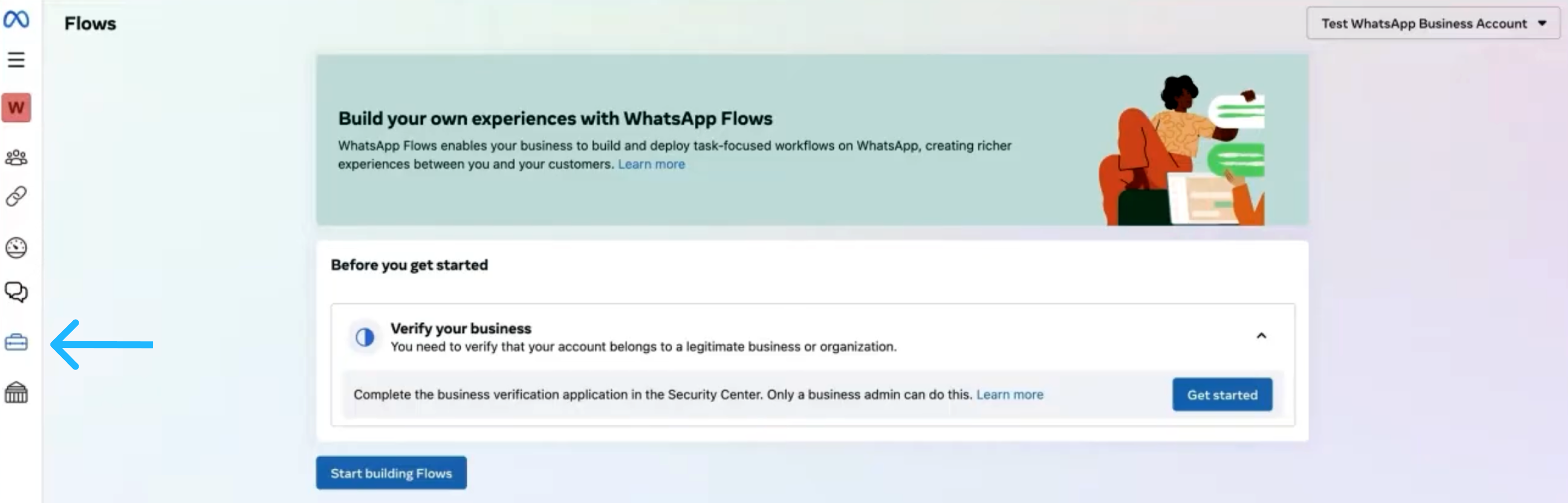
From the Meta Business Manager, click the Account Tools section located in the left sidebar. This will open the WhatsApp Manager module.
-
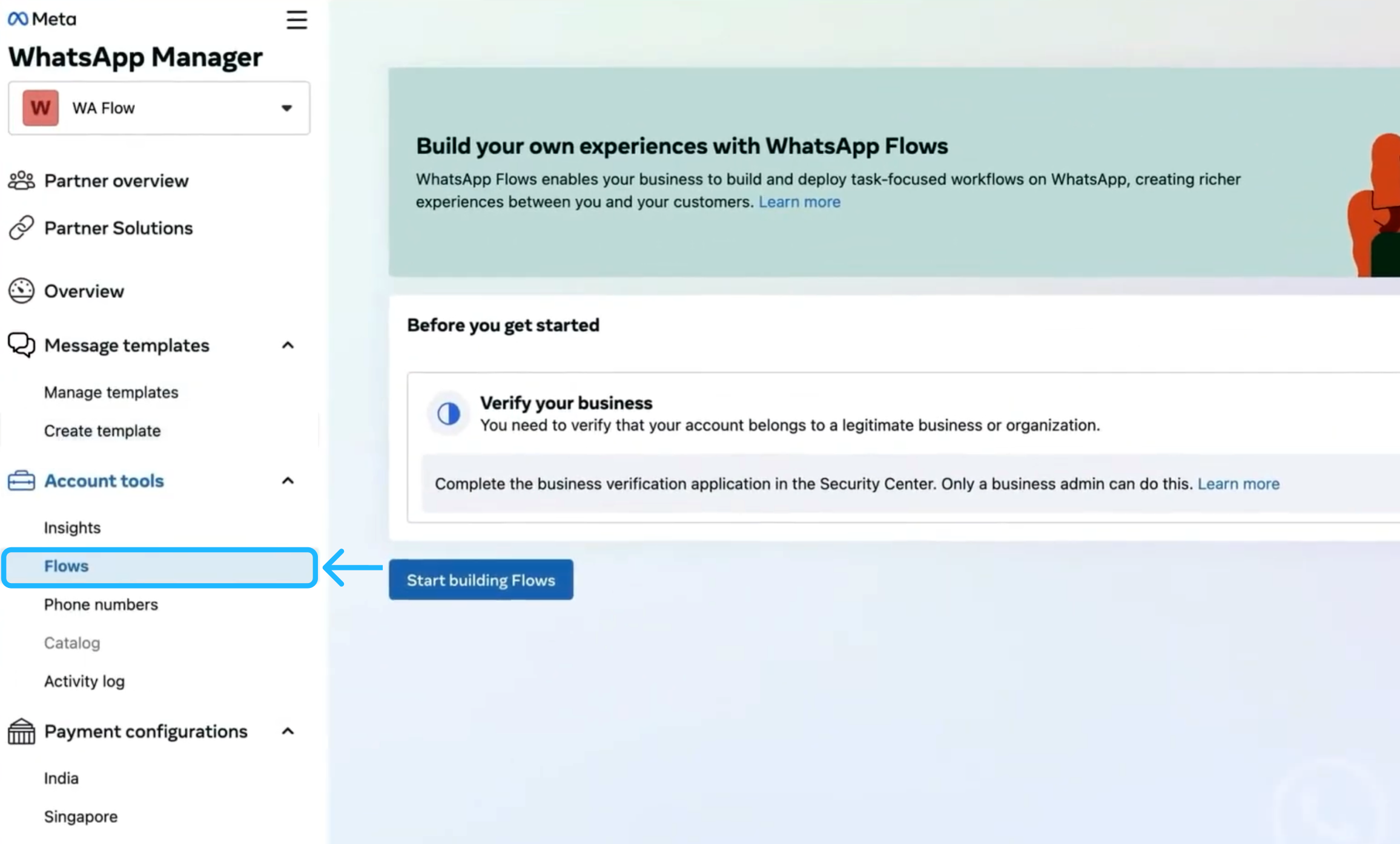
From the WhatsApp Manager, navigate to the Flows section.
-
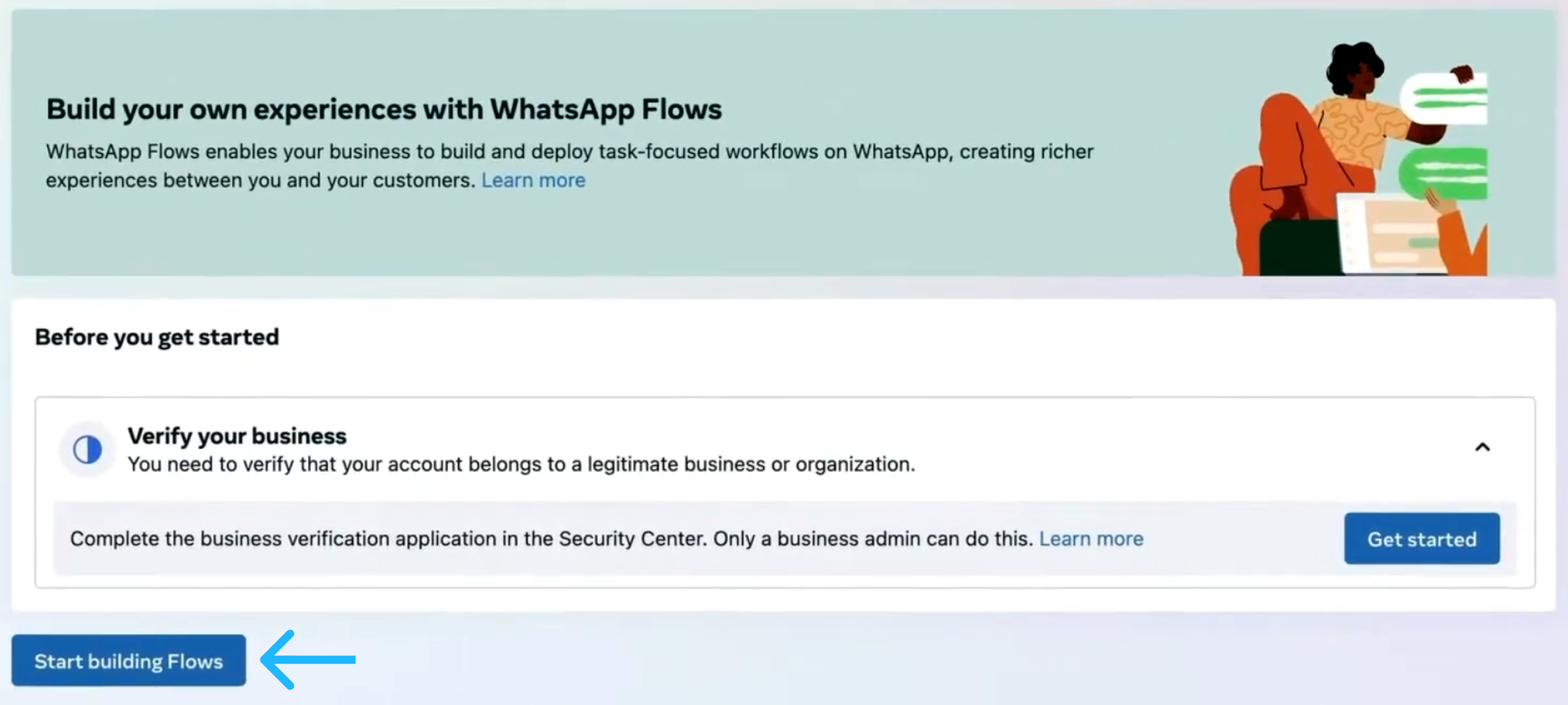
If this is your first time creating Flows, ensure that your business is verified. Once verified, click Start Building Flows to begin.
-
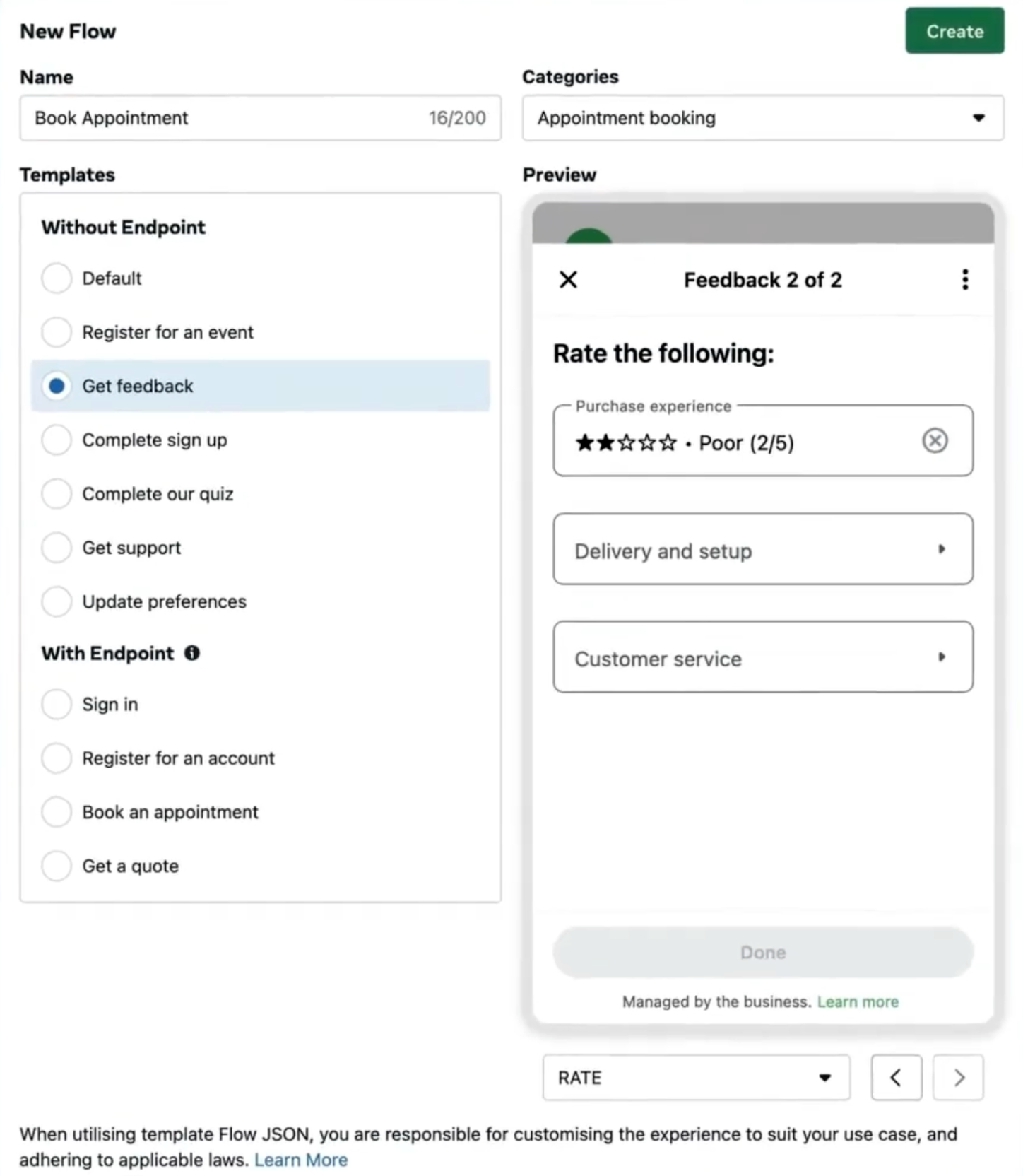
On the next screen, provide a name to the Flow and choose the category that best describes its purpose. When a message template is selected, a preview appears on the right, showing how the Flow is structured. Below the preview, you can browse the individual screens included in the Flow. Message Templates without an endpoint are only for static use cases.
-
Once the initial configuration is complete, click Create. This opens the Flow Builder interface, where you can define screens, add components, configure navigation, and build the Flow structure.
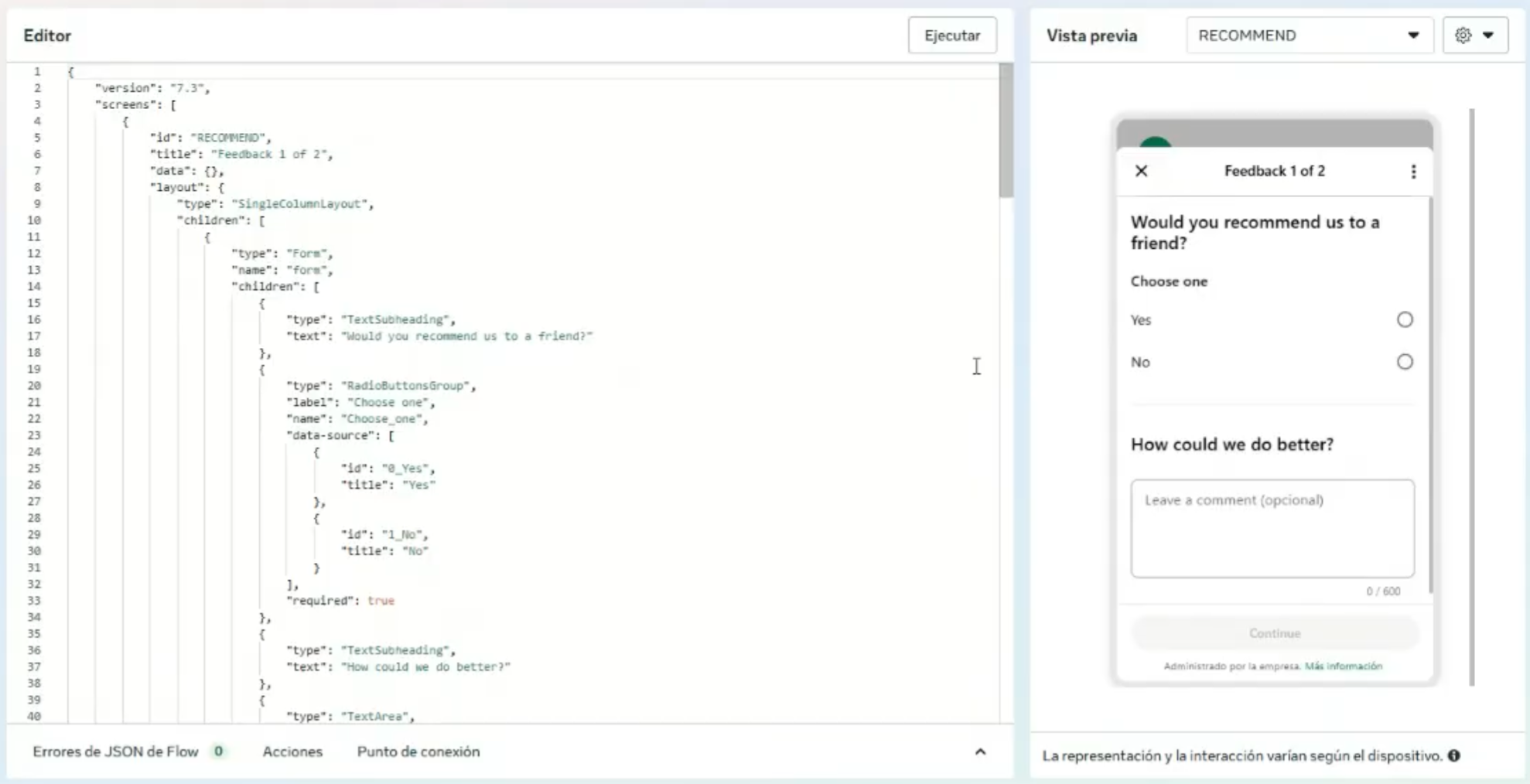
Understanding the structure of a static WhatsApp flow
A Static WhatsApp Flow is built as a sequence of predefined screens that guide the user through a structured interaction. Each screen represents a step in the Flow and contains the elements required for the user to provide information, make a selection, or proceed to the next step.
Because static Flows are fully self-contained, the entire structure of the interaction is defined in advance. This means that the order of screens, the components displayed on each screen, and the navigation between screens are all determined when the Flow is created.
Screens
A screen is the fundamental building block of a WhatsApp Flow. Each screen presents a specific piece of information or collects a specific set of inputs from the user. Screens are displayed one at a time and follow a defined sequence.
A Flow can contain one or multiple screens, depending on the complexity of the interaction. Common examples include:
- a welcome or introduction screen
- a data collection screen (such as contact details)
- a selection or preference screen
- a confirmation or completion screen
Each screen has a unique identifier and a layout that defines which components are shown to the user.
Components
Components are the interactive elements placed within a screen. They allow users to enter information or make selections as part of the Flow.
Common components used in static Flows include:
- text input fields
- radio button groups
- dropdown selectors
- informational text
- action buttons
Components can be marked as required or optional, and they can include basic validation rules to ensure that user input is complete and correctly formatted before the user can proceed.
Navigation between screens
Navigation defines how users move from one screen to the next. In static Flows, navigation is predefined and does not change at runtime.
Typically, navigation is controlled through action buttons such as Next, Continue, or Submit, which move the user forward in the Flow. In some cases, users may also be allowed to go back to a previous screen, depending on how the Flow is configured.
Because the navigation paths are defined in advance, every user follows the same sequence of screens when completing a static Flow.
Validation Behavior
Validation rules determine whether a user can proceed to the next screen or complete the Flow. These rules are evaluated locally within the Flow based on the configuration defined during creation.
For example:
- Required fields must be completed
- Input values must match expected formats
- Selections must be made before continuing
If validation fails, the Flow prevents the user from moving forward until the required input is provided.
Flow Completion
A static WhatsApp Flow is completed when the user reaches the final screen and submits the Flow. At this point, all data collected across the various screens is consolidated into a single, structured result.
Static Flows do not process user input incrementally. Instead, the Flow is treated as a complete interaction, and submission represents the end of the experience.
How This Structure Applies in Practice
Understanding this structure is essential before building a Flow. By organizing interactions into clear screens, using appropriate components, and defining simple navigation and validation rules, you can design Flows that are easy for users to complete and easy to manage.
In the next section, this structure is applied to a real example, where a simple static WhatsApp Flow is built step by step using the Flow Builder.
Example (use case): building a simple static WhatsApp flow
To illustrate how Static WhatsApp Flows are built, this section walks through a simple and common use case using the Flow Builder. The example focuses on creating a basic customer feedback survey, where users are asked to rate their experience by selecting one option from a predefined list and then submitting their response. That is, this example demonstrates how to build a simple static WhatsApp Flow using the Flow Builder to collect user feedback through a short survey. The Flow consists of two screens and guides the user from answering a question to submitting their response, all within a predefined and self-contained interaction.
This type of Flow is commonly used to collect quick feedback after a service interaction, purchase, or support experience, where the interaction follows a fixed sequence and does not require real-time logic or backend integration.
NOTEThis example is intentionally simple and highlights only the most relevant concepts and parameters involved in building a static Flow. For a complete and up-to-date reference of all available Flow JSON fields, components, and configuration options, refer to the official Meta documentation on Flow JSON.
In this example, the Flow guides the user through a small number of screens to:
- answer a short survey question
- Select a rating from predefined options
- Submit the response at the end of the Flow
The Flow consists of two screens executed in a fixed order. Validation is applied to ensure that the user selects an option before proceeding, and the interaction is completed with a single submission.
Screen 1: Survey Question
The first screen, identified by the SURVEY_SCREEN ID, presents a survey question and allows the user to provide feedback by selecting one option from a predefined list. This screen is designed to capture a single, structured response simply and intuitively.
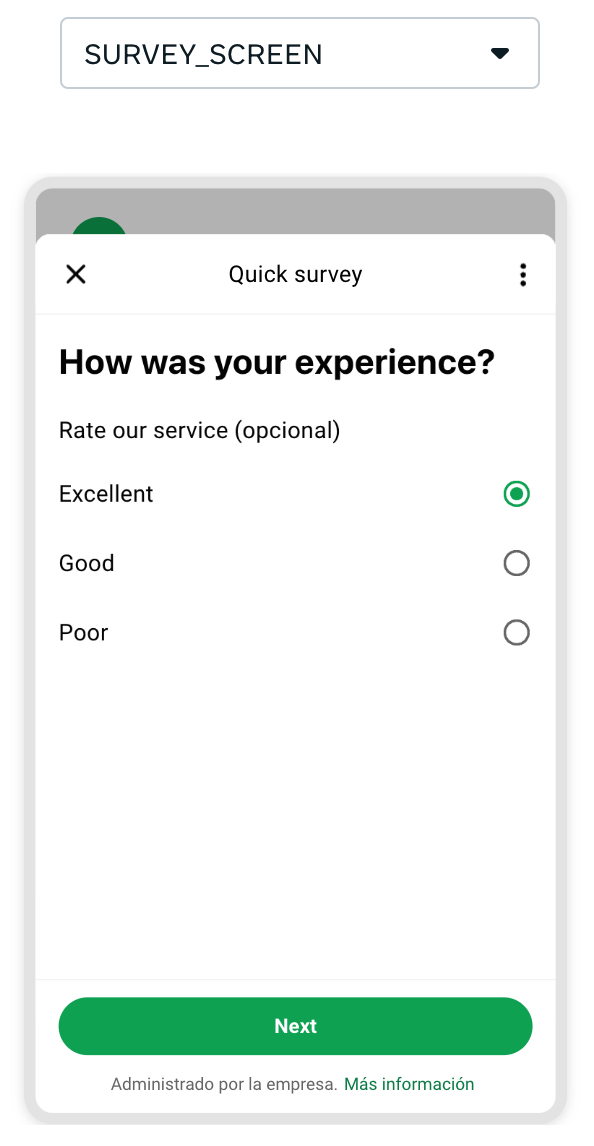
At a high level, this screen is defined by the following elements:
- Screen identifier: Uniquely identifies the screen within the Flow and is used to control navigation to the next step.
- Title and heading text: Provide context to the user by clearly stating the purpose of the question being asked.
- Selection component: A radio button group is used to display multiple predefined options, allowing the user to select exactly one response.
- Navigation control: A footer button is included to move the user to the next screen once a selection has been made.
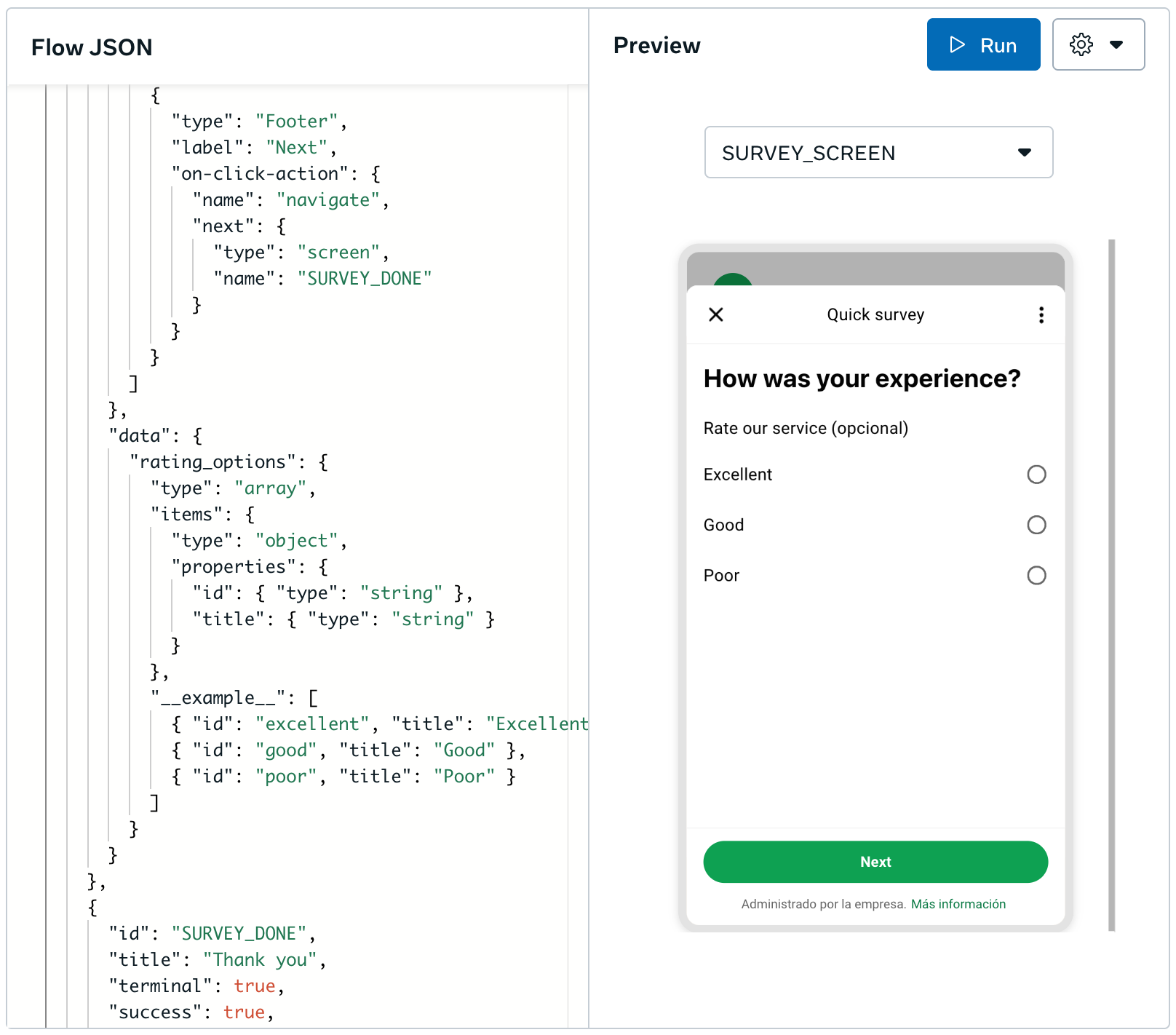
The selectable options are defined in advance using a static data source (rating_options) declared within the screen. This ensures that the Flow remains fully self-contained and that the same set of options is presented consistently to all users.
Validation is applied to require a selection before the user can proceed, preventing the Flow from advancing until a valid response is provided.
Screen 2: Completion
The second screen, identified by the SURVEY_DONE ID, represents the final step of the Flow and confirms that the survey interaction has been completed.
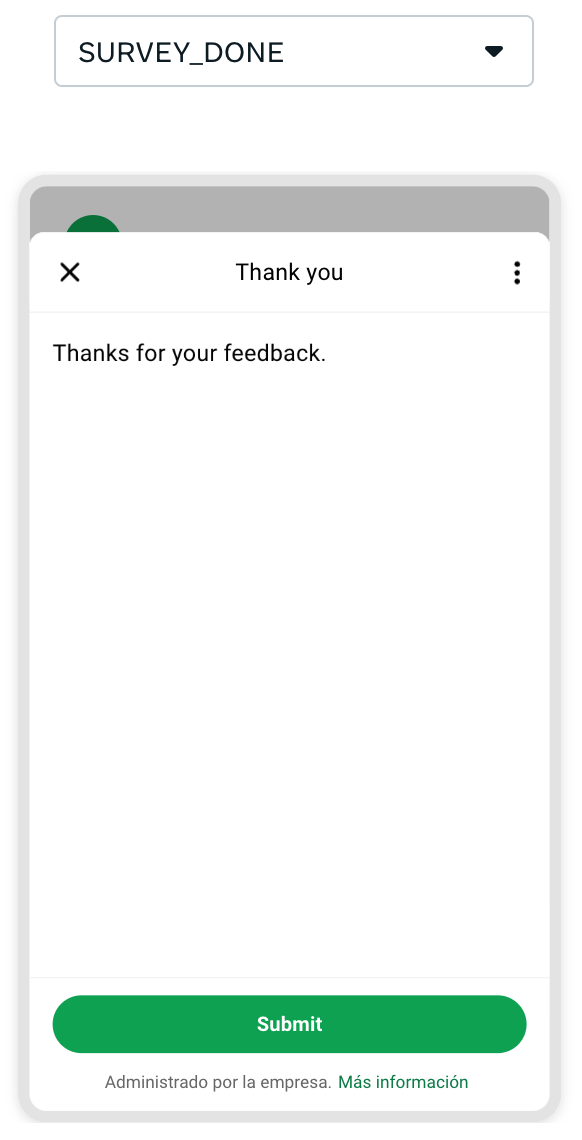
This screen is designed to clearly signal the end of the interaction and prompt the user to submit their response. It includes the following elements:
- Screen identifier: Uniquely identifies the final screen within the Flow and indicates that no further navigation is available.
- Confirmation message: A text component is used to acknowledge the user’s feedback and inform them that their response has been received.
- Completion action: A footer button labeled Submit finalizes the Flow and triggers its completion.
This screen is marked as a terminal screen, which means that once the user selects Submit, the Flow ends and all data collected during the interaction is consolidated as a single structured result.
Flow JSON
With both screens defined, the static Flow structure is now complete from a functional perspective. At this point, all user interactions, navigation rules, and completion behavior have been described at a conceptual level.
In this section, the same Flow is shown using its Flow JSON definition, which represents how the screens, components, navigation, completion logic described above, and static data are declared when building the Flow. The JSON example shows how the concepts explained above are represented in configuration. It focuses on the core elements required to build a static Flow and demonstrates the overall structure used by WhatsApp Flows.
{
  "version": "6.0",
  "screens": [
    {
      "id": "SURVEY_SCREEN",
      "title": "Quick survey",
      "terminal": false,
      "layout": {
        "type": "SingleColumnLayout",
        "children": [
          {
            "type": "TextHeading",
            "text": "How was your experience?"
          },
          {
            "type": "RadioButtonsGroup",
            "name": "rating",
            "label": "Rate our service",
            "data-source": "${data.rating_options}"
          },
          {
            "type": "Footer",
            "label": "Next",
            "on-click-action": {
              "name": "navigate",
              "next": {
                "type": "screen",
                "name": "SURVEY_DONE"
              }
            }
          }
        ]
      },
      "data": {
        "rating_options": {
          "type": "array",
          "items": {
            "type": "object",
            "properties": {
              "id": { "type": "string" },
              "title": { "type": "string" }
            }
          },
          "__example__": [
            { "id": "excellent", "title": "Excellent" },
            { "id": "good", "title": "Good" },
            { "id": "poor", "title": "Poor" }
          ]
        }
      }
    },
    {
      "id": "SURVEY_DONE",
      "title": "Thank you",
      "terminal": true,
      "success": true,
      "layout": {
        "type": "SingleColumnLayout",
        "children": [
          {
            "type": "TextBody",
            "text": "Thanks for your feedback."
          },
          {
            "type": "Footer",
            "label": "Submit",
            "on-click-action": {
              "name": "complete",
              "payload": {}
            }
          }
        ]
      }
    }
  ]
}
The parameters presented in the request body example of the Use Case when creating the Static WhatsApp Flow are the following:
| Parameter | What it controls | How it’s used in this Flow |
|---|---|---|
version | Flow JSON schema/version | Indicates the Flow JSON version used by this definition (6.0). |
screens | Screen list | Defines the Flow as a sequence of screens. This example contains two screens. |
screens. id | Screen identifier | Unique ID used to reference a screen (e.g., SURVEY_SCREEN, SURVEY_DONE). |
screens.title | Screen header title | Text shown at the top of each screen (Quick survey, Thank you). |
screens.terminal | End-of-flow screen flag | false for the first screen, true for the final screen where the Flow can be completed. |
screens.success | Success state indicator | Marks the final screen as a success outcome (true). |
screens.layout | Screen layout container | Defines how the screen is structured and which components it contains. |
screens.layout.type | Layout container | Uses SingleColumnLayout to render components vertically. |
screens.layout.children | Screen content | Ordered list of UI components shown to the user. |
screens.layout.children.type | Component type | Defines what each UI element is (e.g., TextHeading, RadioButtonsGroup, Footer). |
screens.layout.children.text | Text content | Used by TextHeading and TextBody to display static text. |
screens.layout.children.name | Input key | Used by RadioButtonsGroup (rating) to identify the stored response field. |
screens.layout.children.label | Component label | Used by RadioButtonsGroup (“Rate our service”) and Footer (“Next”, “Submit”). |
screens.layout.children.data-source | Data binding for options | Binds radio options to ${data.rating_options}. |
screens.layout.children.on-click-action | Button action definition | Defines what happens when the Footer button is clicked. |
screens.layout. children.on-click-action.name | Action type | Navigate on Screen 1, complete on Screen 2. |
screens.layout.children.on-click-action.next | Navigation target object | Present only when name = navigate. Defines where to go next. |
screens.layout.children.on-click-action.next.type | Next target type | screen indicates the next target is another screen. |
screens.layout.children.on-click-action.next.name | Next screen reference | Points to SURVEY_DONE (the ID/name of the next screen). |
screens.layout.children.on-click-action.payload | Completion payload | Present only when name = complete; here it’s {}. |
screens.data | Screen-level data container | Holds static data definitions referenced by components (Screen 1). |
screens.data.rating_options | Options dataset definition | Defines the dataset used to populate the radio buttons. |
screens.data.rating_options.type | Data type | Declares the dataset as an array. |
screens.data.rating_options.items | Array item schema | Defines what each element in the options array looks like. |
screens.data.rating_options.items.type | Item type | Each option is an object. |
screens.data.rating_options. items.properties | Object fields schema | Declares which fields each option object includes. |
screens.data.rating_options.items.properties. id.type | Option ID type | string identifier used as the selected value (e.g., excellent). |
screens. data. rating_options.items.properties.title.type | Option title type | string label shown to the user (e.g., “Excellent”). |
screens.data. rating_options._example_ | Example dataset | Sample options list used for illustration/testing in tooling. |
WARNINGThis example intentionally covers only the core structure needed to understand and build a working Static WhatsApp Flow. WhatsApp Flows support many additional fields, screen types, UI components, validation options, and advanced configurations that are not included here.
For the full and authoritative list of supported parameters and component definitions, refer to the official Meta documentation: Flow JSON
Publishing Flow
When a WhatsApp Flow is first created in the Flow Builder, it is saved in Draft status. While a Flow is in Draft, it can be edited freely and used only for testing and preview purposes. To make a Flow available for real use cases and allow it to be sent to end users, the Flow must be published.
Publishing a Flow locks its structure and marks it as ready for production use.
Before publishing a Flow, make sure that:
- All validation errors have been resolved
- The Flow follows WhatsApp Flows design principles
- The Flow complies with WhatsApp Terms of Service and applicable messaging policies
Follow these steps to publish a Static WhatsApp Flow from the Flow Builder:
-
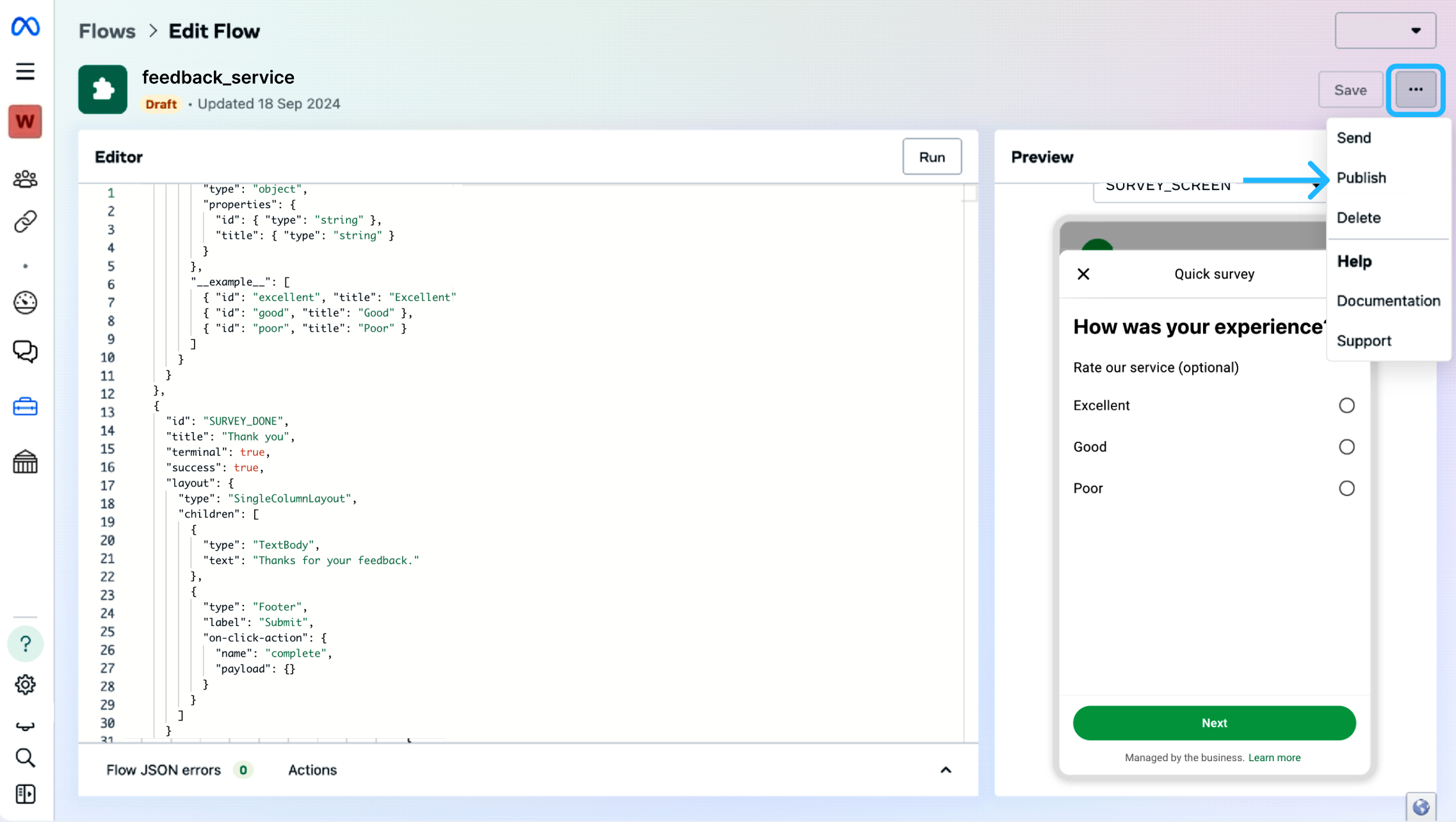
Publish the Flow: From the Flow Builder editor, click the three dots at the top right and select Publish.
-
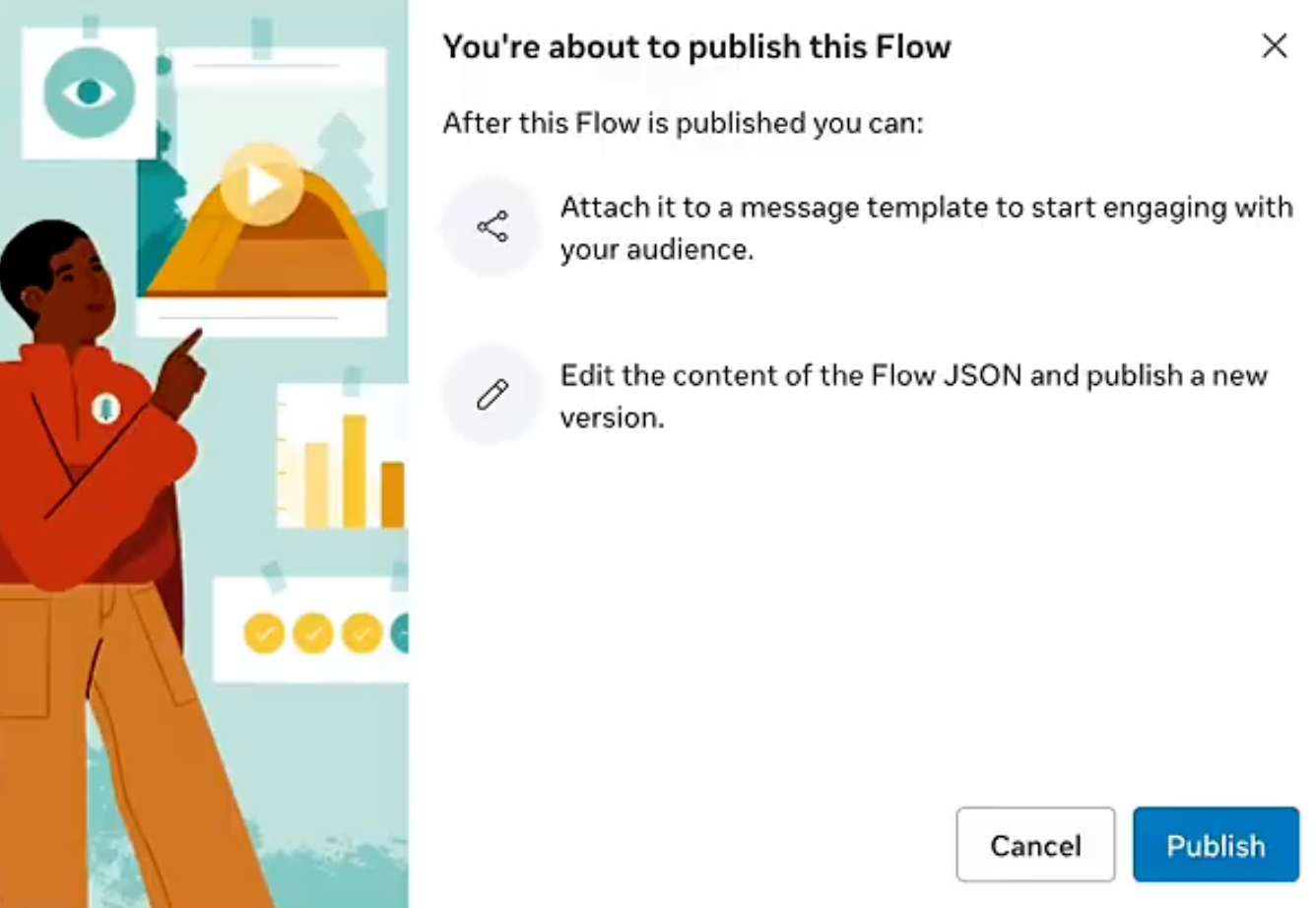
Confirm Publication: A confirmation window will appear explaining what publishing the Flow enables. Click Publish to confirm.
-
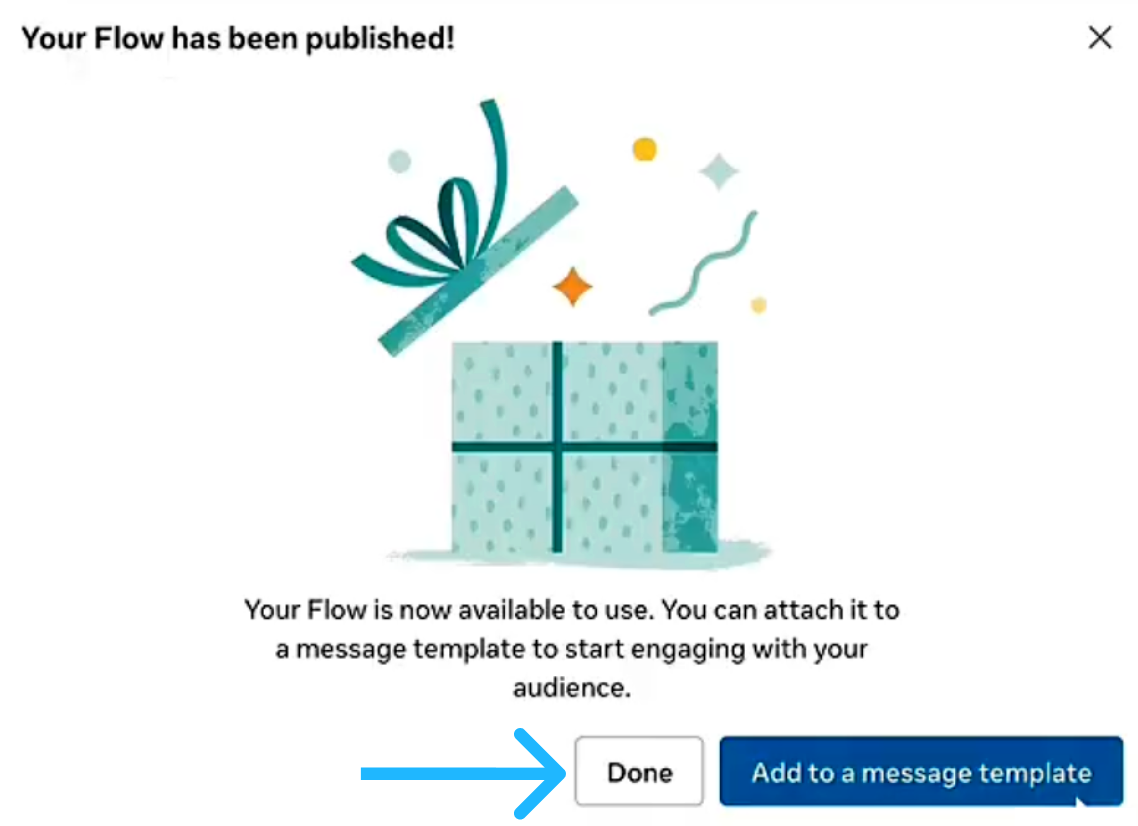
Skip Message Template Attachment (Optional): After publishing, WhatsApp displays a confirmation window offering the option to attach the Flow to a message template. For this example, select Done to finish without attaching the Flow to a message template at this time.
-
Verify the Published Flow: Return to the Flows section in WhatsApp Manager. The published Flow now appears in the list with a Published status.

When the Flow is published correctly, the list displays the following columns:
- Flow Name: This column displays the name assigned to the Flow when it was created.
- Flow Identifier: This column shows the unique Flow ID assigned by WhatsApp once the Flow is created. The Flow ID is a critical technical identifier and is used to reference the Flow when sending it to users and attaching the Flow to a WhatsApp message template.
- Status: This column indicates the current lifecycle state of the Flow. The Draft status means that the Flow is still being edited or tested and is not yet published for production use. And the Published status means that the Flow is finalized and can be sent to end users.
- Last Updated: This column shows the date of the most recent update to the Flow.
Once a Flow is published, it cannot be edited. Any future changes require creating and publishing a new version of the Flow.
The Flow ID is especially important for sending the message template, as it is the value used to instruct WhatsApp which Flow should be rendered for the end user. In this example, the platform generates the Flow ID 14151820. We will use this identifier when sending the Flow through the Send Flow API.
Sending Flow
Once a Static WhatsApp Flow has been published, it can be delivered to end users through the Send Static Flow endpoint.
This delivery method is intended for scenarios where the interaction occurs within an active 24-hour customer conversation window initiated by the end user, following the same rules as WhatsApp session messages, and therefore does not require a pre-approved message template.
Before sending a Static Flow using this endpoint, ensure that:
- The Flow is in "Published" status.
- The recipient has an active conversation window (initiated by the end user within the last 24 hours).
- The Flow is not attached to a WhatsApp message template.
- The Flow ID of the published Flow is available.
If there is no active conversation window, the Flow cannot be sent directly using this request body and must instead be attached to an approved WhatsApp message template.
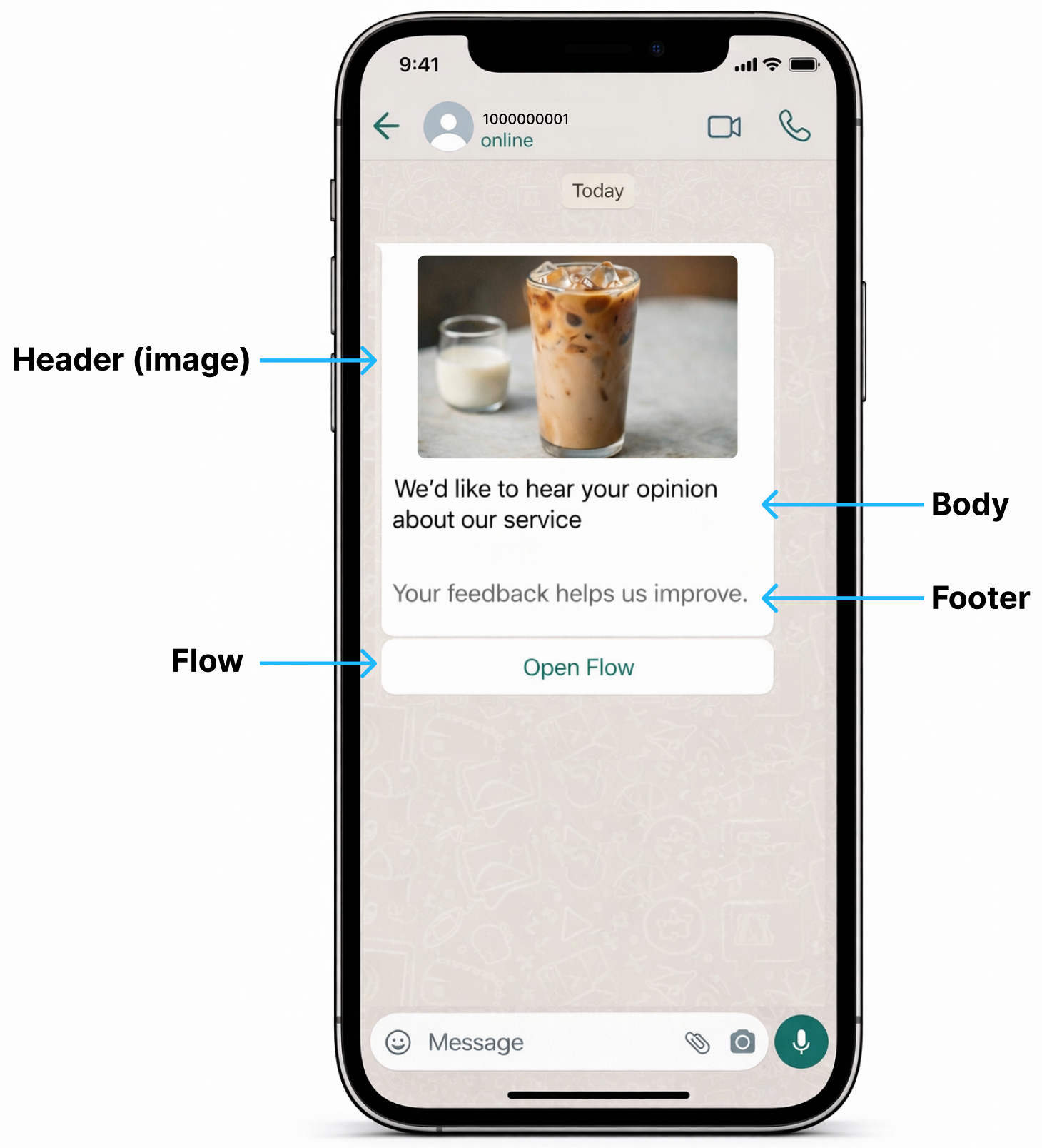
When a Static WhatsApp Flow is sent to an end user, it is delivered as part of an interactive WhatsApp message. This message acts as the entry point to the Flow and can help the user understand what the Flow is about before opening it.
A Flow message can include the following components:
- Header (Optional): Displays contextual content at the top of the message. The header can be configured to show text, an image, a video, or a document, depending on the use case and the type of information that needs to be highlighted before the Flow is opened.
Media URL Caching
When updating a media header (Image, Video, or Document), use a new URL for the updated media file.
If you replace a media file on your server while keeping the same URL, Meta may continue using the previously cached version of the file instead of retrieving the updated resource.
The cached version may remain available for more than 40 minutes. To ensure that the updated media file is used, always provide a new URL when replacing a media resource.
- Body: Contains the primary message shown to the user. This section typically explains the purpose of the Flow, provides brief instructions, or sets expectations about the interaction the user is about to complete.
- Footer (Optional): Displays a short line of text at the bottom of your message. It is commonly used for additional context, disclaimers, or short clarifications that do not require strong visual emphasis.
- Call to Action button (CTA): A button that allows the user to launch the Flow. The CTA label defines the action the user is about to take, such as Open Flow, Start, or Continue.
These elements are rendered together in the WhatsApp chat and provide clarity and context before the user enters the Flow experience.
Replying to a user with a reserved username
The userId from the webhook payload isn't just an identifier for display — you can send session messages and message templates directly to it. That means you can reply to a reserved-username user without ever learning their phone number.
A message template addresses the recipient by phone number, using to:
{
  "templateId": "4567890987654",
  "from": "1000000001",
  "to": "+1000000002"
}
To reply to a reserved-username user, replace to with recipient, and set its value to the userId from the webhook payload:
{
  "templateId": "4567890987654",
  "from": "1000000001",
  "recipient": "MX.24983"
}
WARNINGIf the request body includes both
toandrecipientparameters, Meta always prioritizes thetoparameter and delivers to that phone number — therecipientparameter is only used whentois absent.
NOTEMessages sent through
recipientinstead oftocarry that same identifier into reporting: in Messaging Logs, the Recipient column shows theuserIdrather than a phone number for that outgoing message.
Now, we will send the Static WhatsApp Flow already created and published in this guide. This example demonstrates how a Flow can be delivered to the end user together with a structured message that includes a header with an image, a text body, and a footer.
HTTP Request : POST /v3/messages
{
  "from": "1000000001",
  "to": "+1000000002",
  "type": "interactive",
  "interactive": {
    "type": "flow",
    "header": {
      "type": "image",
      "image":{
      "link": "https://example.com?media=image"
      }
    },
    "body": {
      "text": "We'd like to hear your opinion about our service."
    },
    "footer": {
      "text": "Your feedback helps us improve."
    },
    "action": {
      "name": "flow",
      "parameters": {
        "flowMessageVersion": "3",
        "flowId": "2021222425",
        "flowCta": "Open Flow",
        "flowAction": "navigate",
        "flowActionPayload": {
          "screen": "SURVEY_SCREEN"
        }
      }
    }
  },
  "callbacks": [
    "http://www.mycallback.com?id=123"
  ]
}
Parameters present in the request body example when sending a Static Flow are the following:
| Parameter | Required | Description |
|---|---|---|
from | Yes | Phone number of the sender. The phone number provided during the WABA account setup will be used as the sender of the notification message. Only accepts numeric characters. Do not include the "+" sign. |
to | Yes | Determines the destination phone number for your message template message. Numbers are specified in E.164 format → (‘+’ and a country code). |
recipient | No | Identifies a recipient with a reserved username, using the Use this instead of |
type | Yes | The message type. For sending a Flow, this value must be set to "interactive". |
interactive | Yes | Container object that defines the interactive message payload. All Flow-related configuration is defined within this object. |
interactive.type | Yes | Specifies the type of interactive message. For WhatsApp Flows, this value must be set to "flow". |
interactive.header | No | Object that defines the header section of the message. The header is displayed at the top of the message. |
interactive.header.type | Yes | Only applies to the
"http://…" or "https://…" and provides a direct download. Redirects are not supported. |
interactive.header.text | Yes | Only applies to the Enter the text message header to be sent. Only contains text, one personalized field (placeholder), and emojis. A text header has a limit of 60 characters, including emojis. |
interactive.header.image | Yes | Only applies to the The maximum image size is 5 MB, and the format must be .jpg or .png. |
interactive.header.image.link | Yes | Only applies to the If you set the image as Header option, enter the URL of the image. The URL of the header (image) must be a valid URL that starts with |
interactive.header.video | Yes | Only applies to the The maximum video size is 5MB, and the format must be .mp4, .3gpp (Only H.264 video codec and AAC audio codec are supported). |
interactive.header.video.link | Yes | Only applies to the If you set the video as Header option, enter the URL of the video. The URL of the header (video) must be a valid URL that starts with |
interactive.header.document | Yes | Only applies to the The maximum document size is 5 MB, and the format must be .pdf. |
interactive.header.document.link | Yes | Only applies to the If you set the document as Header option, enter the URL of the document. The URL of the header (document) must be a valid URL that starts with |
interactive.header.document.filename | Yes | Only applies to the If you set the Document as Header option when creating the message template, enter the name and file extension (.pdf) of the document to be sent. |
interactive.body | Yes | Object that defines the main message content shown to the user. |
interactive.body.text | Yes | Only applies to the Enter the text message body to be sent. Only contains text and emojis. A text body has a limit of 1024 characters, including emojis. |
interactive.footer | No | Object that defines the footer section of the message. The footer is displayed below the body text. |
interactive.footer.text | Yes | Enter the text message footer to be sent. A text footer has a limit of 60 characters. |
interactive.action | Yes | Object that defines the interactive action associated with the message. For Flows, this object controls how the Flow is launched. |
interactive.action.name | Yes | Specifies the action type. For WhatsApp Flows, this value must be set to flow. |
interactive.action. parameters | Yes | Object that defines Flow-specific parameters used to launch the Flow. |
interactive.action.parameters.flowMessageVersion | Yes | Specifies the Flow message protocol version used when creating the Flow. |
interactive.action.parameters.flowId | Yes | The unique identifier of the published Flow. |
interactive.action.parameters.flowCta | Yes | Enter the text to be displayed on the call-to-action button to open the flow. |
interactive.action.parameters.flowAction | Yes | Defines the initial action to perform when the Flow is opened. For WhatsApp Flows, this value must be set to navigate. |
interactive.action.parameters.flowActionPayload | No | Object that allows you to define the initial screen and variable values when launching a Static Flow. |
interactive.action.parameters.flowActionPayload.screen | No | Defines the initial screen that will be shown to the user when they open the Flow. Enter the Screen ID that was assigned during Flow creation. |
interactive.action.parameters.flowActionPayload.data | No | Key-value object that prepopulates variable values defined in the Flow. Each key must match the exact name of a variable configured during the Flow design process. |
callbacks | No | Indicate one or more (separated by a comma) webhook URLs to notify about the status of the message delivery. That is, if you want to receive the status of the message you've sent to your contacts, you need to specify your endpoint. Your endpoint must have an HTTP POST access method and receive a JSON body. The URL is the external callback where the events of the Email will be registered and published. Once an email is processed, its status will be posted to your callback URL. To view the full list and meaning of each status, please refer to the WhatsApp Status section. |
When you send a Static WhatsApp Flow, the response body contains the following data:
{
    "meta": {
        "timestamp": 1770665577223,
        "transactionId": "9384hgf121820"
    },
    "data": {
        "id": "141518202530",
        "from": "1000000001",
        "to": "+1000000002",
        "statusDate": "2026-02-09T19:32:57.221606127Z",
        "owner": "elipackage",
        "operator": "elipackage",
        "status": "QUEUED"
    }
}
Parameters presented in the response body example when sending a Static WhatsApp Flow are the following:
| Parameter | Description |
|---|---|
data | Data contained in the Message object. |
data.id | Unique identifier of the WhatsApp message. |
data.from | Phone number of the sender. Phone number provided during the WABA account setup will be used as the sender of the notification message. Only accepts numeric characters. Do not include the "+" sign. |
data.to | Determines the destination phone number for your message. Numbers are specified in E.164 format → (‘+’ and a country code). |
data.statusDate | Date when the last update or status change. |
data.owner | Owner or creator of the message. |
data.operator | User who is a member of the owner or creator’s Workspace. |
data.status | When a Message is sent, the system assigns one of the following possible statuses to a WhatsApp message:
|
Updated 8 days ago