Polls & Surveys
Polls and Surveys Automation allow you to collect user data—such as opinions, habits, or preferences—through questions Polls and Surveys Automation collects user data through questions sent via SMS, WhatsApp, or RCS. These automations are ideal for customer feedback, market research, and engagement.
You complete three setup steps after selecting New Automation, naming it, and selecting Polls & Surveys:

- Delivery - Select the messaging channel and choose the recipients who will receive the poll.
- Poll - Create your poll by adding an invitation message (optional), setting up your questions, and defining a closing message for participants.
- Summary - Review your automation setup and choose whether to launch immediately, schedule it, or save it as a draft.
Delivery
In the Delivery step, you define the delivery channel and the automation recipients.
Currently, three delivery channels are available for the Polls & Surveys automation:
The Delivery section covers delivery channel selection. Recipient selection details appear in Define Recipients in the Automation Elements section.
Poll
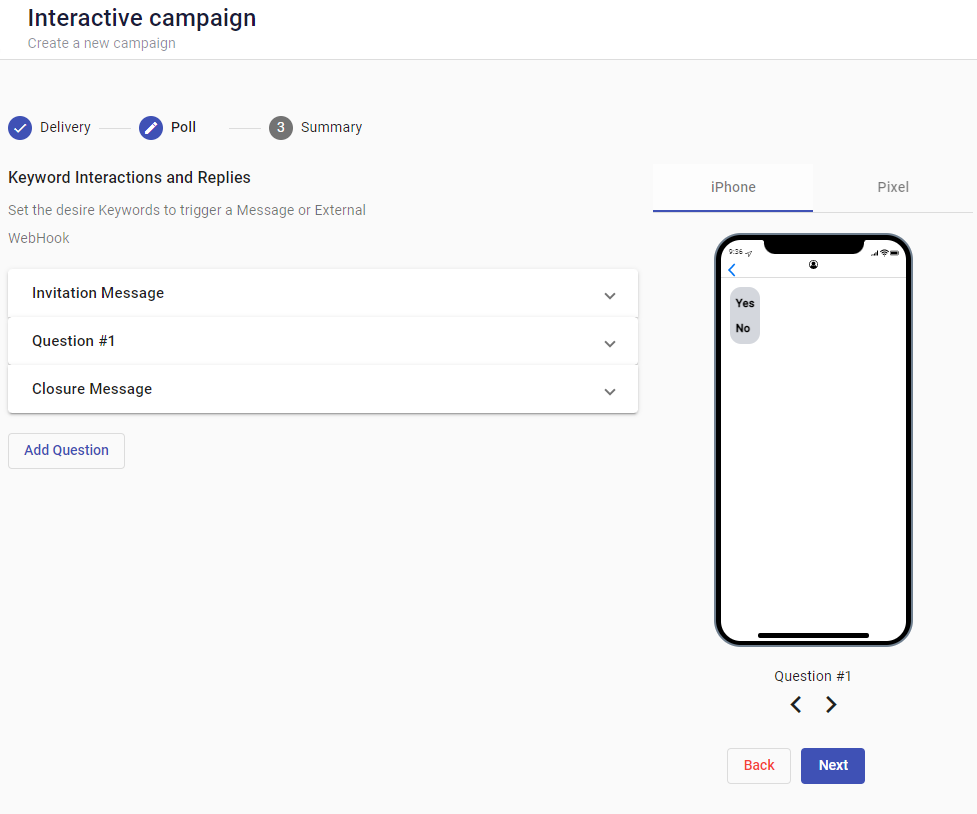
In the Poll step, you set up the invitation message, questions, and closure message. You see a preview of the user experience on the right.
Invitation Message
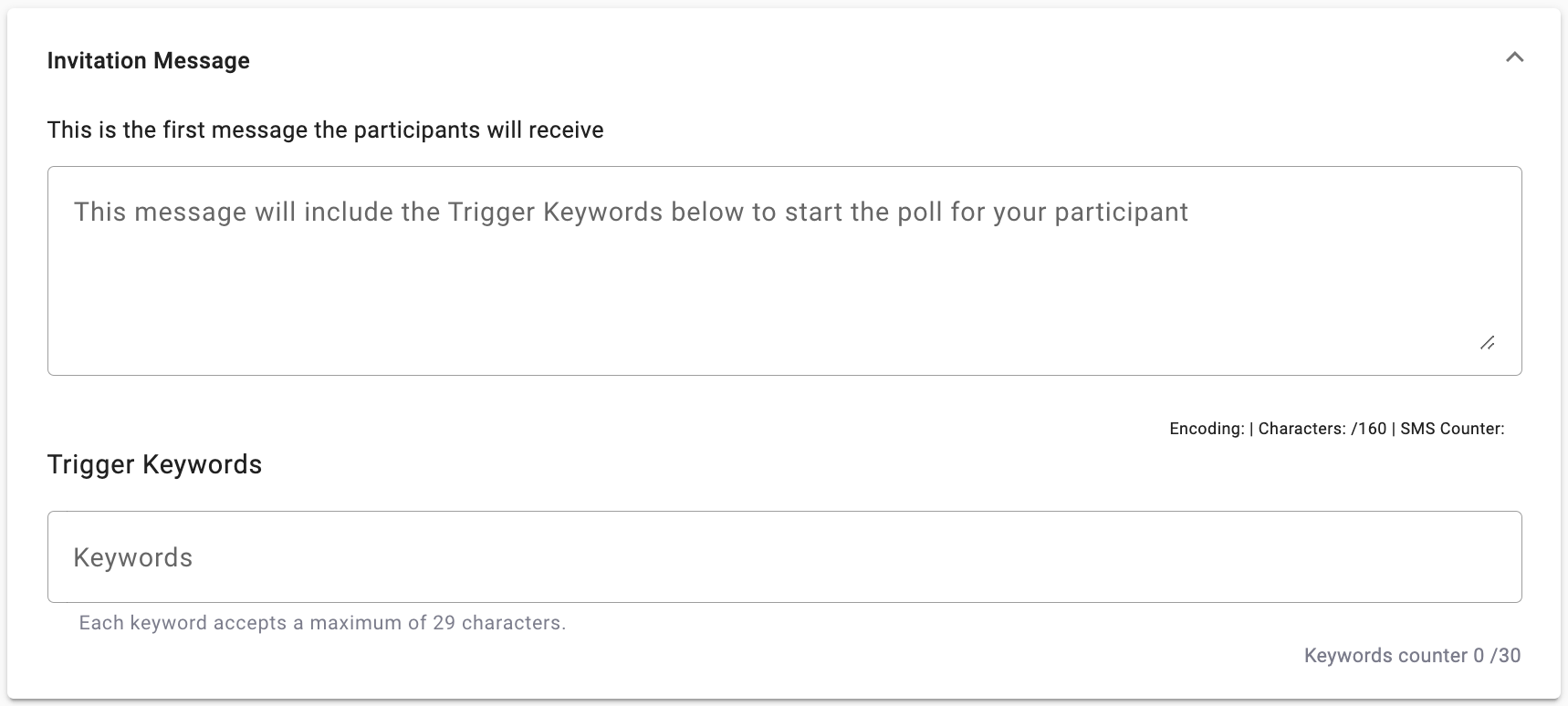
The Invitation Message serves as the automation trigger to request poll participation in SMS-driven polls. Only targeted recipients of this message are aware of the poll.
You expand poll awareness through alternative channels. Keywords increase poll participation beyond the initial targeted recipients.
NOTEThe Invitation Message does not apply for automationS when keywords are used as the entry point in the "Recipients" options.
Trigger Keywords
You define one or more keywords that users send to join the poll (e.g., "START", "VOTE"). Trigger Keywords invoke the poll delivery to participants. The platform receives the keyword and delivers the poll questionnaire to that participant.
You enter the trigger keywords in the field at the bottom. These keywords appear in the Invitation Message. The preview screen on the right reflects this.
Questions
You configure the poll questions in this section. Questions are sent to participants after configuration.
The Question Type selected determines how the response options are structured. The platform dynamically adjusts the interface based on the question type (Yes/No, Keyword Response, Multiple Choice) chosen.
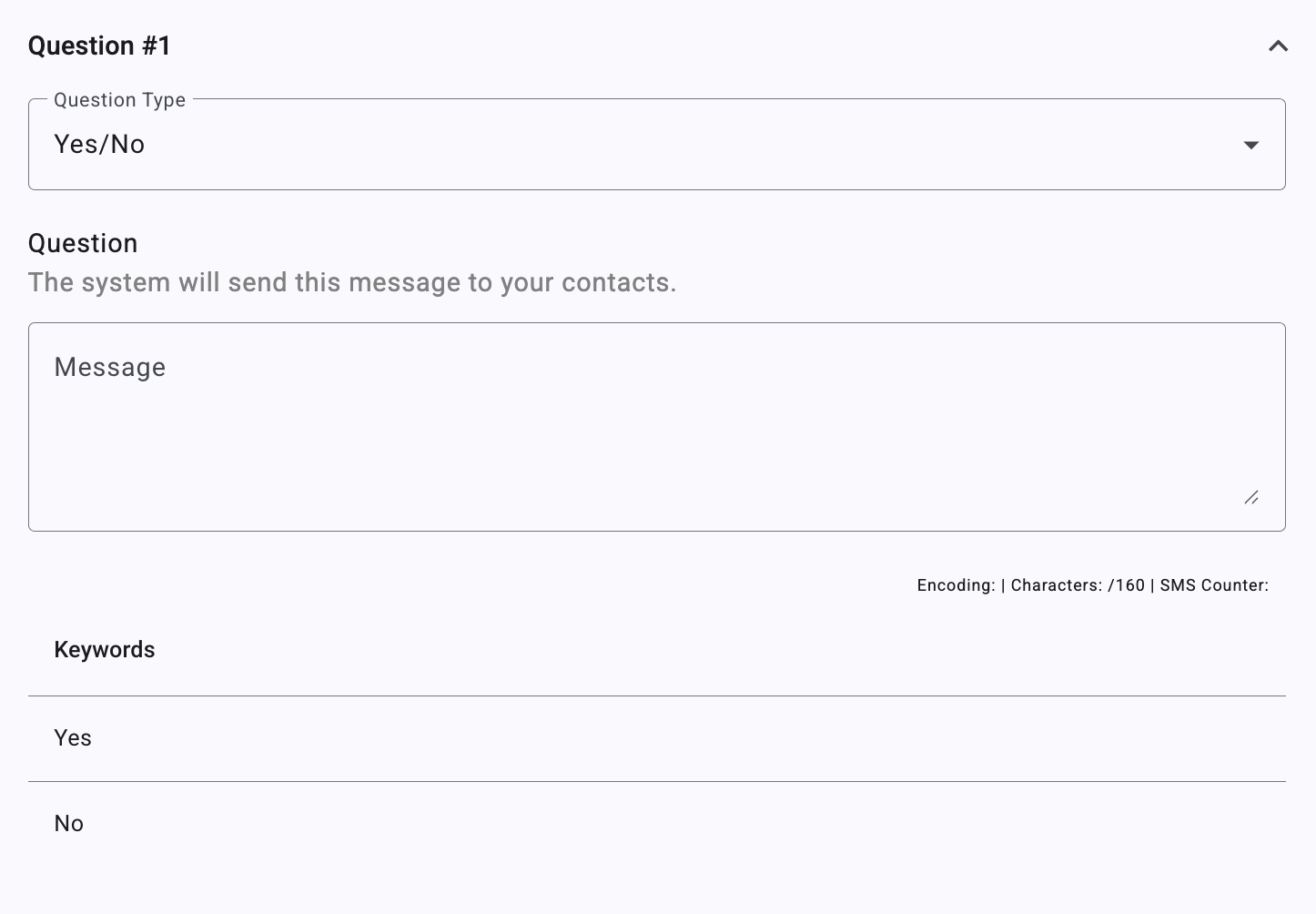
Yes/No Questions
This question type requires a binary response, where users can only reply with "Yes" or "No".

- The message box accepts the question text sent to contacts.
- Below the message box, the system automatically assigns the keywords Yes and No as response options. That is, predefined keywords Yes and No appear automatically.
Keyword Response Questions
This question type accepts specific predefined keywords as responses.
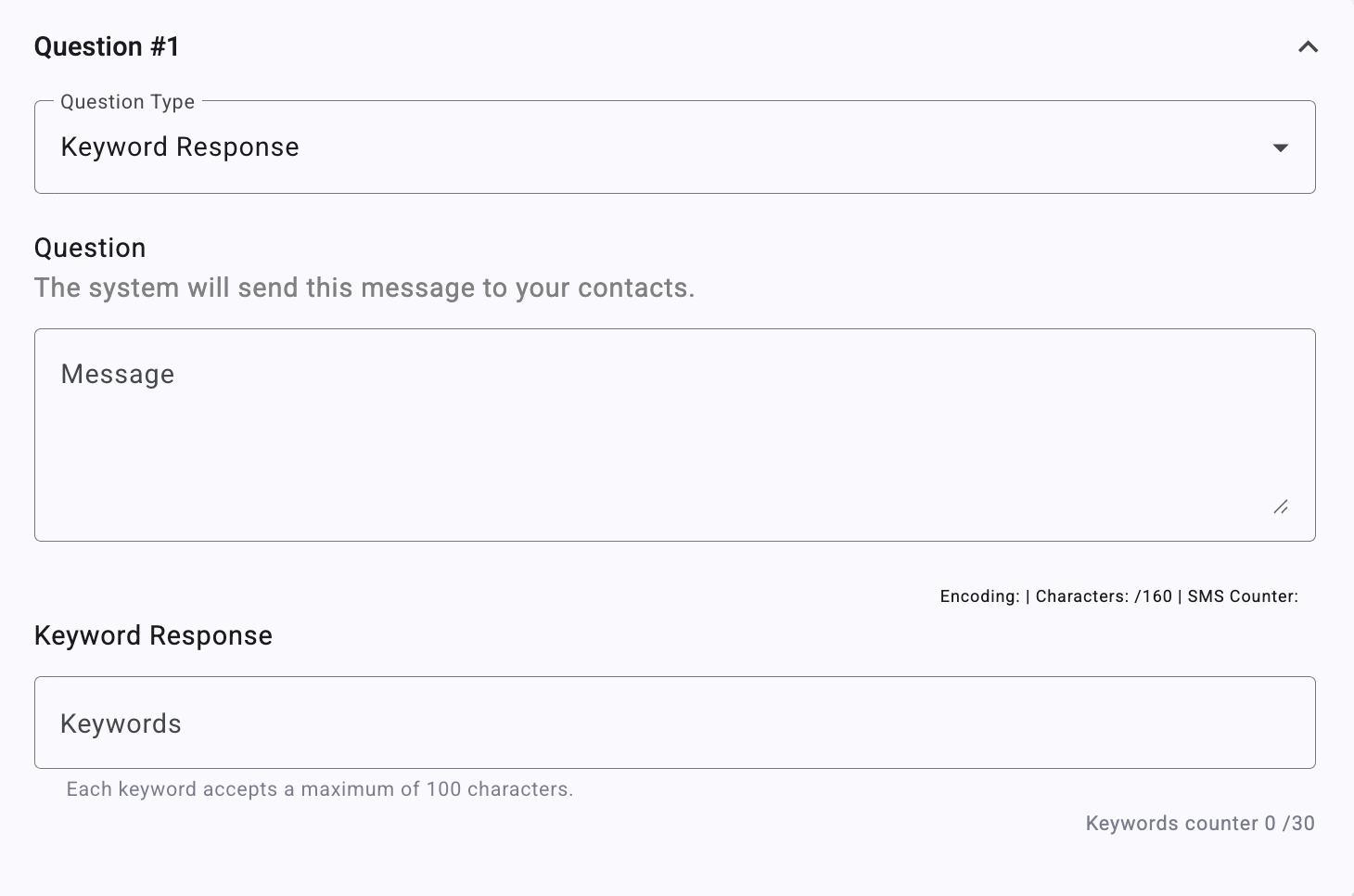
- The message box accepts the question text sent to contacts.
- The Keyword Response field accepts custom keywords that users reply with.
- Keywords are not case-sensitive, so the keywords "WELCOME" and "welcome" are equivalent entries, and only one can be used as a keyword.
Multiple Choice Questions
This question type presents multiple predefined answer choices to respondents.
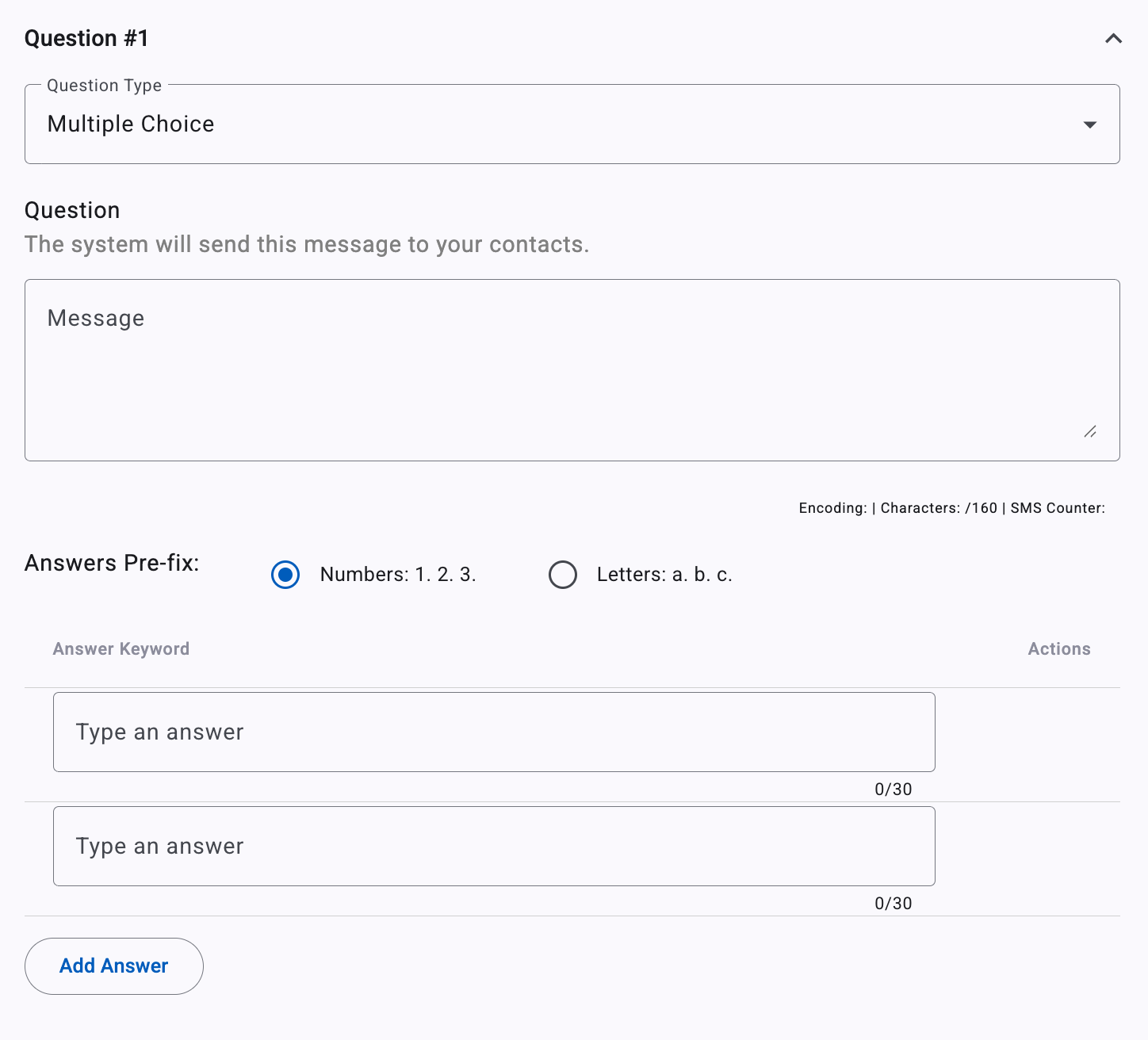
- The message box accepts the question text sent to contacts.
- The Answer Prefix setting determines whether answer choices are prefixed with numbers (1, 2, 3) or letters (a, b, c).
- The Answer Keyword field accepts answer choices, each limited to 30 characters.
- Multiple Choice Questions can have between 2 and 5 answers.
- Answer options will be shown as a "numbered" vertical list as defined by the radio button settings on the top. Answers are limited to 10 characters each.
- You add more answers by selecting the Add Answer button.
Closure Message
The Closure Message confirms participation and shows appreciation. It optionally encourages further interaction. This message is sent after the last question of the poll is answered.
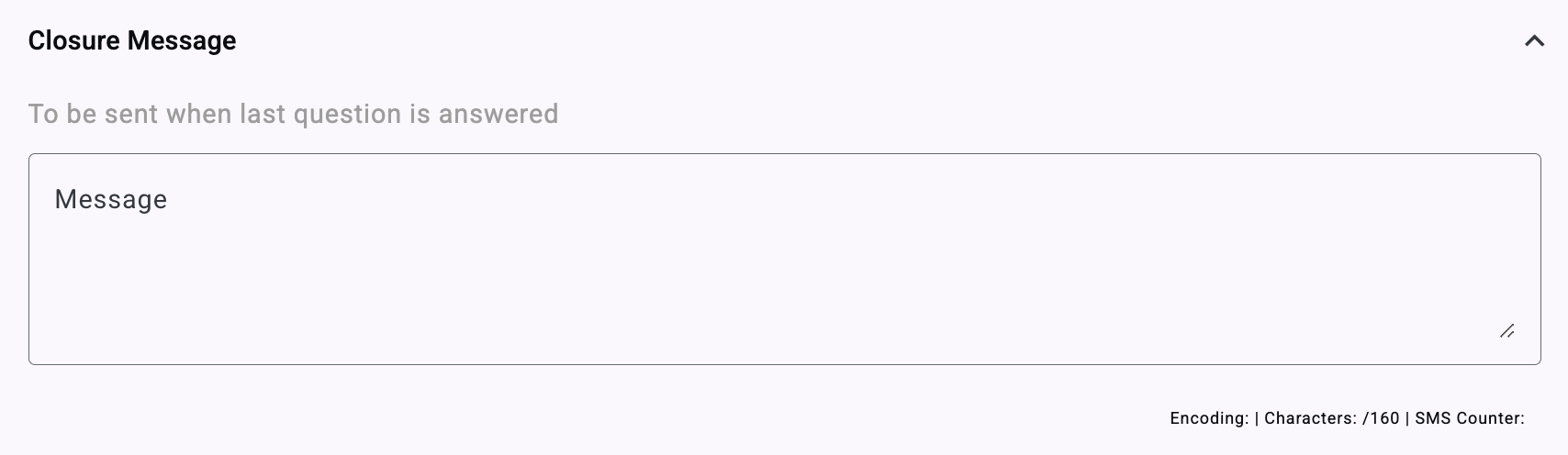
After the poll configuration is complete, you review it on the simulated screen. You click Next to continue creating the automation.
Summary
In the Summary step, you take the final actions on your Polls & Surveys automation.
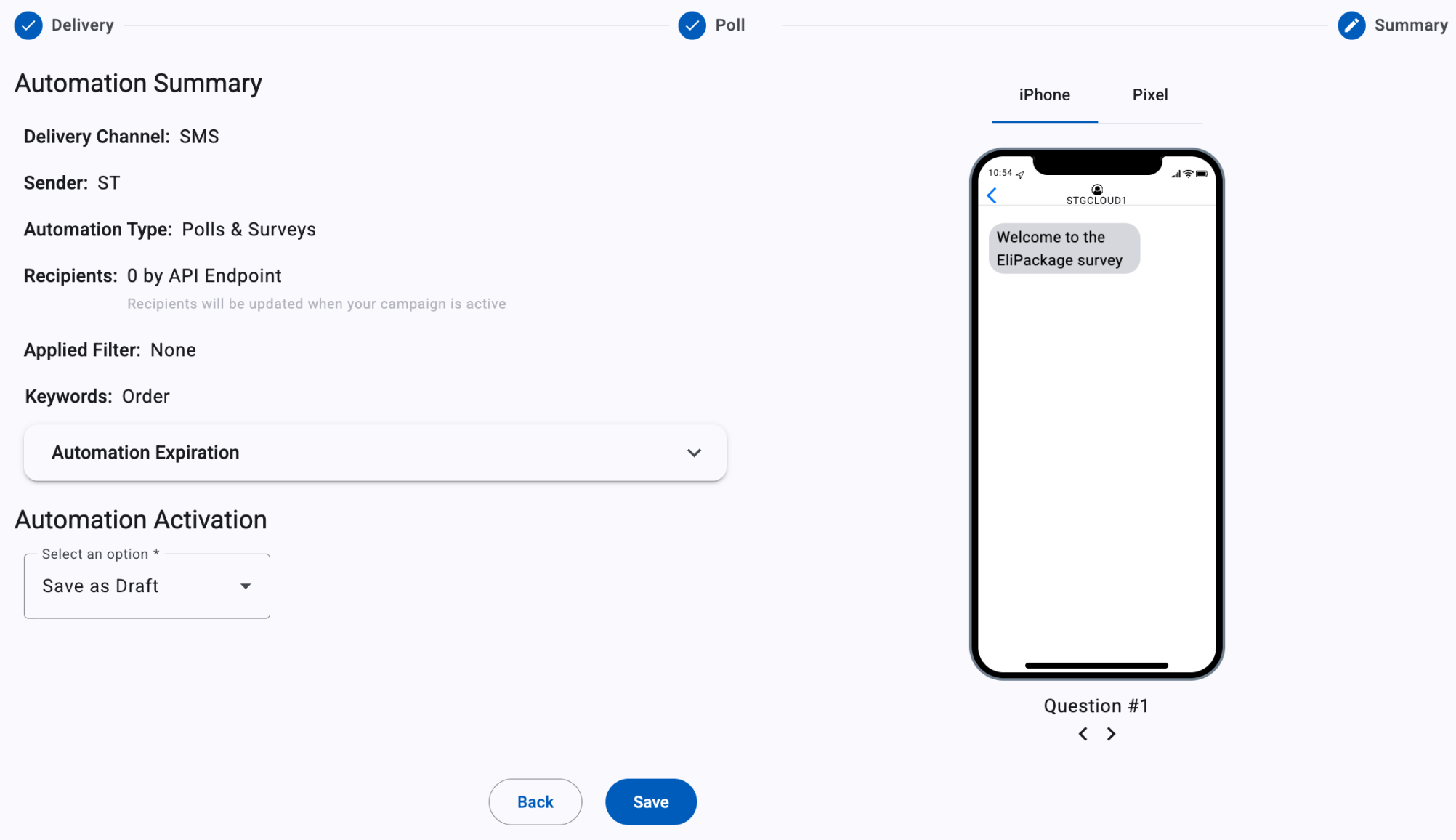
You review the following elements before submitting:
-
Delivery Channel: Type of channel (SMS, WhatsApp, RCS) through which the automation was sent.
-
Sender: The sender type selected during automation setup is used as the sender of the notification message.
-
Components: Type of components of which the interactive automation is composed: Automation type.
-
Recipients: Number of Recipients who will receive the automation.
-
Applied Filter: Filter type applied.
-
Automation Expiration: Configured date on which the automation will expire.
-
Throttle Configuration: Set through the slider, the rate at which the messages will be sent.
-
Automation Activation: Set the automation delivery date available if you set the delivery channel to SMS or WhatsApp - (Live, Now, Schedule, Save As Draft).
The Summary section in the Automation Elements covers Summary step settings. You view data and analytics in the Interactive Automation Reports section after delivering the automation.
via _SMS_, _WhatsApp_, or _RCS_. These automations are ideal for customer feedback, market research, and engagement.After selecting New Automation, naming it, and choosing Polls & Surveys, you’ll complete three setup steps:
- Delivery - Select the messaging channel (SMS, WhatsApp, or RCS) and choose the recipients who will receive the poll.
- Poll - Create your poll by adding an invitation message (optional), setting up your questions, and defining a closing message for participants.
- Summary - Review your automation setup and choose whether to launch immediately, schedule it, or save it as a draft.
Delivery
In this step, you define the Delivery Channel and the automation Recipients in the Delivery step.
Currently, three delivery channels are available for the Polls & Surveys automation:
For more information on selecting the desired delivery channel, go to the Delivery section.
For information on selecting the desired Recipients, go to Define Recipients in the Automation Elements section.
Poll
In the Poll step, you’ll set up the invitation message, questions, and closure message. A preview of the user experience is shown on the right.

Invitation Message
The Invitation Message can serve as the automation trigger to request poll participation if the poll is purely SMS driven; that is, only targeted recipients of this message will be aware of the Poll.
This does not need to be necessarily the case, because as part of your poll automation, its existence could be made available to a general audience by spreading awareness of it through alternative channels; posters, billboards, airwaves, and increasing poll participation through the use of keywords.

NOTEThe Invitation Message does not apply for automationS when keywords are used as the entry point in the "Recipients" options.
Trigger Keywords
Define one or more keywords that users can send to join the poll (e.g., “START”, “VOTE”). That is, Trigger Keywords are those that invoke the poll to be delivered to the participants. Upon their reception by the platform, it will begin delivering the poll questionnaire to the participant from which the keyword was received, thus initiating the poll.
You enter the Trigger keyword or keywords in the area provided at the bottom. These keywords will be included in the Invitation Message as they are the mechanism by which to gain access to the poll and you can see this reflected in the preview screen to the right.
Questions
This section is where you configure the poll's questions that will be sent to participants.
The Question Type selected determines how the response options are structured. The platform dynamically adjusts the interface based on the question type (Yes/No, Keyword Response, Multiple Choice) chosen.
Yes/No Questions
This question type requires a binary response, where users can only reply with "Yes" or "No".

- The message box allows you to input the question that will be sent to contacts.
- Below the message box, the system automatically assigns the keywords Yes and No as response options. That is, predefined keywords Yes and No appear automatically.
Keyword Response Questions
This question type allows users to respond with specific predefined keywords.

- The message box allows you to input the question that will be sent to contacts.
- The Keyword Response field allows you to define custom keywords users must reply with.
- Keywords are not case-sensitive, so the keywords "WELCOME" and "welcome" are equivalent entries, and only one can be used as a keyword.
Multiple Choice Questions
This question type allows respondents to choose from multiple predefined answer choices.

- The message box allows you to input the question that will be sent to contacts.
- From the Answer Prefix, you can choose whether the answer choices are prefixed with numbers (1, 2, 3, etc.) or letters (a, b, c, etc.).
- From the Answer Keyword, define answer choices (each limited to 30 characters).
- Multiple Choice Questions can have between 2 and 5 answers.
- Answer options will be shown as a "numbered" vertical list as defined by the radio button settings on the top. Answers are limited to 10 characters each.
- To include more answers to the question, select the Add Answer button.
Closure Message
The Closure Message ensures a positive user experience by confirming participation, showing appreciation, and optionally encouraging further interaction. This message will be sent after the last question of the poll is answered.

Once the poll configuration is concluded, you can review it on the simulated screen.
Click Next to continue with the creation of the automation.
Summary
The Summary step is where you take the final actions on your Polls & Surveys automation.
The summary step consists of the following elements:
-
Delivery Channel: Type of channel (SMS, WhatsApp, RCS) through which the automation was sent.
-
Sender: The sender type selected during automation setup is used as the sender of the notification message.
-
Components: Type of components of which the interactive automation is composed: Automation type.
-
Recipients: Number of Recipients who will receive the automation.
-
Applied Filter: Filter type applied.
-
Automation Expiration: Configured date on which the automation will expire.
-
Throttle Configuration: Set through the slider, the rate at which the messages will be sent.
-
Automation Activation: Set the automation delivery date available if you set the delivery channel to SMS or WhatsApp - (Live, Now, Schedule, Save As Draft).
For more information about the Summary step settings, go to Summary in the Automation Elements section.
When you deliver the Automation, you can view the data and analytics (Report) by going to the Interactive Automation Reports section.
Updated 7 days ago