WhatsApp is the premier OTT (Over-The-Top) messaging app for smartphones that is free to download and is nearing the two billion users mark. It uses the internet to send messages, images, audio, or video, although the subscription to the service requires a verifiable mobile phone number. In its evolution, WhatsApp has expanded its offerings, opening different ways to communicate: WhatsApp, WhatsApp Business, and WhatsApp Business API.
Our implementation uses the WhatsApp Business API, which has specific usage rules that must be followed. Although it represents a powerful tool for medium and large enterprises, it comes with some pros and cons. Here is a summary:
- WhatsApp Business Account approval from Meta is required
- Message Template must be approved by WhatsApp (response generally in 24 hours)
- Best for automation of processes via API
- Mainly for central support and call centers at medium to large companies
- Used in automated systems
- Does not have a real mobile interface
- It is not free, although some free messaging is available based on the reply patterns
- API can send messages through session and message template messaging
- No calling capabilities
- API broadcasts are not limited
The above gives you an overview of how WhatsApp Business API can be used for your enterprise and, consequently, how to plan to take advantage of this messaging service. You can review the WhatsApp Business Policy in detail by clicking here and WhatsApp Commerce Policy here.
Setting Up WhatsAppWhatsApp is a messaging broadcast that must be properly configured and enabled before it can be used.
To configure a WhatsApp Business Account (WABA) and assign phone numbers (senders), we offer two setup options: Partner-Initiated Request and Embedded Sign-Up.
The following table outlines the key differences between these two processes, including how each WABA is created and how phone numbers are managed:
Method
Description
Adding Phone Number Limitations
The WhatsApp Business Account (WABA) is created after the customer receives an invitation sent by the Messangi team via email or support ticket. The customer reviews and accepts the invitation, optionally adds a phone number (sender), and confirms. Once accepted, the WABA is created under the customer's Meta Business account and shared with Messangi.
Phone numbers can be added and verified directly within the platform using the
feature, once the WABA is active.
Once your WABA is
verified
, you can add up to
25 phone numbers
.
This self-service method allows the customer to create or link their own WhatsApp Business Account (WABA) through the Embedded Sign-Up flow available in the platform. They must authenticate with Meta and complete the entire setup, including assigning a phone number and business profile information. The WABA is created under their Meta Business account.
Phone numbers must be added as part of the sign-up process. To add more numbers later, the client must repeat the Embedded Sign-Up flow.
During the WhatsApp Embedded Sign-Up process, you can add up to
2 phone numbers
(senders) while configuring your account if the WABA
is not yet verified
.
Once your WABA is
verified
, you can add up to
25 phone numbers
.
Please refer to the WhatsApp Status section for a detailed explanation of message status. The first section outlines the sequence of status values for outbound messages, while the second section details the three potential final statuses once a message is sent.
Sending WhatsApp
After selecting New Broadcast/Automation, entering the New Broadcast/Automation Name, and selecting WhatsApp, you are brought to the WhatsApp Broadcast creation section, which has the following steps:
- Detail
- Recipients
- Message
- Summary
Detail
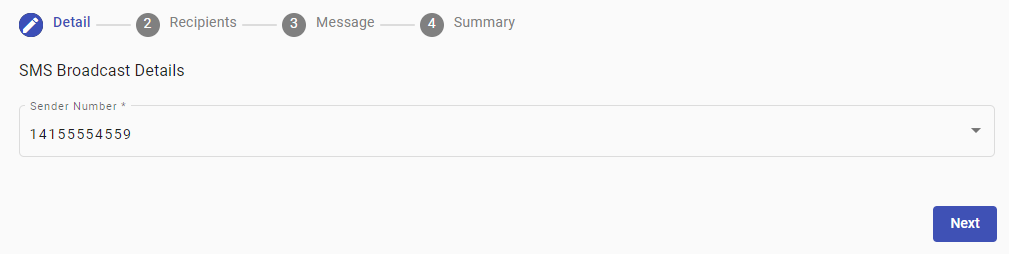
In the ‘Detail’ step,
-
In the Sender WhatsApp Business Account dropdown, choose from the list of available WhatsApp senders configured in your Workspace. Each sender is listed by its alias and associated phone number.
Once a sender is selected, a summary panel titled WhatsApp Sender Information will automatically appear below the dropdown. This panel displays real-time information about the selected sender, including:

- Status: Indicates the current connectivity state of the sender with the platform. A status of CONNECTED means the sender is actively linked and can send and receive messages.
- Quality Rating: Reflects the performance level of the sender, based on user engagement and message quality as determined by Meta. A High rating suggests good message delivery performance and user experience.
- Tier: Displays the messaging tier level assigned to the sender, which determines the maximum number of business-initiated conversations allowed per day. For example, a Tier value of 1,000 allows up to 1,000 customer-initiated conversations daily using approved message templates.
This ensures that you have selected a sender that is both active and compliant with Meta’s quality and messaging volume requirements.\
NOTEThe ability to proceed with a WhatsApp messaging automation is contingent upon the operational status of the selected sender. If the sender is assigned any of the following statuses —
RESTRICTED,PENDING,DISCONNECTED,UNKNOWN,DELETED, orBANNED— it will be considered ineligible for automation execution.Senders in these states are not authorized to dispatch WhatsApp messages or Message Templates, as they fail to meet the connectivity or compliance requirements established by Meta.
Consequently, the platform will prevent progression to subsequent configuration steps, such as selecting recipients or composing the message, until a sender with a valid status is selected.
For a detailed explanation of Tier levels, Quality Rating values, and Status definitions, please refer to the corresponding documentation section: WhatsApp Sender Quality Rating & Status.
- Select Next.
Recipients
As you begin using WhatsApp, your account will be set at a starting level designated as Tier 1. There are four Tiers, and each Tier allows you to send messages according to the following:
- Tier 1: to 1,000 unique customers in a rolling 24-hour period.
- Tier 2: to 10,000 unique customers in a rolling 24-hour period.
- Tier 3: to 100,000 unique customers in a rolling 24-hour period.
- Tier 4: unlimited customers in a rolling 24-hour period.
NOTEWhatsApp tiers (also known as messaging limits) apply per phone number (sender), not per WABA.
Although a WABA (WhatsApp Business Account) can have multiple senders (verified phone numbers), each sender has its own independent tier, determined by its reputation and activity level.
In consequence, it is important that when you specify the contacts, their numbers need to fall within the limits established by the tier that your business is currently at. For further details, click here.
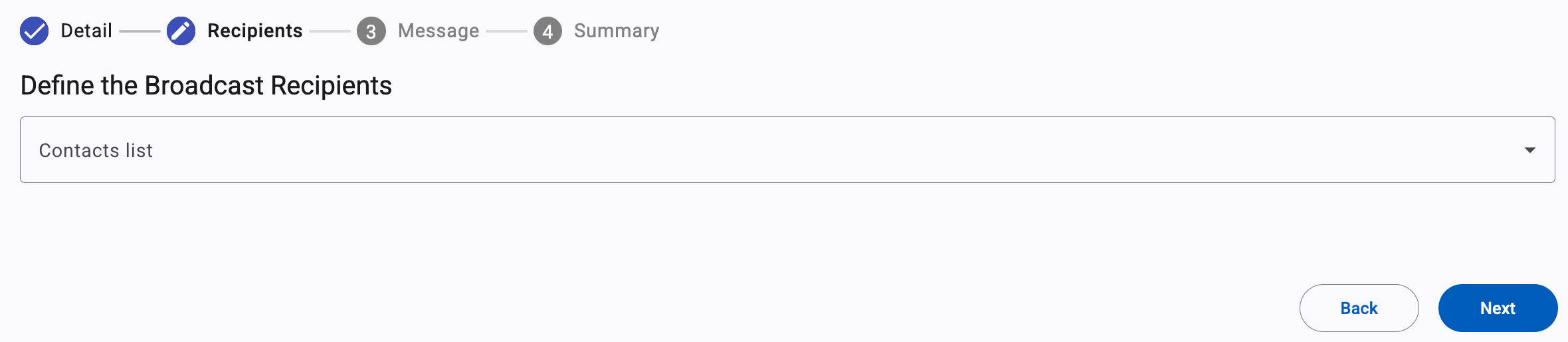
The Recipients can be defined in one of three ways,
For the case of WhatsApp, given that the engagement policies are very specific and impact your Tier level, you should choose carefully which one is best suited at any given time, as each of the methods of defining recipients serves a different need.
The details for defining the recipients are outlined in Define Contacts in the Messaging Elements section; nevertheless, here are the basic steps:
- In the Contacts list dropdown menu, choose one of the options.
- Optionally apply a filter if the broadcast requires it
- After selecting the Recipients, click Next to continue.
Message
The ’Message’ step in the process is context-dependent, and it will consistently vary between two scenarios throughout your use of the service.
There are two ways of creating a message for a WhatsApp broadcast:
• Using a Message Template
• Without a Template
Using a Message Template
In the case that you are initiating contact with one of your customers, you must use a previously WhatsApp-approved message template in the communication.
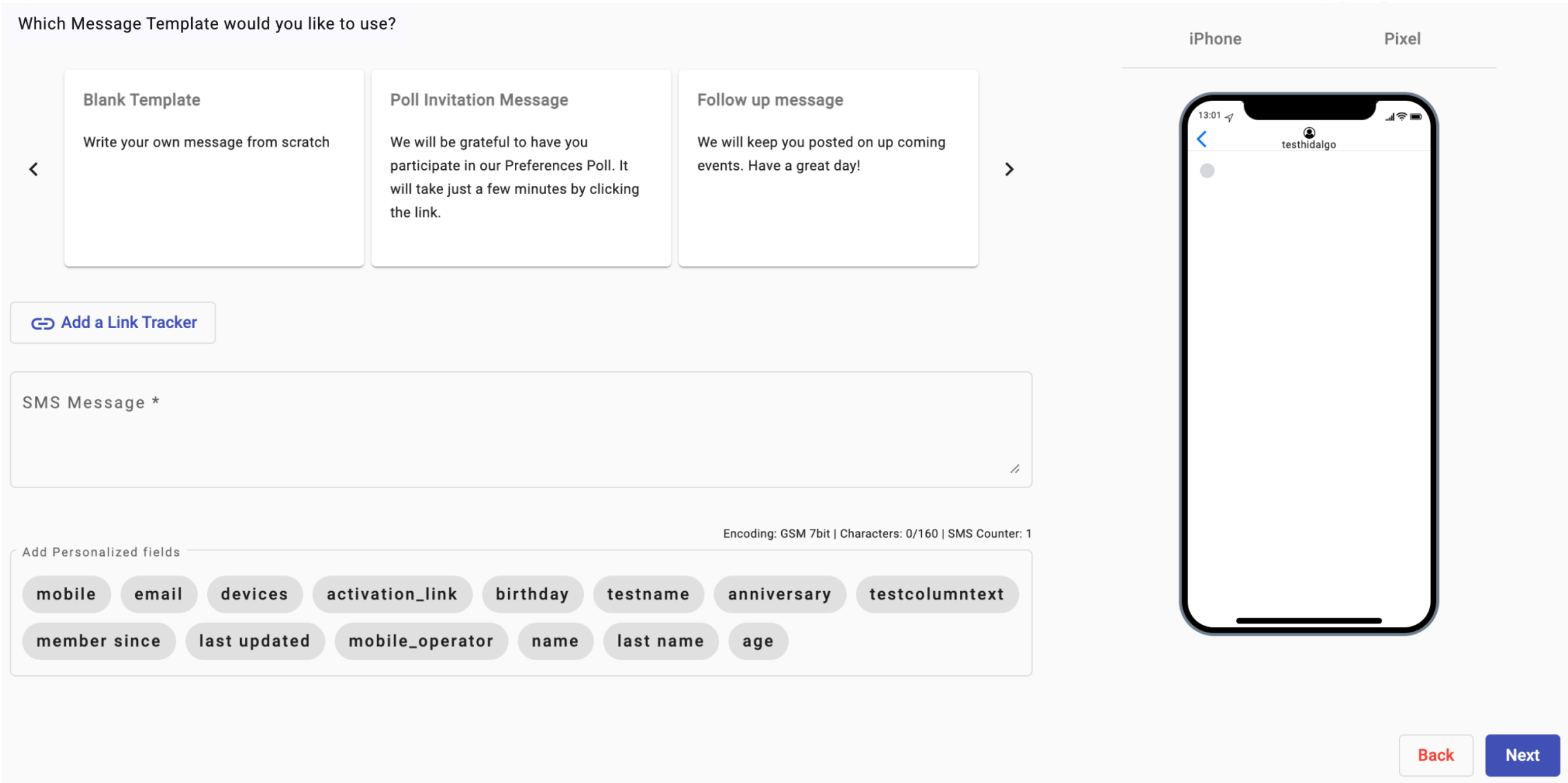
The message templates that have been approved by WhatsApp for your enterprise appear at the top of the Message screen for ease of selection. You must use one of those message templates.
In the sample screenshot that follows, there are two preapproved message templates to select from. As you evolve in your use of WhatsApp with your enterprise, other message templates can be included after the WhatsApp approval process. You can scroll to view all your message templates with the left and right scroll arrows at each side of the message templates section.
The steps to send a message for this scenario are:
- Select the message template to be used. The WhatsApp Message box will be filled with the message template’s content, and the emulated device will show a preview.
- If the WhatsApp Message Template chosen includes a Header with a media file, upload the required media file (image, video, document) in the message template. (Editable for multimedia content, such as images, videos, or documents)\
NOTEWhen preparing to test or send an approved WhatsApp message template with a header that includes a multimedia file, you must upload a media file (image, video, or document) as part of the process. Initially, when choose the message template at the top displays the original media file configured when the message template was created, allowing the user to review what was initially set.
For testing or actual message sending, META requests to re-upload the media file. This upload can be either the original file or a different file, depending on the user’s preference. This ensures that the correct media file accompanies each message sent, whether it’s a test message or a live message.
It is recommended that users read these policies to ensure that all content used in WhatsApp message templates adheres to platform guidelines. Understanding these rules can help avoid rejections and ensure that images, videos, and other media align with WhatsApp’s standards for acceptable, respectful, and compliant content. Understanding these rules can help avoid rejections and ensure that images, videos, and other media align with WhatsApp’s standards for acceptable, respectful, and compliant content.

The Header supports the following multimedia file types and size limits:
File type Supported formats Maximum file size Image .jpeg,.jpg,.png5 MB Video .mp4,.3gpp,.3gp16 MB Document .pdf100 MB Audio .aac16 MB NOTES:
- Video files must use the H.264 video codec.
- Audio tracks in video files must use the AAC codec.
Depending on the message template selected for the WhatsApp message, make sure that among the attributes associated with the contact, the values of the fields used in the message template are included. For example, if the dev_ae_testing_09_03_2 message template, shown in the graphic, is to be used in the message, the attributes associated with the contact must include the values of the [[mobile]], [[placholdermanual]], and [[testname]] fields.
- Select Next
ON SENDING MESSAGESMessages are sent only if all the information associated with the personalized fields in the message template are present, otherwise the message will not be sent.
Without a Message Template
If your business has already engaged in communications with the customer(s) you intend to send messages to, or the customer has contacted your business within a 24-hour window, you can bypass the message template requirement by disabling the Use Message Template setting at the top of the screen.
ON ACCEPTABLE MESSAGES (24-hour window)WhatsApp's statement on acceptable messages:
“If a person initiates a chat with you, you may continue that conversation via WhatsApp for up to 24 hours after the last message sent to you by that person without charge ("24-hour Window")."
Messages outside the 24-hour window, will not be sent and will result in a FAILED state. We encourage you to review WhatsApp's policy here.
There are two type WhatsApp message responses:
- Text
- Multimedia
Text
In this scenario, you can create a text message of up to 4096 characters in length with personalized content with any of the platform fields, with or without emoji, and add tracked URLs to the message.
Multimedia
In this scenario, you can create elaborate responses that include a text message of up to 4096 characters in length with personalized content, with or without emojis, include attachments of various file types, multimedia, pdf, up to 5 MB in size, and a Link tracker.
The steps to send a message for this scenario are:
-
Fill out the WhatsApp Message box, which can include emojis.
-
Optionally add one or more tracked URLs to the message.
-
Optionally include any attachments in the Add multimedia files.
The details below specify the types of multimedia files that support the platform, along with their maximum file sizes and supported formats:
File type Supported formats Maximum file size Image .jpeg,.jpg,.png5 MB Video .mp4,.3gpp,.3gp16 MB Document .pdf100 MB Audio .aac16 MB NOTES:
-
Video files must use the H.264 video codec.
-
Audio tracks in video files must use the AAC codec.
NOTEIt is recommended that users read these policies to ensure that all content used in WhatsApp message templates adheres to platform guidelines. Understanding these rules can help avoid rejections and ensure that images, videos, and other media align with WhatsApp’s standards for acceptable, respectful, and compliant content.
-
-
Once the message content is selected, select Next
Summary
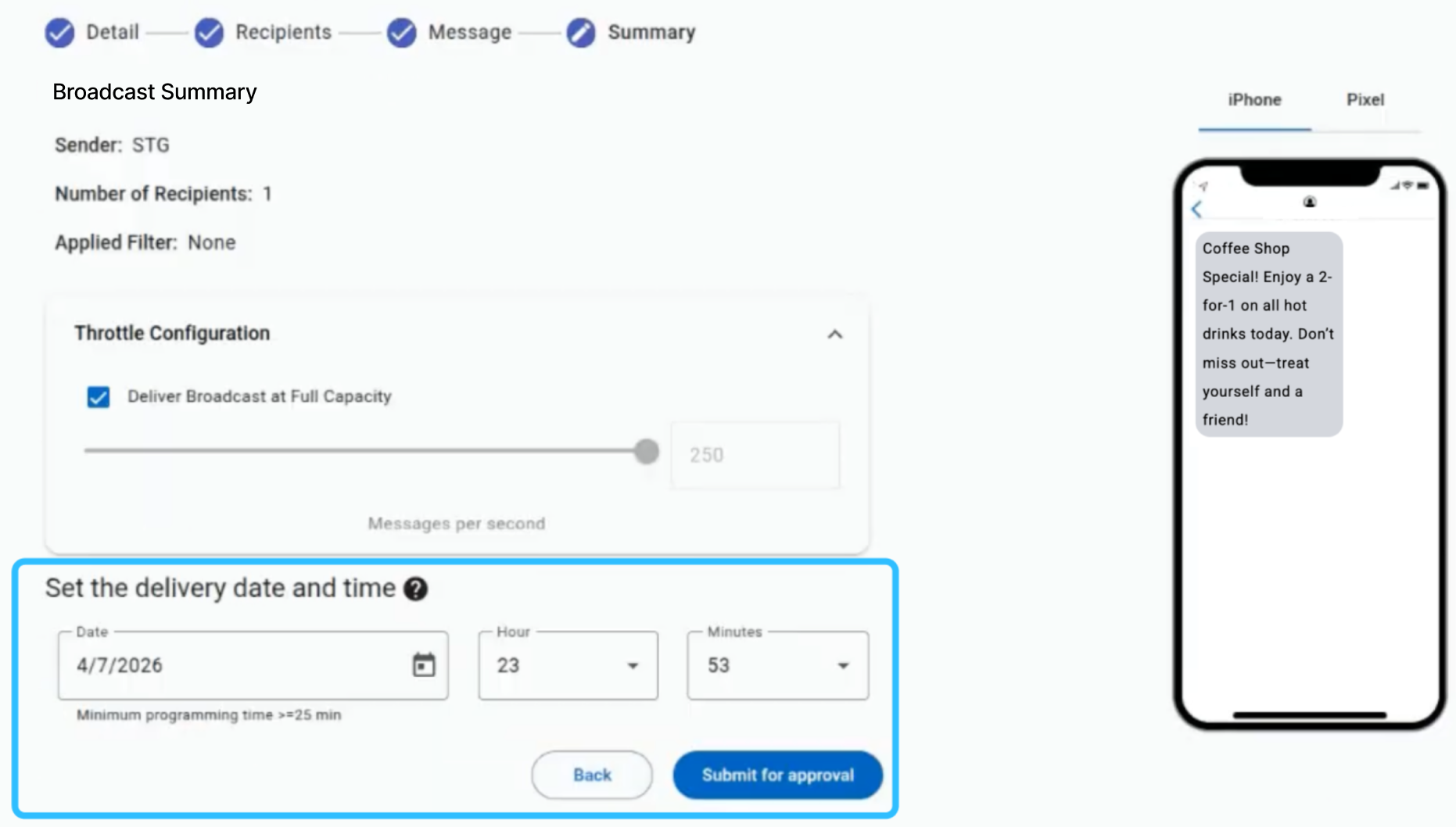
In Summary, the final step of the WhatsApp creator is where you can:
- Review broadcast details.
- View configured link tracking settings.
- Set the message delivery Throttle configuration.
- Set the delivery timetable.
The Messaging Overview offers a quick way to double-check the Sender WhatsApp Business Account, the number of recipients, whether filters are applied or not, and the message contents in the emulated device screen.
For more information about the Summary step settings, go to Summary in the Messaging Elements section.
When you send WhatsApp messages, you can view the data and analytics (Analytics & Reporting) of each message sent by going to the WhatsApp Reports section.
Edit WhatsApp Broadcast
To be able to edit the WhatsApp broadcast, the notification must not have been sent yet. That is, once the user has completed each step and the broadcast activation has been saved as "Draft" or "Schedule", you will be able to edit each step of the broadcast.
The steps to edit a WhatsApp broadcast are the following:
Click on the Analytics & Reporting icon and select the Messaging tab. Then, locate the broadcast saved as Pending (Draft) or Scheduled status and click on the Analytics & Reporting button.
From the broadcast card, click on the Edit button. Once clicked, it will redirect you to the last step of the broadcast configuration.
You can edit the:
- Sender WhatsApp Business Account.
- Recipients who will receive the message.
- Message Template (WhatsApp message).
- Throttle configuration.
- Broadcast activation.
Once finished with the edition, select the Broadcast Activation button located in the Summary section.
Updated 3 days ago